
Upload your photo
Add a JPG, PNG, or WebP that is too tightly cropped or needs a wider frame.
AI Uncrop Image
Upload a tightly cropped photo and the AI uncrop image expands its borders — the AI generates natural surroundings beyond the original edges in one click, keeping your subject untouched.
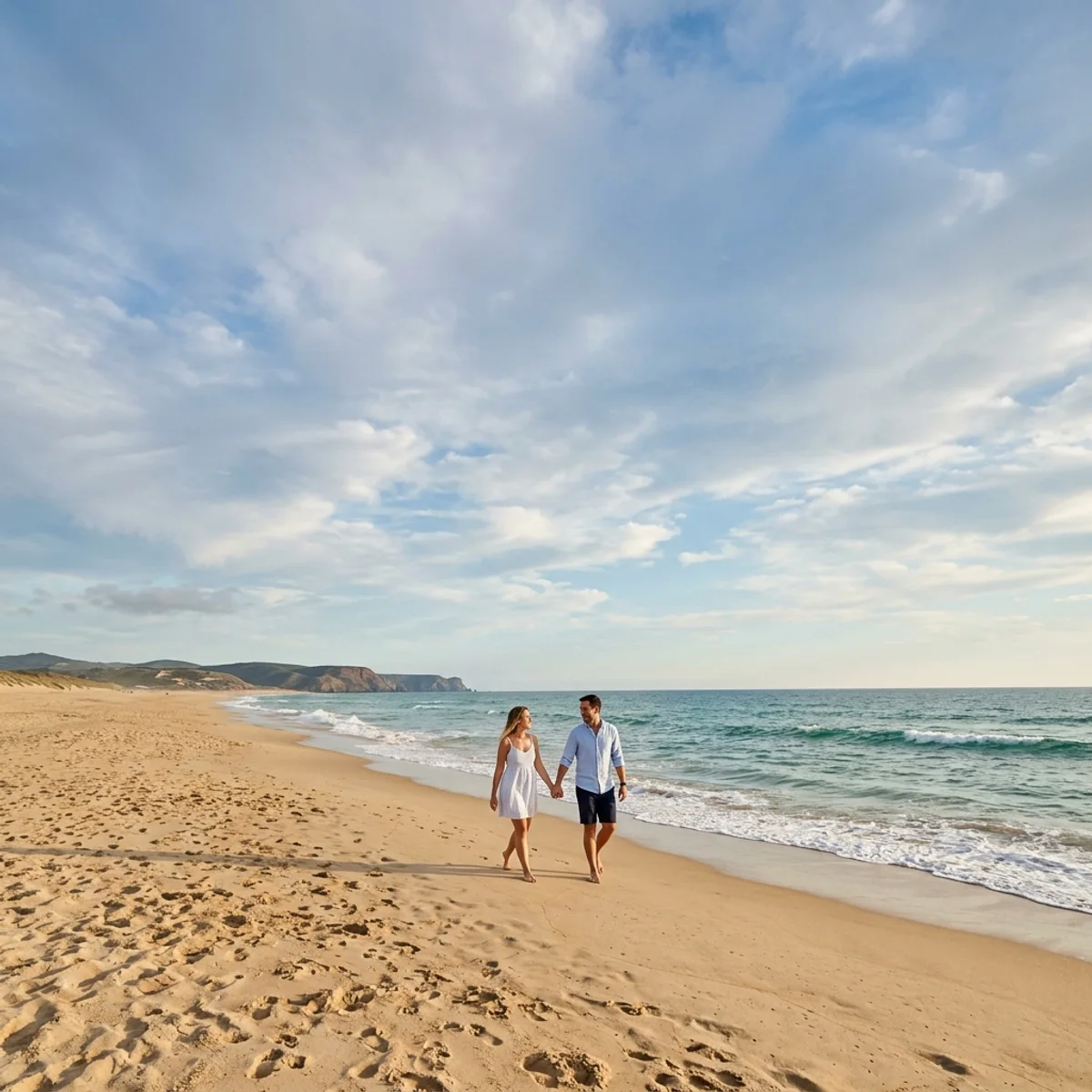
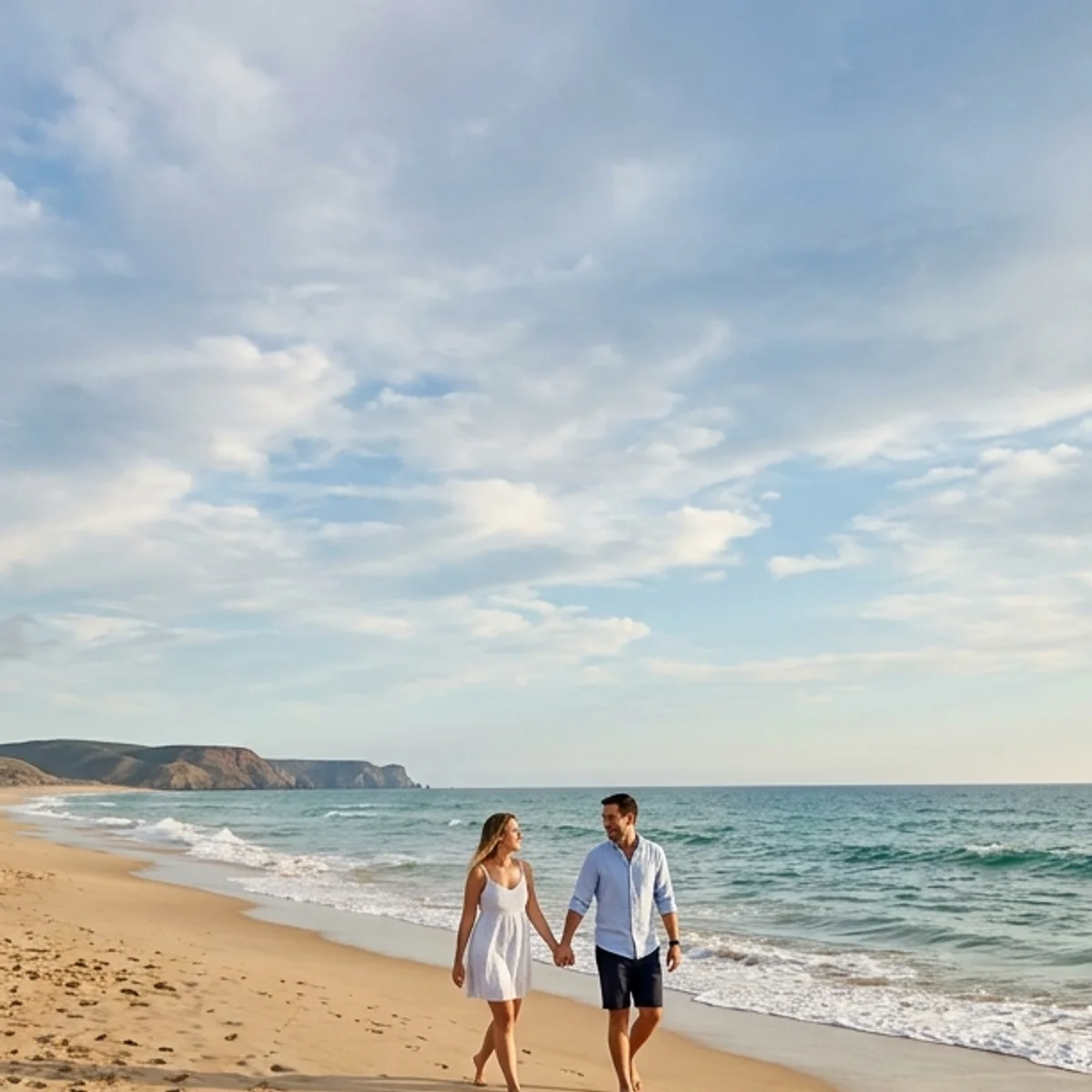
Examples
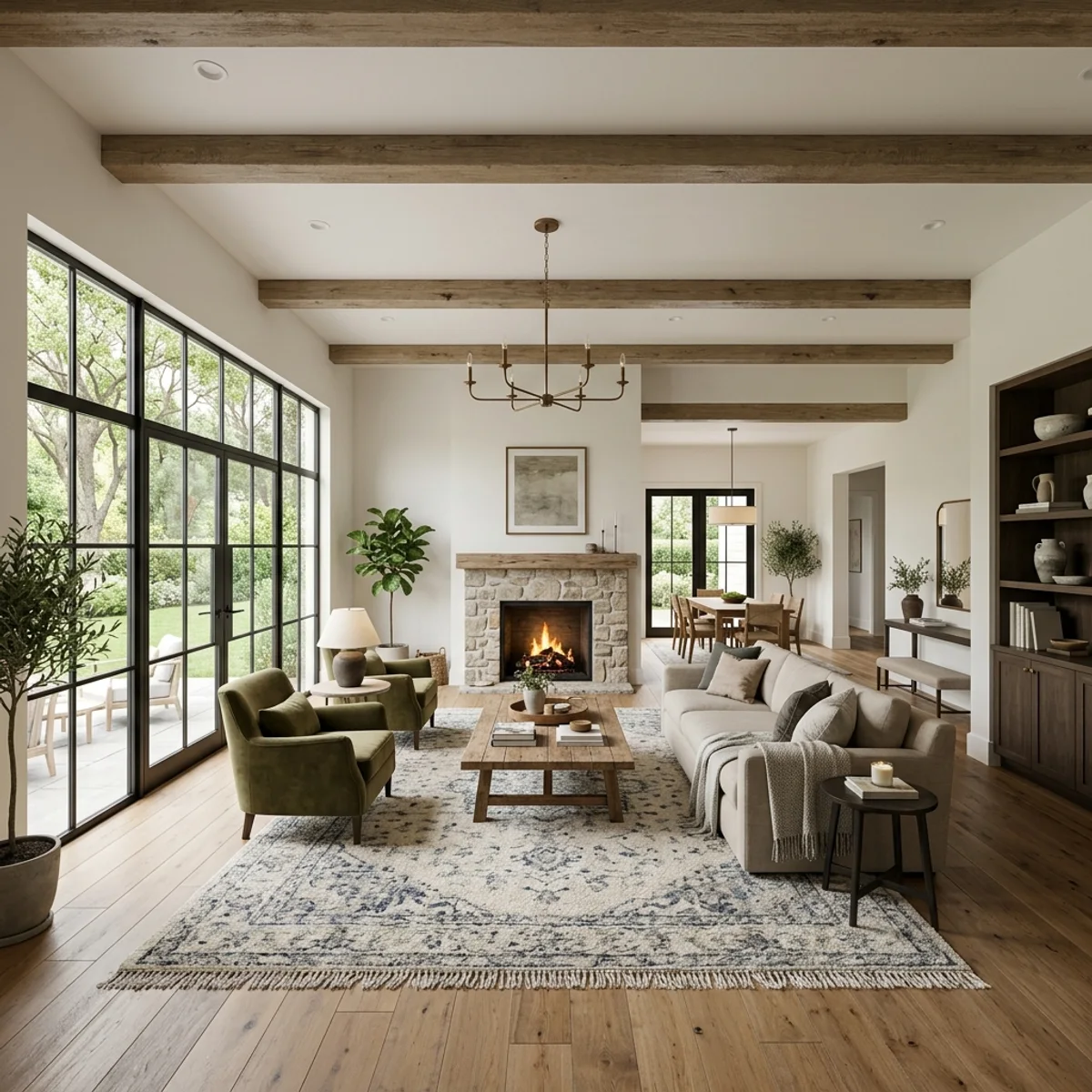
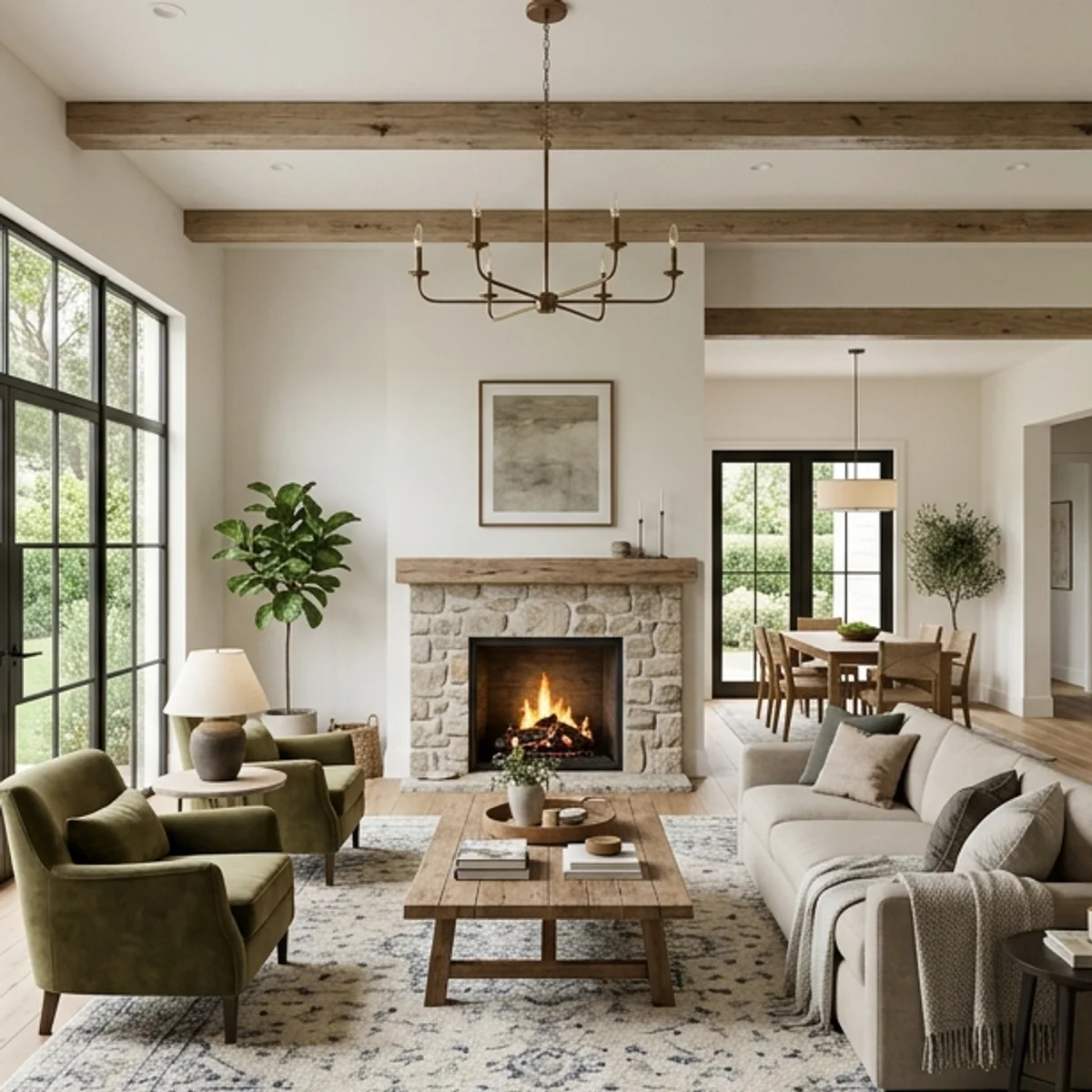
Beach, park, and indoors — drag each slider to see how the AI extends the frame beyond the original edges while keeping the subject untouched.
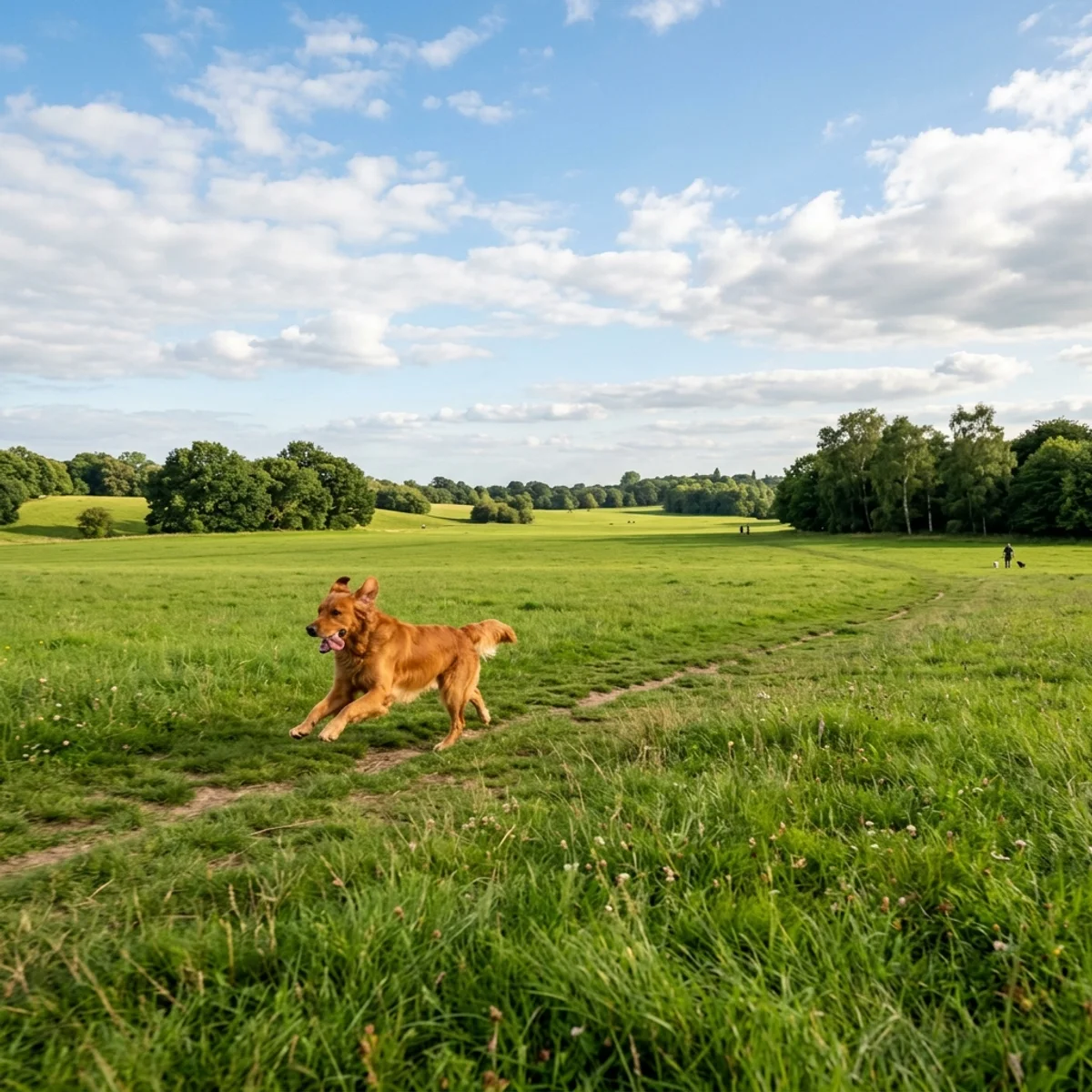
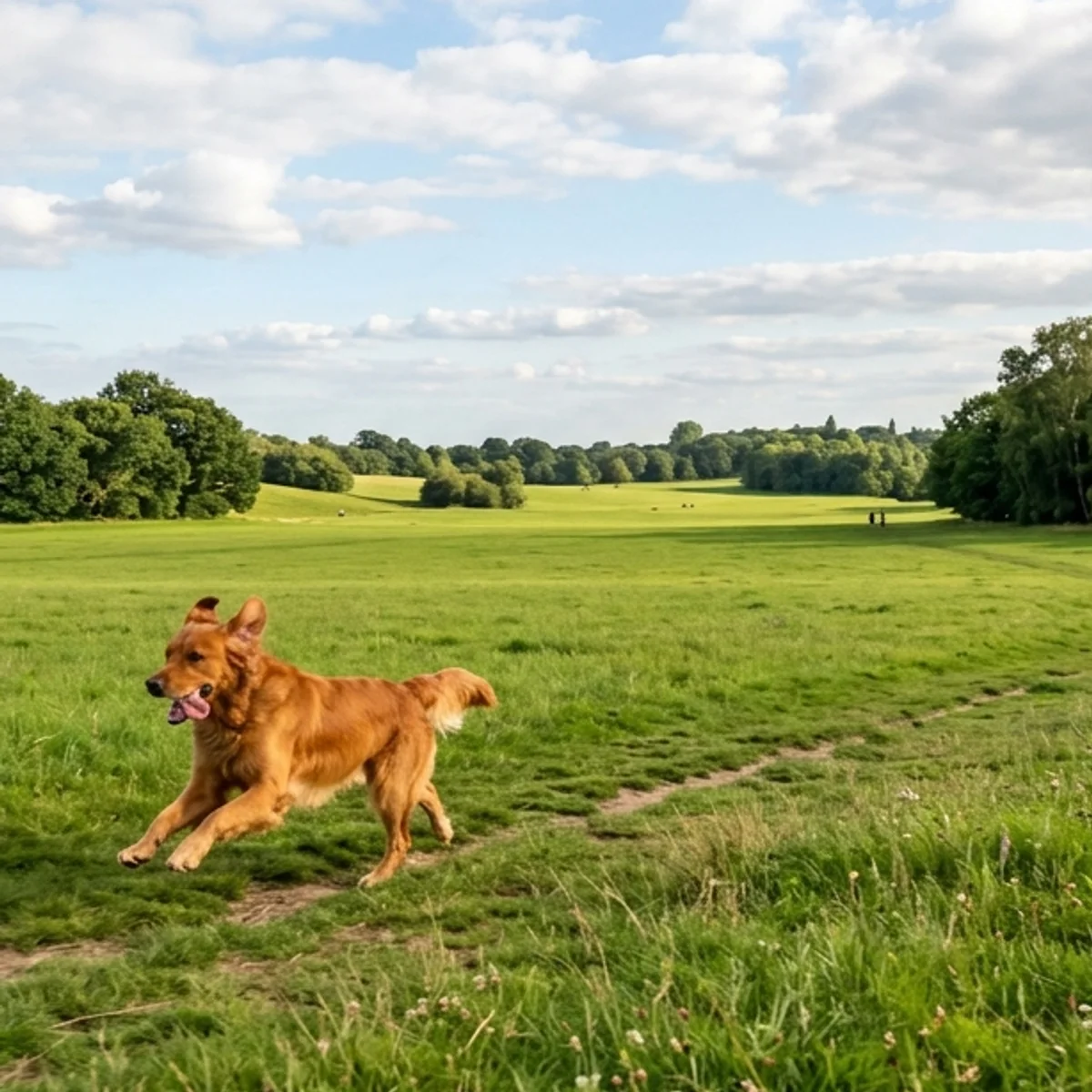
Why it looks real
A convincing uncrop only works if nobody can see where the original ended. The model samples the edges of your photo and builds outward — while leaving every existing pixel exactly as it was.
The model never touches the existing pixels — only the area outside the original frame is generated, so your subject stays exactly as shot.
Lighting, color palette, texture, and perspective are sampled from the edges of your photo so the new area blends in rather than standing out.
The boundary between the original image and the generated extension is smoothed so no visible seam, hard line, or color shift is left behind.
Workflow
Upload, expand, and review — then download a seamlessly extended result.
Add a JPG, PNG, or WebP that is too tightly cropped or needs a wider frame.
The model reads the edges of your photo and generates matching surroundings outward in one pass.
Check the boundary between the original and generated areas. Run a second pass if any seam or color mismatch is visible.
Sign in to save history and remove the export watermark from your final expanded image.
Use cases
Use the AI uncrop image to recover lost context, reframe for any platform, and extend the scene — without re-shooting.
Recover cut-off heads, feet, or hands in portraits and group shots without going back to the original shoot.
Turn a square crop into a landscape banner or a portrait into a widescreen cover by expanding the canvas to fit the platform.
Give subjects breathing space by extending the sky, ceiling, or background above them — a common fix for real-estate and product photos.
Stretch a hero image or focal shot into a wider wallpaper or website banner without distorting the original subject.
FAQ
Practical answers about the AI uncrop image — outpainting, aspect ratios, and getting a seamless expansion.
Yes. Upload a photo and expand its borders with the free base model. Sign in to keep results in history and remove the export watermark from your downloads.
AI uncropping — also called outpainting — extends a photo beyond its original edges. The model looks at the existing content and generates plausible surroundings that match the scene in lighting, color, and style.
No. The model only generates content outside the original frame. Every pixel inside your uploaded photo stays exactly as it was.
Photos where the edges of the frame contain enough visual context — sky, ground, walls, or open space — give the model the best clues for extending the scene. Extreme close-ups with no context at the edges are harder to expand convincingly.
Yes. Uncropping is the easiest way to reframe a landscape photo for a portrait format, add headroom to a portrait, or fit a square crop to a widescreen banner — without re-shooting or losing the original subject.
Upload a JPG, PNG, or WebP up to 10MB. Use the highest-quality version of your photo for the cleanest extension at the edges.
Start with a prompt or reference, compare models, and save the best result to history. Upgrade when you need cleaner exports, stronger models, or more production volume.