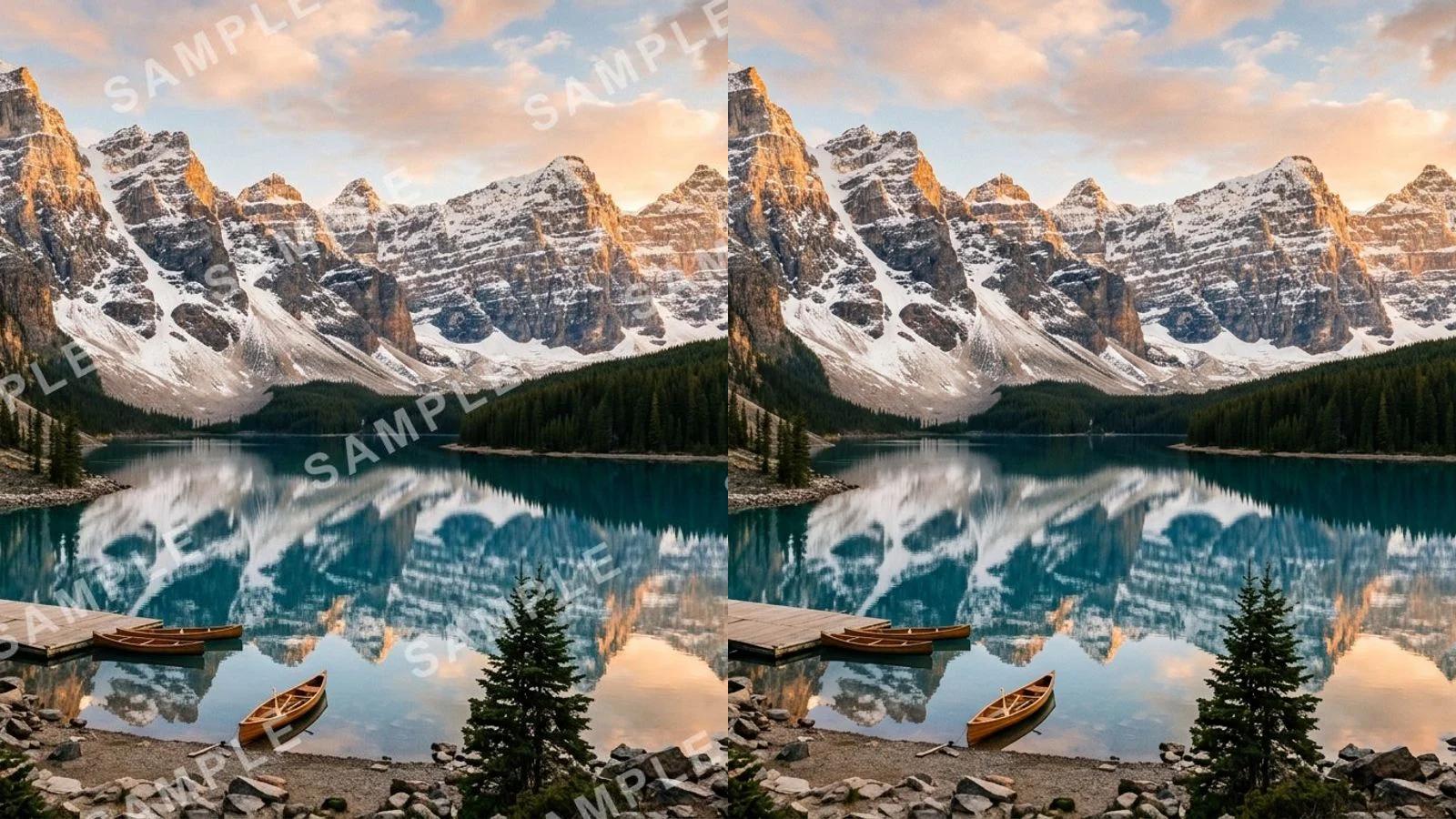
You have a photo you want to use, and one thing is in the way: a faint repeating watermark, a corner logo, a date stamp the camera burned in, or a signature on a file you already paid for. The picture is fine. The mark is not.
Removing it used to mean cloning and healing pixels by hand in Photoshop, which is slow and rarely seamless over texture. The AI watermark remover works differently. You upload the image, it finds the mark, and it rebuilds the pixels underneath so the patch disappears. No brush or masking, and nothing to install. This guide covers how to remove a watermark from a photo for free, how to get a clean result, and when you should not run the tool at all.
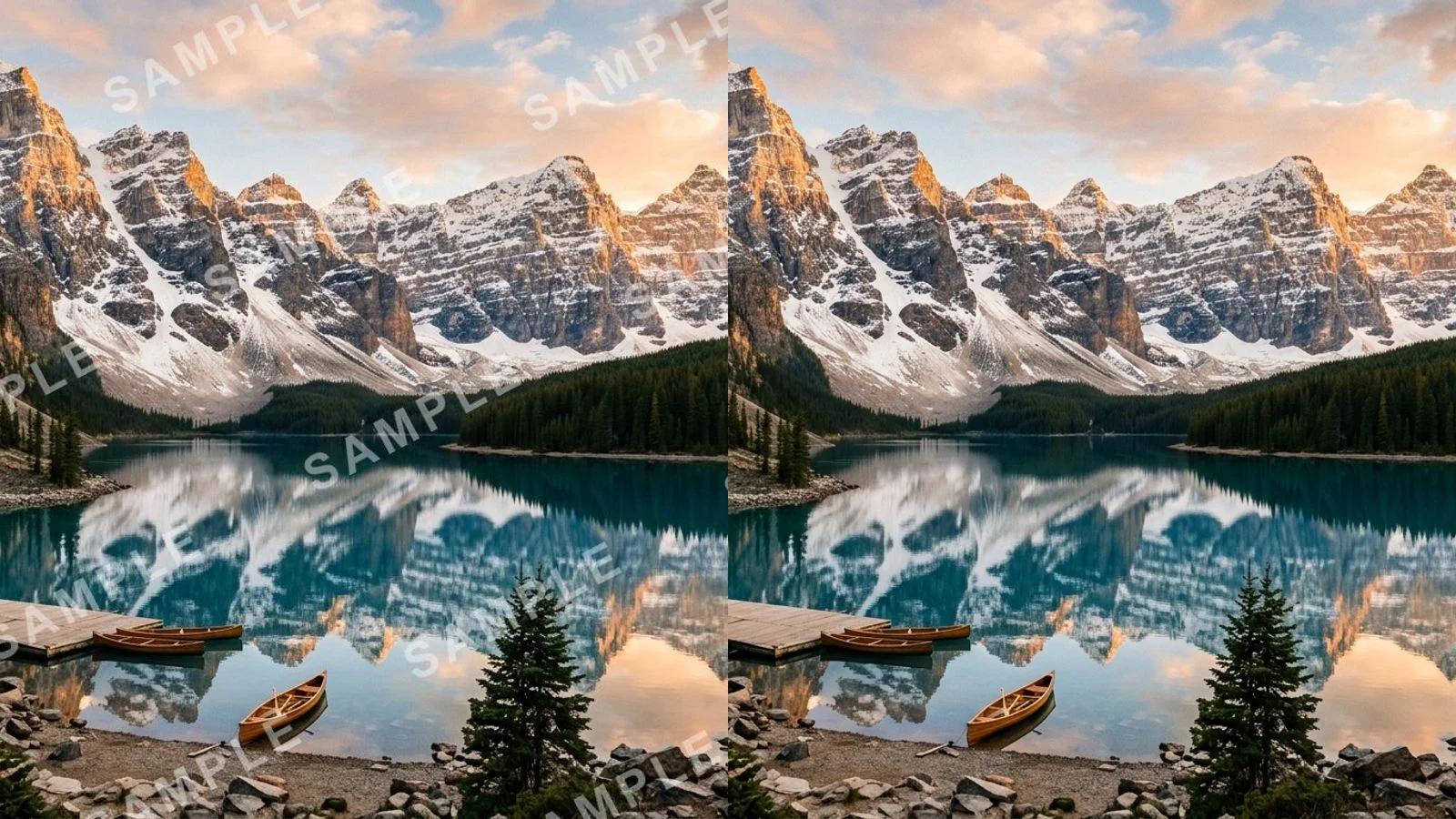
Settle this before you touch the tool. It is a hard line, not a gray area.
Only remove watermarks from images you own or are licensed to edit. Your own photos. A stock file you have already purchased. Supplier or brand shots you are explicitly authorized to use.
Do not remove a watermark to:
- Skip a stock-photo or licensing fee.
- Get around copyright on someone else's work.
- Strip required attribution from an image.
A watermark is often the license boundary itself. Taking it off does not give you the right to use the image, and that responsibility is yours, not the tool's. If you are unsure whether you are allowed to edit a file, license it properly first. This tool is for cleaning up your own assets, not for taking someone else's.
The model detects the mark and reconstructs the area underneath instead of blurring it, so the result depends on how much real detail the watermark is hiding.
It works best on:
- Semi-transparent stock marks over simple backgrounds
- Tiled or repeated text across the whole frame
- Small corner logos, badges, and app stamps
- Date, time, and timestamp marks
- Typed or handwritten signatures
It struggles with:
- Heavy, opaque marks that fully hide the content beneath
- Large logos spanning the main subject
- Watermarks over busy detail like hair, foliage, or fine text
- Low-resolution or heavily compressed source files
- Dense full-image patterns at high contrast
Small and faint is easy, because the model has plenty of surrounding pixels to rebuild from. Large and opaque over intricate detail is the hard case, because there is less real information to work with. Hard cases are not lost causes. They usually need a second pass or a crop to the cleanest region.
Go to the AI watermark remover and upload the watermarked photo. Drag the file in or click to select it. Supported formats are JPG, PNG, and WebP up to 10MB.
Start from the highest-resolution copy you have. A compressed screenshot or a small thumbnail gives the model less to work with, and the patch comes out softer. If you have the original file, use it.

There is no brush, lasso, or manual masking. You do not draw over the watermark or tell the tool where it is. Detection is automatic.
Click Remove watermark. The model finds the mark, then rebuilds the pixels underneath to match the surrounding color, grain, and texture. Everything outside the mark stays untouched, so resolution and fine detail in the rest of the photo carry through unchanged. This takes a few seconds.
You do not configure anything for a basic removal. The tool runs one reconstruction pass and returns a clean version.
When it finishes, don't just download the first frame. Zoom into the area where the watermark used to be and look closely:
- Is the patched region seamless, or is there a soft, smeared, or off-color spot?
- Did edges and lines that ran through the mark line up cleanly on both sides?
- Are there faint ghost traces of the original watermark left behind?
For most photos with a faint or tiled mark, the first pass is clean. The coffee cup above clears completely because the watermark sits over fairly even tones.

If a heavy, high-contrast mark over busy detail leaves a trace, that's expected. Move on to the tips below instead of accepting a smudged result.
A few habits separate an invisible patch from an obvious one.
| Habit | Why it helps |
|---|
| Start from a better source | Resolution is the biggest lever. The full-size original rebuilds cleaner than a screenshot. |
| Inspect at 100% | Smudging and color shifts hide at thumbnail size and jump out full-screen or in print. |
| Run a second pass | Feeding the cleaned image back through catches a stubborn ghost from dense or high-contrast marks. |
| Crop to the cleanest region | If a large logo leaves a trace, cropping it out beats chasing a perfect rebuild. |
| Regenerate a soft patch | Each run varies. If the area looks blurry, run it again before settling. |
Small corner logos and signatures usually clear in one pass because they sit over a limited area. Large marks spanning the subject are the ones worth a second pass.
You can upload an image and remove watermarks with the free base model, no card required. Signing in keeps your results in history so you can come back to them, and it removes the export watermark from your own downloads.
If the mark sits on an image you have the right to edit, the rest is fast. Upload, let the AI detect and rebuild, check the patch, and download a clean copy. Faint and small marks clear in seconds. Heavier ones take a second pass or a crop.
Try the free watermark remover →