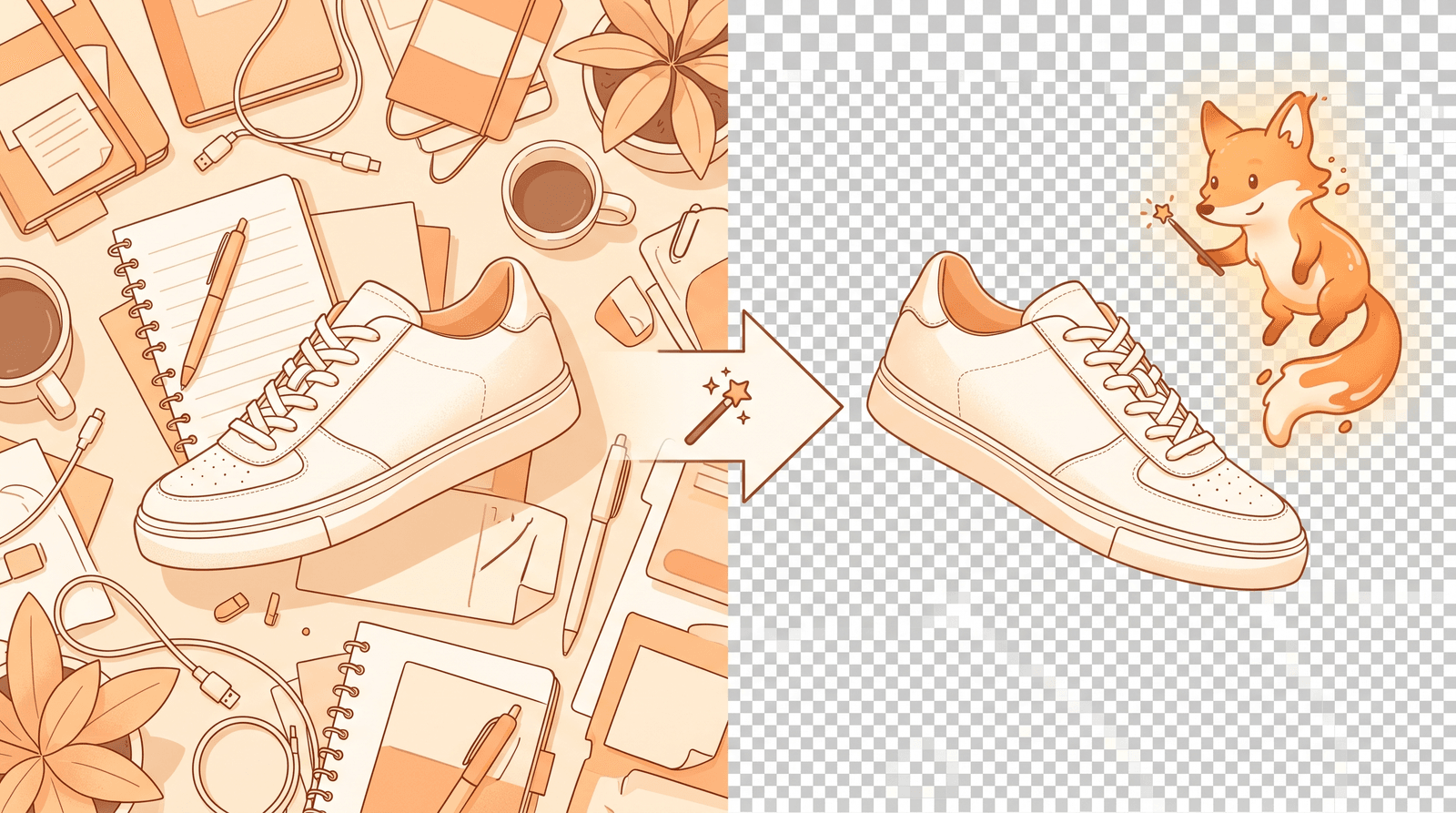
Removing a background used to mean opening Photoshop, grabbing the pen tool, and tracing around hair and edges for twenty minutes. Now an AI model does the same job in a few seconds, and it handles the fiddly parts like fur, glass, and soft shadows better than most manual selections.
This guide shows how to remove a background from an image for free using the Inkfox AI background remover. No design software, no subscription, no tracing. Upload, let the AI cut it out, and download a clean transparent PNG.
Before removing anything, it helps to know what a cutout is for. A transparent PNG is useful when the product or subject has to sit on top of something else:
- Marketplace and ecommerce listings that require a plain or white background.
- Product images layered into a landing page or banner design.
- Logos and objects you reuse across decks, social posts, and ads.
- Profile pictures and stickers that need clean edges.
- A packshot for a comparison table or feature grid.
If the whole point of the image is the scene, you probably do not need to remove the background. If the point is to reuse the subject somewhere else, a cutout is exactly what you want.
The AI does the hard work, but the source still sets the ceiling. You get the cleanest cutouts when:
- The subject stands out from the background with reasonable contrast.
- Edges are in focus and not heavily motion-blurred.
- The subject is not blending into a background of the same color.
- Lighting is even, without blown-out highlights swallowing the edges.
Tricky cases like wispy hair, glass, and thin wires work better than they used to, but a busy background that matches the subject color is still the hardest scenario.
Go to the AI background remover and upload your photo. You can drag the file in or click to select it. There is no prompt to write and no settings to configure for a basic removal, which is what makes this tool fast.

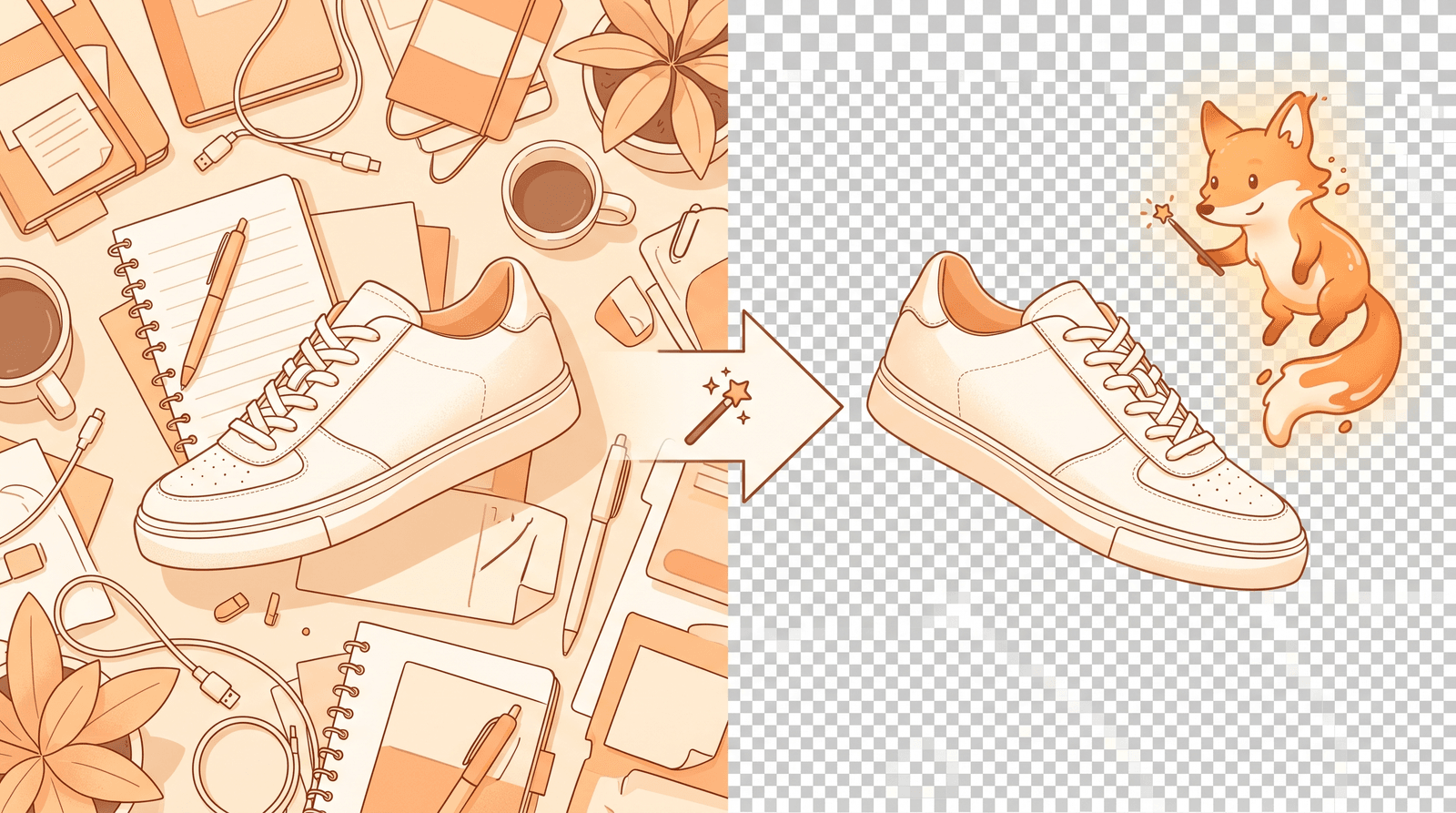
Once your image is selected, click Remove background free. The AI analyzes the photo, finds the main subject, and cuts around its edges, including the parts that are slow and frustrating to do by hand. This usually takes a few seconds.
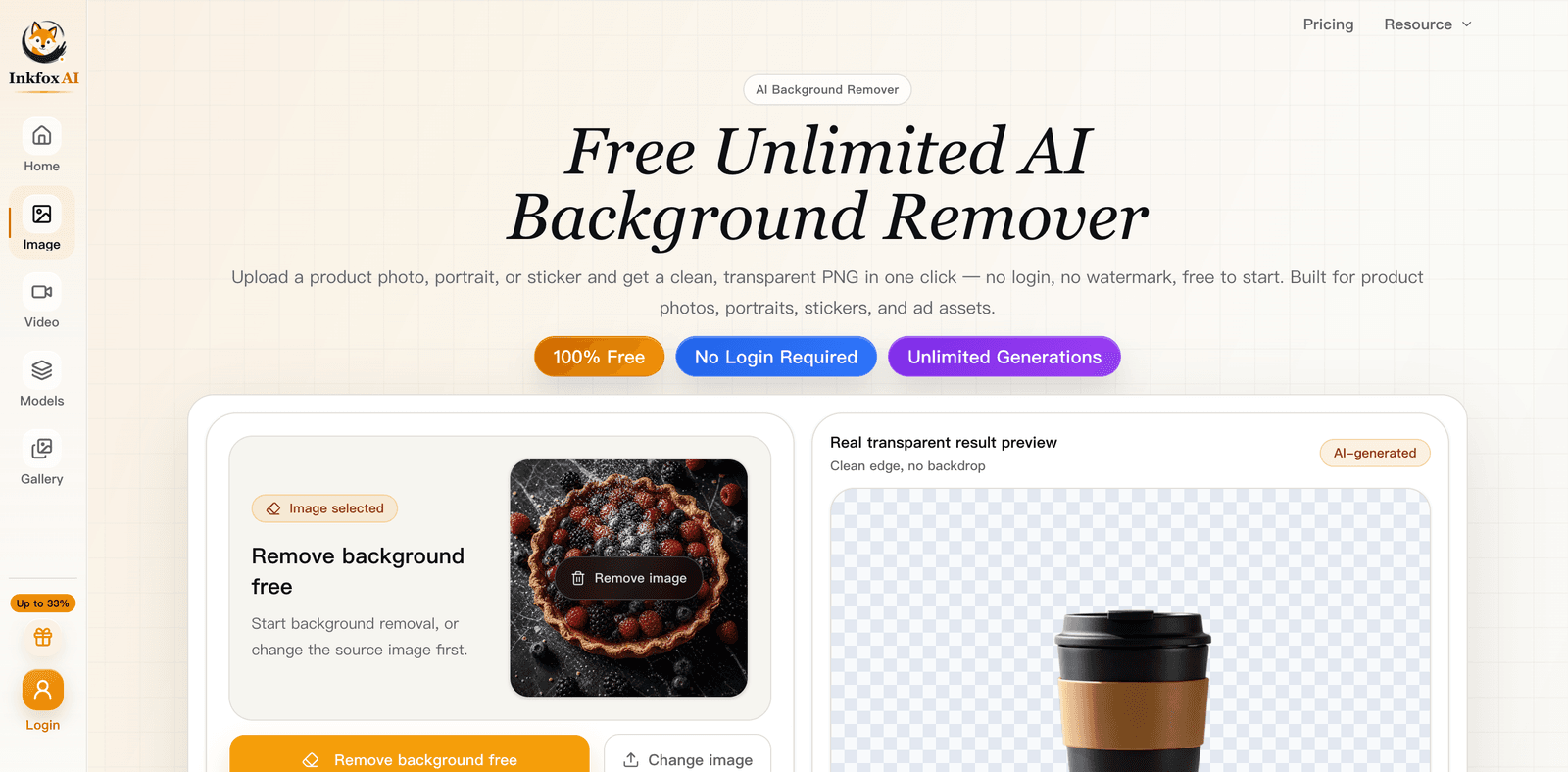
When it finishes, you get the subject on a transparent background, usually shown over a checkerboard pattern so you can see exactly what was kept and what was removed. Zoom in and check the edges:
- Are the outlines crisp, or is there a faint halo of the old background?
- Did fine details like hair, straps, or handles survive?
- Is any part of the subject accidentally cut out?
For most photos the first pass is clean. If a busy background confused the model, the fix is usually a better source image rather than more editing. The checkerboard is the giveaway that you have a real transparent PNG: products keep clean edges, portraits keep hair strands, and stickers keep crisp outlines.
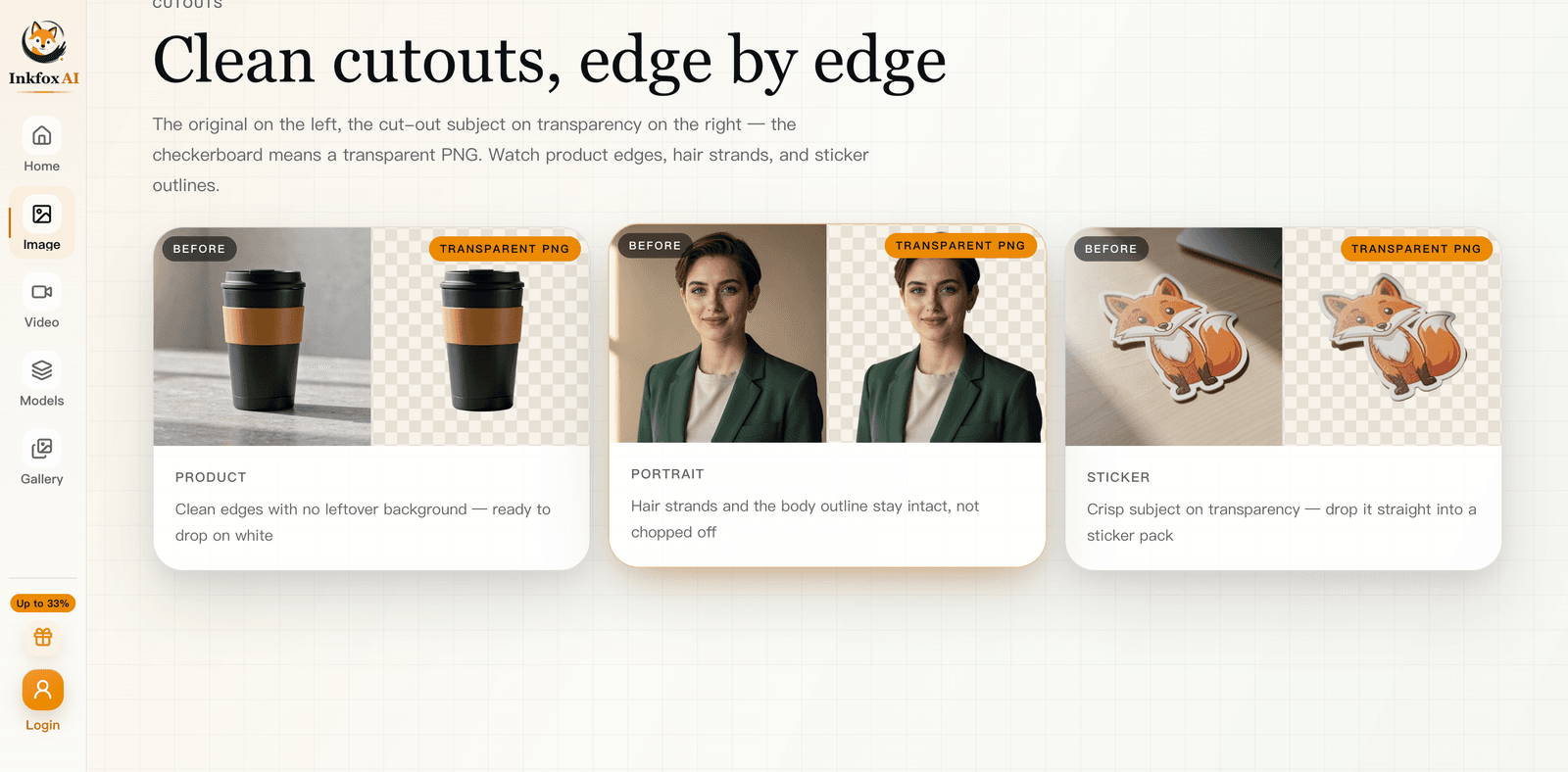
Download the result as a PNG so the transparency is preserved. (Save it as a JPG and the transparent areas turn white, which defeats the purpose.) The PNG is ready to drop onto any background, layout, or color you want. There is no watermark, so the cutout is ready to use right away.
A clean cutout is the start of a lot of useful work, not the end:
| Goal | Next step in Inkfox AI |
|---|
| Put the product in a new scene | Image to image to build a fresh background |
| Make a small image print-ready | Image upscaler for more resolution |
| Turn a product still into motion | Image to video for a short reveal clip |
| Build a full ad set | Text to image for matching backgrounds |
Because these tools live in one workspace, you can go from raw photo to cutout to finished asset without bouncing between apps.
- Shoot or pick contrast. A subject that stands out from its background cuts cleaner.
- Use the highest-resolution source you have. More pixels means crisper edges.
- Avoid same-color blending. A white product on a white wall is the hardest case.
- Always export as PNG. It is the format that keeps transparency.
- Upscale after, not before. Clean the edges first, then add resolution to the winner.
Open the AI background remover and drop in an image. From there, use image to image to place the cutout in a new scene, image upscaler to sharpen it for print or hero use, and the full AI tools suite for everything in between.
Upload your image to the Inkfox AI background remover and the AI removes the background automatically in seconds. Download the result as a PNG to keep the transparency.
No. AI background removal handles the selection and edge work that used to require manual tracing in Photoshop. You only need to upload the image and download the cutout.
It was probably saved as a JPG, which does not support transparency and fills empty areas with white. Download as a PNG to preserve the transparent background.
Yes, modern AI handles hair, fur, and soft edges far better than older tools. Results are best when the subject has decent contrast against the background and the source image is in focus.
PNG. It supports transparency, so the subject can sit on any background. Use it whenever you need the removed area to stay see-through.