How to Share AI Video Drafts for Clearer Creative Feedback
A practical review workflow for AI image-to-video creators: prepare a focused draft, share it as a link, collect useful notes, and keep revisions organized.
Generating an AI video draft is often faster than getting a useful decision on it. A creator can spend minutes testing motion, then lose an afternoon to scattered replies: one reviewer watched a compressed copy in a messaging app, another commented on an older export, and a third wrote “the movement feels off” without saying where.
The fix is not a more complicated production system. It is a cleaner handoff. Give every draft a clear purpose, one stable review link, and a short set of questions that reviewers can answer while the clip is in front of them.
This workflow is for image-to-video creators, small marketing teams, and freelancers moving from rough motion tests to an approved clip.
Messaging apps are useful for conversation, but an attachment in a busy thread is a weak source of truth. The file may be recompressed for delivery, its caption scrolls away, and revised exports can sit together with nearly identical thumbnails.
That creates three avoidable problems:
Reviewers may judge different files. “I prefer the first one” is ambiguous when several versions were posted across two channels.
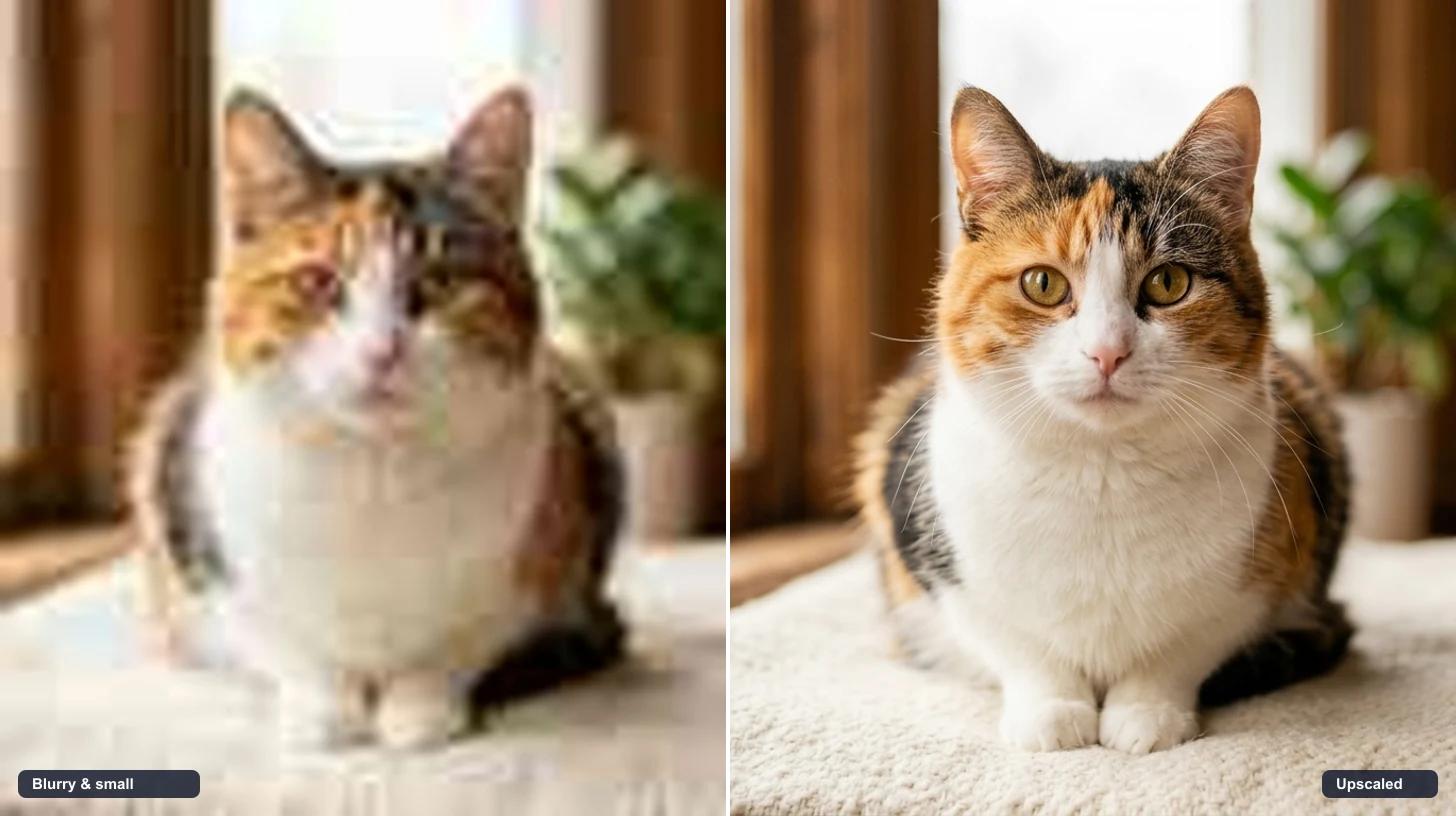
Delivery artifacts can be mistaken for generation flaws. A soft edge or blocky gradient may come from the copy being viewed, not the export you intended to review.
Feedback loses its context. A general reaction does not tell the creator which moment, motion, or requirement needs to change.
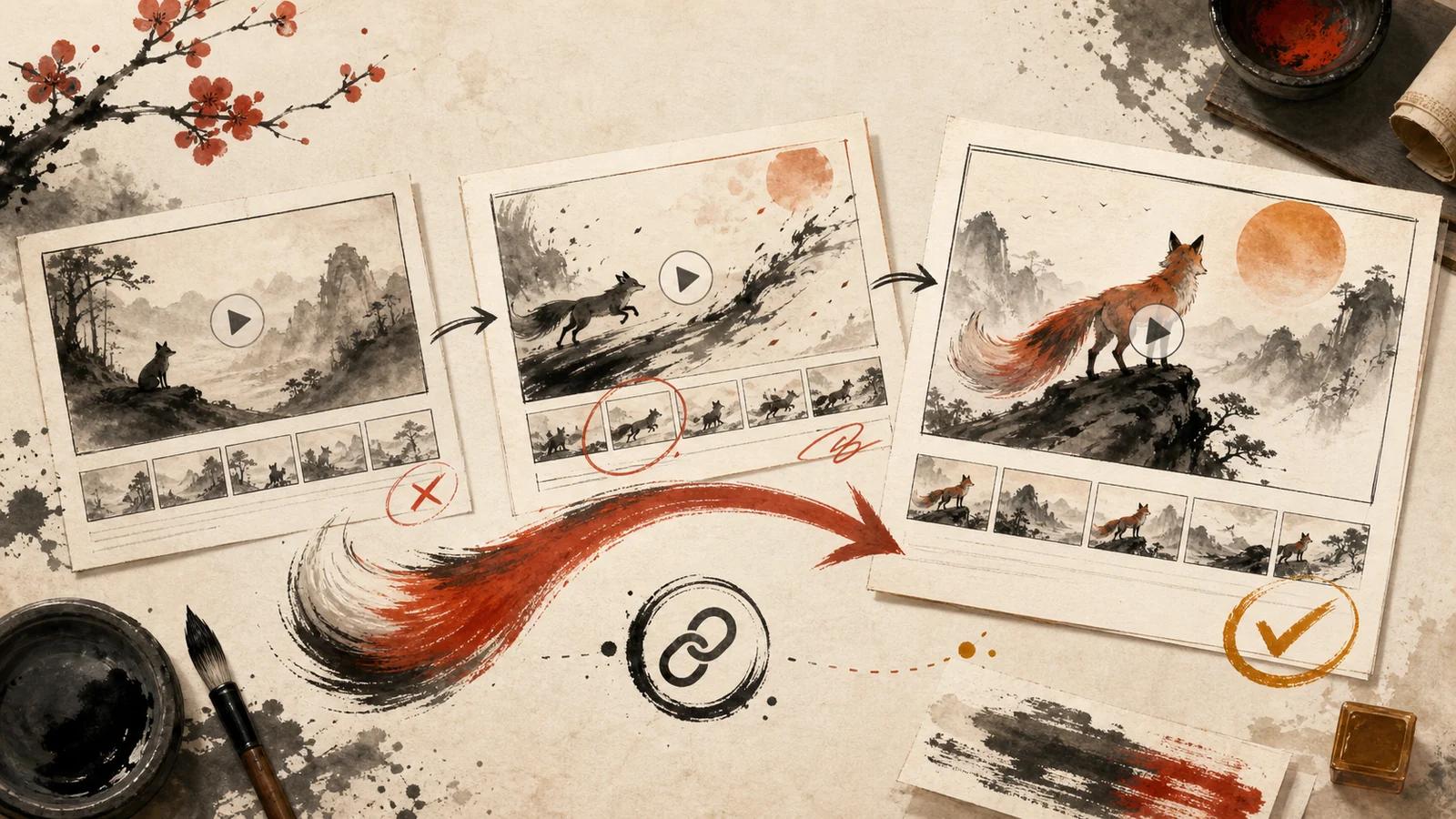
A link-based handoff separates the asset from the conversation. Discussion can stay in chat or email, while everyone opens the same hosted output.
Do not ask reviewers whether a clip is simply “good.” Tell them which decision the draft is meant to unlock.
For an early image-to-video test, the question might be:
Does the subject remain recognizable throughout the motion?
Does the camera move make the product feel premium or distracting?
Is the pacing right for a six-second placement?
Which of two motion directions is worth refining?
This boundary matters because a motion test is not a finished ad. If the review is about subject consistency, temporary audio, final color, and caption copy should not derail the decision.
If you still need to create the source motion, start in the Inkfox image-to-video workspace. When the first frame itself needs work, fix the still before animating it; a cleaner source gives reviewers fewer unrelated defects to react to.
Three purposeful drafts are easier to compare than ten loosely related generations. Keep the first frame, aspect ratio, and core prompt stable, then change one variable at a time.
For example:
Version
Variable
Review question
v01
Slow push-in
Does the motion feel controlled?
v02
Static camera, subject motion
Is the product easier to read?
v03
Faster push-in
Does the opening earn attention sooner?
This makes feedback diagnostic. If reviewers consistently choose v02, you learn something about camera movement rather than merely learning that one random generation looked better.
Inkfox keeps multiple model routes in its AI models workspace, but model comparison should follow the same rule: use the same input and brief when the model is the variable. Otherwise, you are comparing several creative decisions at once.
The review file should match the decision being made. It does not always need final delivery settings, but it should be representative enough that viewers are not commenting on a misleading draft.
Before sharing, check:
the intended aspect ratio and orientation;
the full clip from first frame to last frame;
subject identity, hands, text, logos, and product geometry;
whether the draft includes temporary audio or is intentionally silent;
a filename that identifies project, direction, and version.
A useful filename is summer-launch-product-orbit-v03.mp4, not final2-new.mp4. Version labels should only move forward. If you revise v03, call the next export v04 rather than replacing the old file and leaving reviewers to guess what changed.
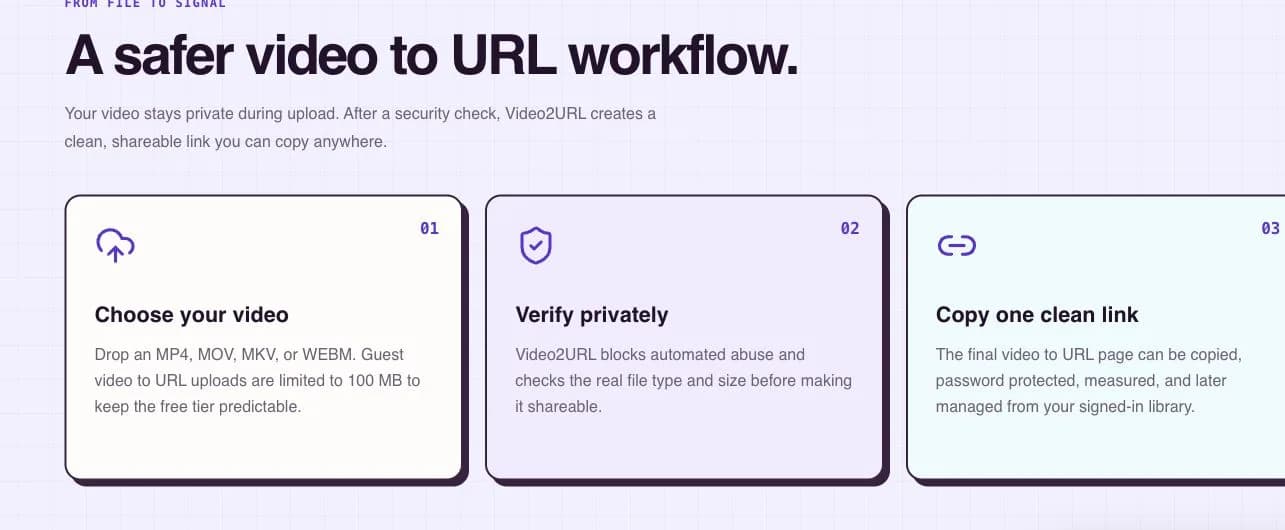
Instead of attaching the MP4 separately in every conversation, upload the exported draft and share the hosted output as a link. This helps you avoid messaging app recompression during the handoff and gives the review one clear destination.
A practical option is Video2URL: upload the video draft, copy its link, and place that link in the review message. Keep the original export in your project folder as the production source; the link is the review surface, not a replacement for your archive.
For multiple candidates, make the relationship explicit. Send a short numbered list with one label and one link per version. Do not post a bare cluster of URLs and make the reviewer reconstruct the test.
The best review note is short enough to scan and specific enough to answer. Use this structure:
Review goal: Choose the camera direction for the product reveal.
Version: v03, generated from the approved hero still.
Please check: product shape, motion pacing, and the final frame.
Ignore for now: music and color finishing.
Reply by: Tuesday, with Approve / Revise and a timestamp for each requested change.
Ask reviewers to attach a timestamp to motion feedback, even if the conversation happens outside the link. “At 00:03, the label bends as the camera moves” is actionable. “The middle looks weird” sends the creator back into detective work.
If several people are involved, name one decision owner. Stakeholders can contribute observations, but a draft should not be trapped between contradictory instructions from people with different goals.
Not every problem requires another AI generation. Sort feedback before acting:
Note
Likely next action
Subject changes shape
Revise the motion prompt, source frame, or model
Clip starts too slowly
Trim the opening or test a stronger initial move
Wrong placement ratio
Regenerate or reframe for the target format
Final frame is useful but too small
Inspect it, then consider the image upscaler for the selected still
Caption timing feels late
Fix in the edit rather than regenerating the visual
This triage protects the work that already succeeds. Regenerating a good motion because of an editorial timing issue can introduce a new identity or geometry problem.
When feedback arrives, summarize the accepted changes before creating another draft. Then export a new version, create a new review link, and send a concise change note:
v04 changes: slowed the camera move, removed the last half-second, and kept the product centered. The source image and model are unchanged.
Do not quietly swap the file behind an old conversation if reviewers need an audit trail. A distinct version makes approval explicit and preserves the reasoning that led to the final clip.
Once approved, archive the source image, prompt, model settings, review exports, final delivery file, and approval note together. The next campaign can reuse the working pattern instead of rebuilding it from memory.
AI makes it easy to produce more motion options. That makes disciplined review more important, not less. A focused candidate set, a stable link, and timestamped feedback turn subjective reactions into a sequence of clear creative decisions.
Generate the motion in Inkfox image to video, export the candidate that answers your current question, and give that exact version a review link. The result is a calmer handoff and a shorter path from “interesting draft” to “approved clip.”