Inkfox AI logoInkfox AIInkfoxAI
HomeGallery
Up to 33%Pricing
  • Home
  • Image
    • Text to Image
    • Image to Image
    • Background Remover
    • Image Upscaler
    • Merge Images
    • Background Changer
    • Photo Restoration
    • Watermark Remover
    • Virtual Try On Glasses
    • Virtual Try On Sunglasses
    • Logo Generator
    • Anime Generator
    • Coloring Page
    • Headshot Generator
    • Sticker Generator
    • Product Photo
  • Video
    • Text to Video
    • Image to Video
    • Video to Video
    • Old Photo Video
    • Hug Video
    • Product Video
    • Kiss Video
    • Wedding Video
    • Real Estate Video
    • Food Video
    • Travel Video
    • Portrait Video
    • Baby Dance Video
  • Models
    • Inkfox AI Basic
    • Inkfox AI Pro
    • Inkfox AI Max
    • GPT Image 2.0
    • Nano Banana 2.0
    • Nano Banana
    • Seedream 4.0
    • Seedream 4.5
    • Seedream 5 Lite
    • GPT Image 1.5
    • Z-Image
    • Flux 2 Pro
    • Wan 2.7 Image Pro
    • Inkfox AI Pro
    • Inkfox AI Max
    • HappyHorse 1.0
    • Seedance 2.0
    • Gemini Omni
    • Grok Imagine 1.5
    • Grok Imagine
    • Veo 3.1
    • Kling 3.0
    • Runway
    • Hailuo 02
    • Wan 2.7
    • Hailuo 2.3
    • Seedance v1
    • Kling 2.6
    • Wan 2.6
  • Gallery
  • Pricing
  • Blog
    Guides and launch notes
    Feature Requests
    Vote on what ships next
    FAQ
    Usage, pricing, and account answers
Inkfox AI logoInkfox AIInkfoxAI
How to Try On Sunglasses Virtually From a Selfie (Free AI Try-On)
2026/06/09

How to Try On Sunglasses Virtually From a Selfie (Free AI Try-On)

Try on sunglasses virtually from one selfie with free AI. Learn the upload-to-result flow, which frame suits your face shape, and how to read the result honestly.

Sunglasses are one of the hardest things to buy online. They sit dead center on your face, so the wrong frame shows up in every photo you take for the next few years. Aviators that look great on the model can swallow a smaller face. A bold cat-eye that seems fun on the product page can read as too much in person. And you cannot judge the fit from a flat catalog shot taken on someone else's head.

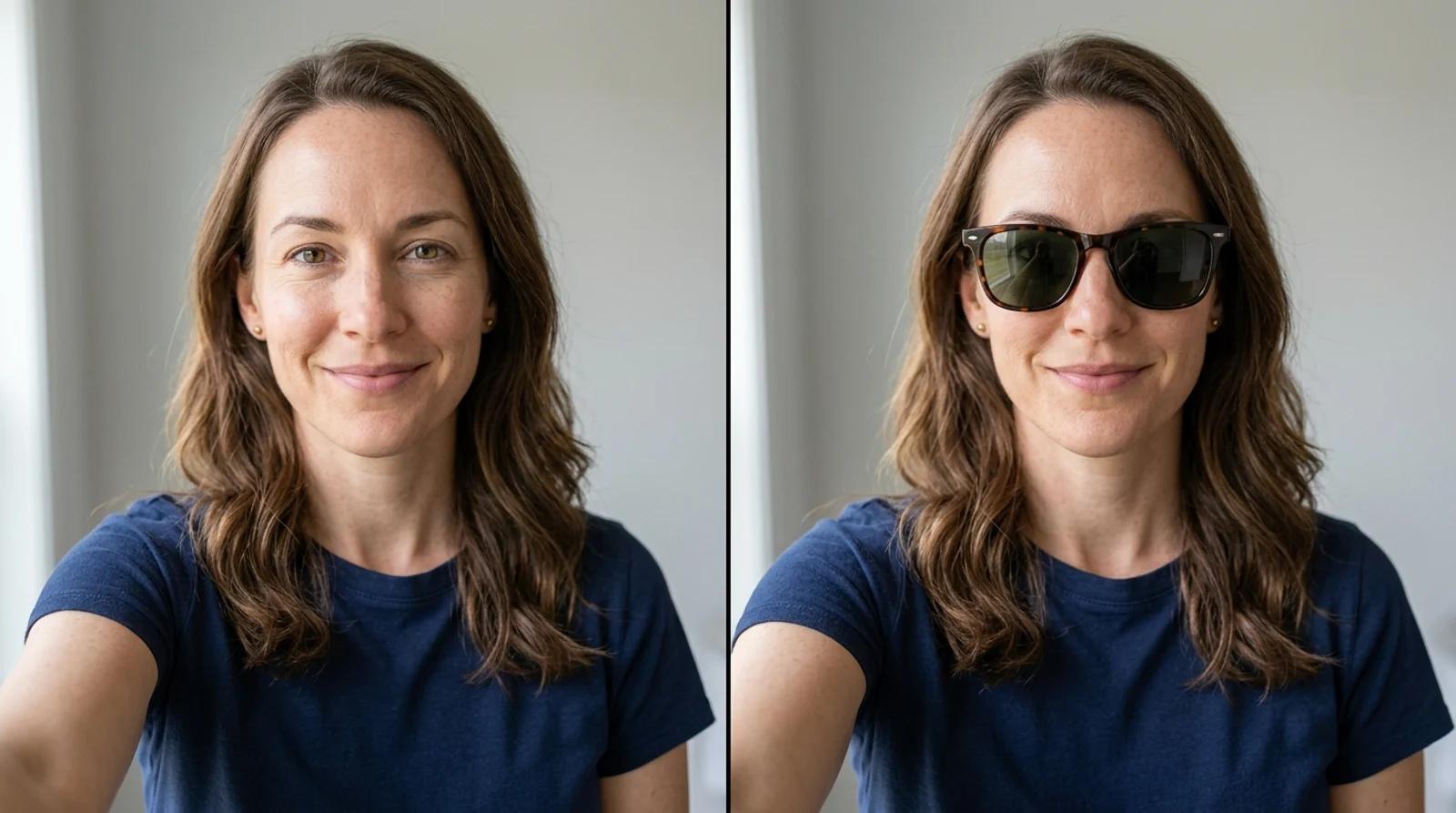
That is the gap a virtual sunglasses try-on fills. You upload one front-facing selfie, pick a frame, and the AI places those sunglasses on your face while keeping your features, skin, and lighting the same. Instead of guessing from a thumbnail, you see aviators, wayfarers, round, cat-eye, sport wrap, or oversized frames on you before you commit. This guide covers how to use it and how to read the result honestly.
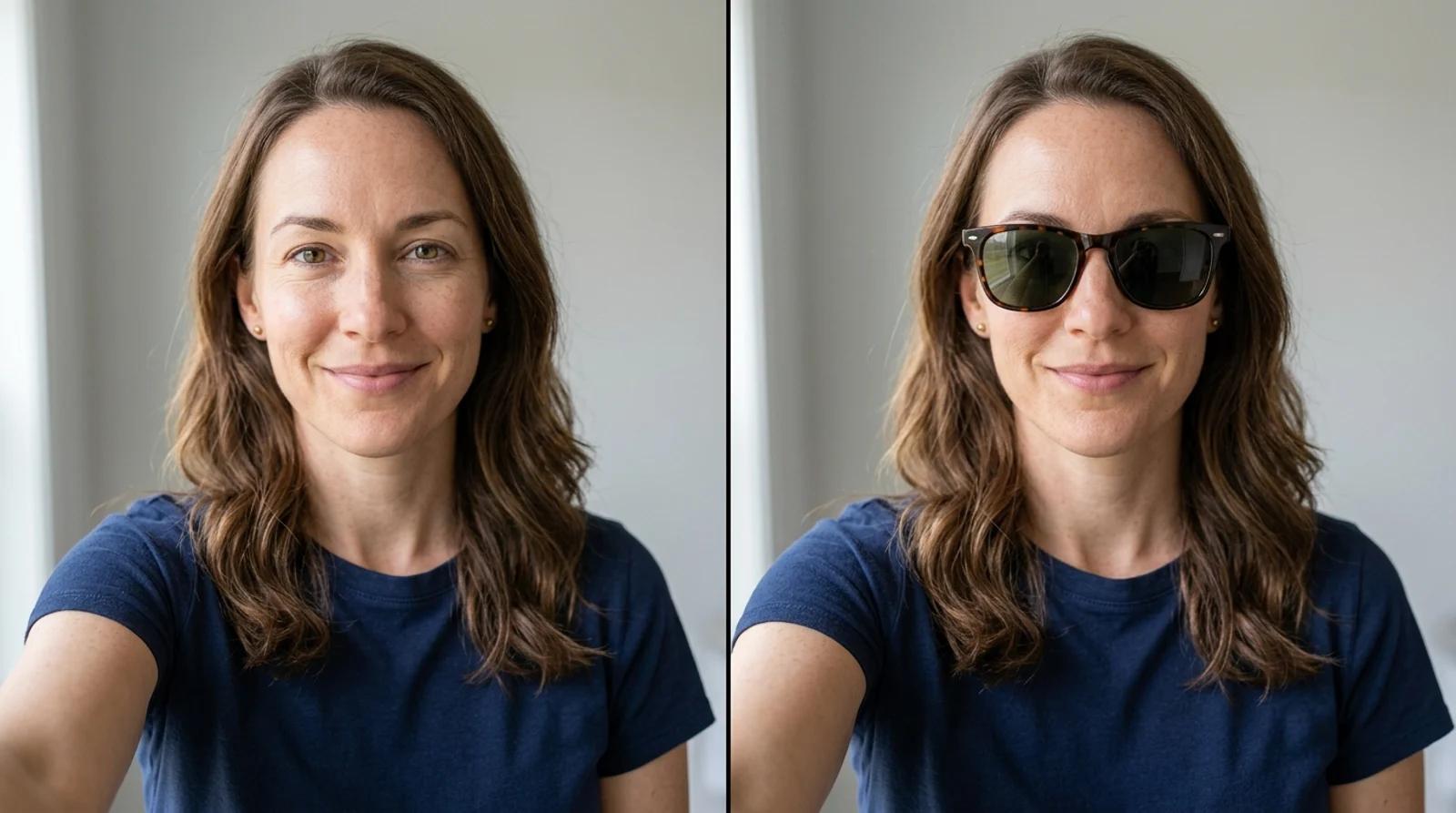
On the left, a front-facing selfie of a woman with no eyewear; on the right, the same woman wearing dark sunglasses, face and lighting unchanged

When it helps (and when it doesn't)

A virtual try-on does one job: it helps you judge style, scale, and how a frame shape sits on your face before you buy. It works well for:

  • Narrowing a long wishlist down to two or three frames worth ordering.
  • Checking whether a shape that looks good on a model also works on you.
  • Comparing lens tints and frame widths side by side.
  • Mocking up a look for a profile photo or a social post.

It is not a real fitting tool. It will not measure your bridge width, temple length, or pupillary distance, and it cannot confirm UV protection or lens category. Treat the result as a strong shortlist, then confirm the actual measurements, lens rating, and return policy with the seller before you pay. It is also not a tool for impersonation, official IDs, or editing someone's photo without their consent.

Step 1: Upload a clean front-facing portrait

The AI can only place frames accurately on a face it can read clearly. Open the virtual sunglasses try-on and upload a portrait that gives the model what it needs:

  • Both eyes, the nose bridge, cheekbones, and face outline are visible. This is what the frame aligns to.
  • You are facing the camera head-on. Side profiles and three-quarter angles make alignment unreliable, because the temple arms and bridge lose a clear anchor.
  • The light is even. Soft daylight from a window beats harsh overhead light, which throws shadows that confuse where the frame should sit.
  • Your eyes are uncovered. Skip existing glasses, sunglasses, or hair falling across the eye area, since the model needs a clear view of the eyes to place the lenses.

A recent phone selfie taken near a window is plenty. You are not after a studio portrait, just a clear, head-on shot with your eyes visible.

Step 2: Pick a sunglasses style

Choose a frame reference. There is no prompt to write. The styles are pre-built, so you pick the frame and lens shape instead of describing it. You get six to compare:

  • Aviator: teardrop lenses, thin metal frame.
  • Wayfarer: squared-off, classic plastic frame.
  • Round: circular lenses, retro feel.
  • Cat-eye: upswept outer corners.
  • Sport wrap: curved, close-fitting athletic frame.
  • Oversized: large lenses with bold coverage.

Comparing styles is free, so run more than one. Try the two or three shapes you are torn between on the same selfie and look at them next to each other. Seeing aviator, wayfarer, and round on your own face removes most of the guesswork.
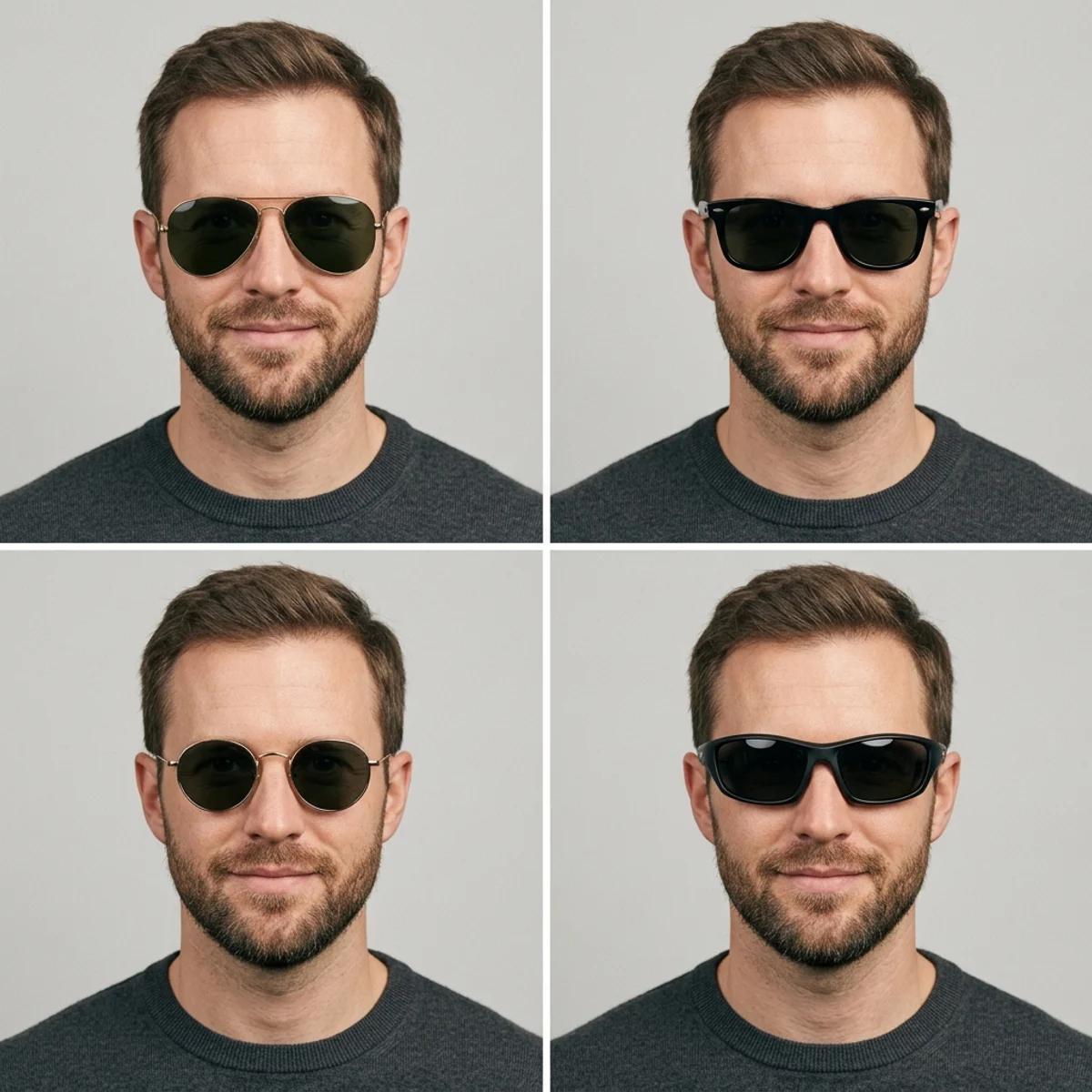
A grid showing the same man trying on aviator, wayfarer, round, and sporty sunglasses on the same selfie

Step 3: Generate and inspect the fit

Pick a frame and run the try-on. The model adds the sunglasses while keeping your identity, eye direction, skin texture, lighting, and expression stable. It takes a few seconds.

When it finishes, don't just glance at it. Zoom in and check the details that tell you whether a frame works on your face:

  • Bridge height: the frame should sit naturally on the nose, not float above it or crush down on it.
  • Frame width: the lenses should roughly reach the edges of your face, not run past your temples or pinch in.
  • Lens tint and reflections: the tint should read the way you want, and the highlights should look like real glass rather than a flat sticker.
  • Temple direction: the arms should head back toward your ears at a believable angle.
  • Cheek shadows: a real frame casts a soft shadow. If the sunglasses look pasted on with no shadow, the scale is probably off.

If something looks wrong, regenerate or try a different frame instead of keeping the first pass. Each run varies a little, and a cleaner, more head-on source selfie fixes most alignment problems.

A person wearing sunglasses outdoors on a sunny street, natural everyday look

Which sunglasses shape suits your face

Frame shape is mostly about contrast. A frame that softens a strong jaw or adds structure to a softer face tends to flatter most. Use this as a starting point, then let the try-on confirm it on your face.

Frame shapeSuits face shapeVibe it gives
AviatorSquare, heart, ovalClassic, easygoing
WayfarerRound, ovalVersatile everyday default
RoundSquare, angularRetro, softens sharp features
Sport / wrapOval, oblongActive, made for movement
Cat-eyeRound, heartBold, adds upward lift
OversizedSmall, oval, heartGlamorous, high coverage

The general rule: pick a frame shape that contrasts your face shape rather than echoing it. Round faces usually look sharper in angular frames, and angular faces soften in rounder ones. It is a guideline, not a law. The point of trying frames on virtually is that you can ignore the chart the moment a shape clearly looks right on you.

How to get a believable result

The difference between a try-on you can trust and one you can't comes down to the source selfie. A few things matter most:

  • Use a sharp, in-focus shot. Clear edges let the model align the frame. Blurry or low-resolution photos produce sloppy fits.
  • Shoot in even light. Face a window in daytime so light falls evenly across your face. Harsh side light and deep shadows make the frame placement guess wrong.
  • Keep your head straight and level. A head-on angle with the camera at eye level is the single biggest factor in accurate placement. Tilt your head and the frame tilts with it, often unconvincingly.
  • Check the fit on the nose and ears. Follow the frame from the bridge on your nose out to where the temple arms reach your ears. If that path looks natural, the scale is right. If the arms vanish or the bridge floats, regenerate or switch frames.

If every result looks off, the fix is almost always a better source photo, not more attempts.

Free, and what signing in adds

You can upload a selfie, pick a frame, and generate a try-on on the free model without an account. Comparing the six styles costs nothing. Signing in removes the export watermark from your download, so the saved image is clean and ready to share or drop next to a product page.

A quick checklist before you decide

  • Source selfie is front-facing, sharp, and evenly lit
  • Eyes are uncovered, with no existing glasses in the shot
  • You compared two or three frame shapes on the same photo
  • Bridge height, frame width, and temple direction look natural
  • The lens tint and shadows read like real glass on your face
  • You confirmed real measurements and lens rating with the seller before buying

Try it on before you buy

You don't have to gamble on sunglasses from a flat product photo. Upload one clear, well-lit selfie, compare a few frame shapes on your own face, and check the fit before you order.

Try the free sunglasses try-on →

All Posts

Author

avatar for Inkfox AI
Inkfox AI

Categories

  • Guides
When it helps (and when it doesn't)Step 1: Upload a clean front-facing portraitStep 2: Pick a sunglasses styleStep 3: Generate and inspect the fitWhich sunglasses shape suits your faceHow to get a believable resultFree, and what signing in addsA quick checklist before you decideTry it on before you buy

More Posts

Turn Product Photos Into AI Ad Visuals With Inkfox AI

Turn Product Photos Into AI Ad Visuals With Inkfox AI

A hands-on guide to using Inkfox AI image-to-image, background removal, upscaling, and AI generation to turn simple product photos into ad-ready creative.

avatar for Inkfox AI
Inkfox AI
2026/05/23
How to Remove a Background From an Image for Free (No Photoshop)

How to Remove a Background From an Image for Free (No Photoshop)

A simple step-by-step guide to removing the background from any image for free with AI. Learn how to make a transparent PNG, clean up product photos, and get crisp cutouts in seconds with Inkfox AI, no Photoshop needed.

avatar for Inkfox AI
Inkfox AI
2026/06/06
How to Make a Professional Headshot From a Selfie With AI (Free, No Photographer)

How to Make a Professional Headshot From a Selfie With AI (Free, No Photographer)

How to turn a phone selfie into a professional headshot for LinkedIn, resumes, and team pages with free AI: which selfie to use, how to pick a style, and how to check the result still looks like you.

avatar for Inkfox AI
Inkfox AI
2026/06/09

Newsletter

Join the community

Subscribe to our newsletter for the latest news and updates

Inkfox AI logoInkfox AIInkfoxAI

Free Unlimited AI Image Generator — no sign-up required.

Inkfox AI is a free AI image and video generator for text to image, image-to-image editing, reference image creation, background removal, image upscaling, text-to-video, image-to-video, and multi-model visual generation.

Company
  • About
  • Contact
  • Transparency
  • Status
Legal
  • Cookie Policy
  • Privacy Policy
  • Terms of Service
© 2026 Inkfox AI. All Rights Reserved.Sitemap