
How to Create Etsy Listing Photos With AI That Help Buyers Decide
A practical workflow for turning one real product photo into a full Etsy listing set with AI, while keeping shape, color, materials, and handmade variation accurate.

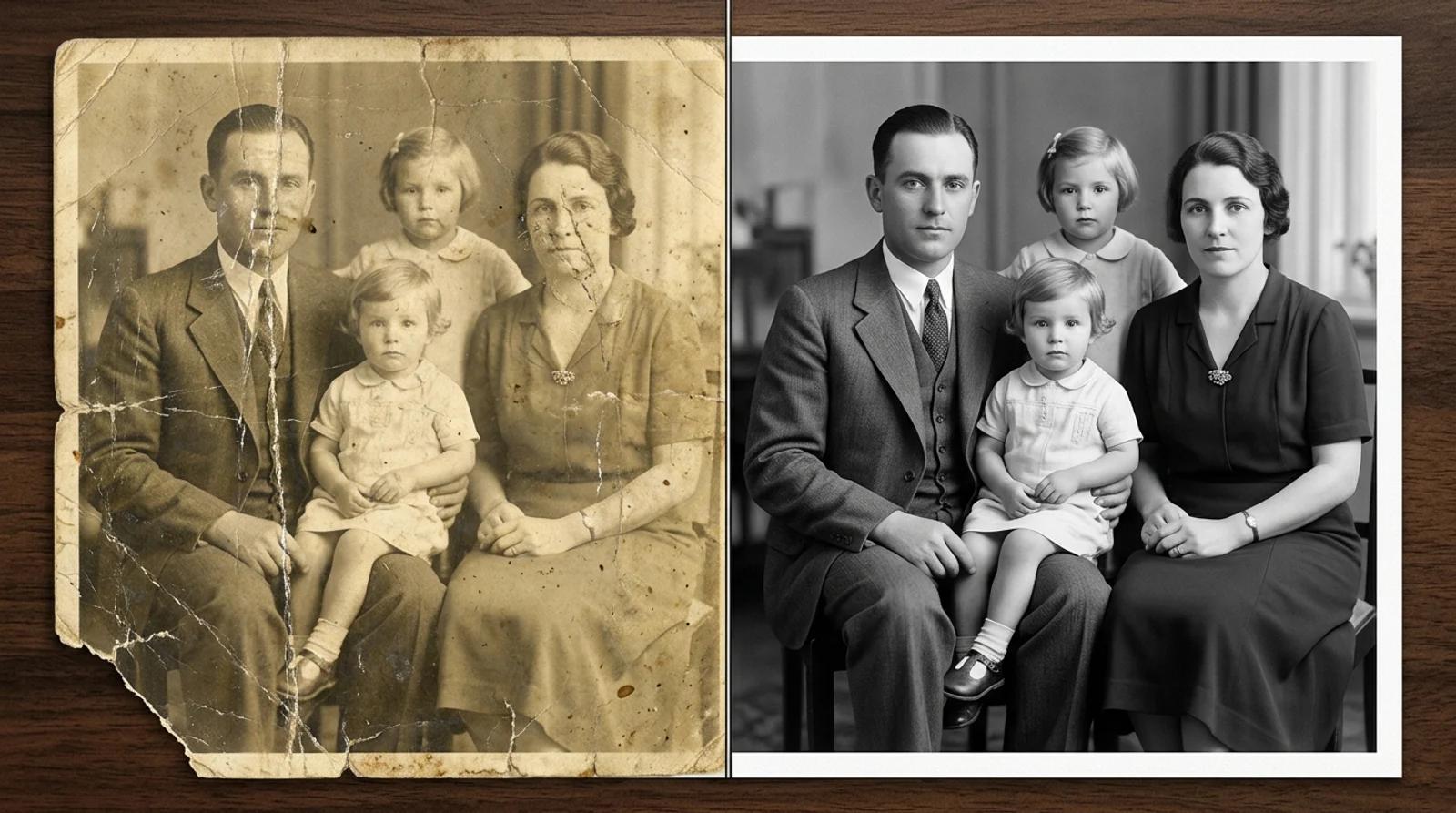
A practical guide to restore old photos with AI for free. Repair scratches, fading, tears, and blur, colorize black-and-white prints, and bring faded faces back.
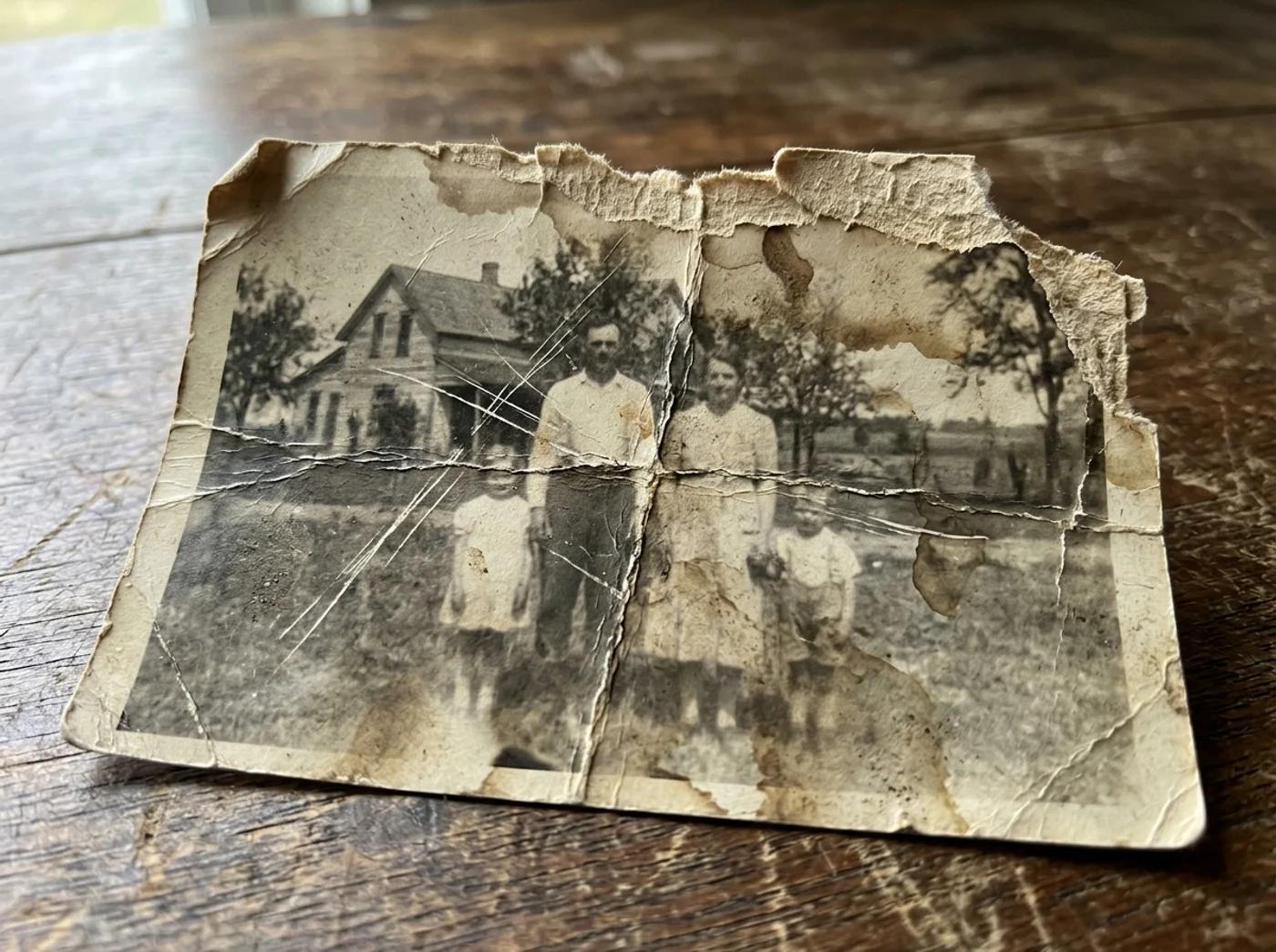
There's usually one photo in the box that hurts to look at. A grandparent at their wedding. A faded print of a house that's gone now. A curled snapshot with a crease running straight through someone's face. The negative disappeared decades ago, the people in it may be gone too, and every year in a drawer takes a little more off it. You can't reshoot the moment, so the print is all you have.
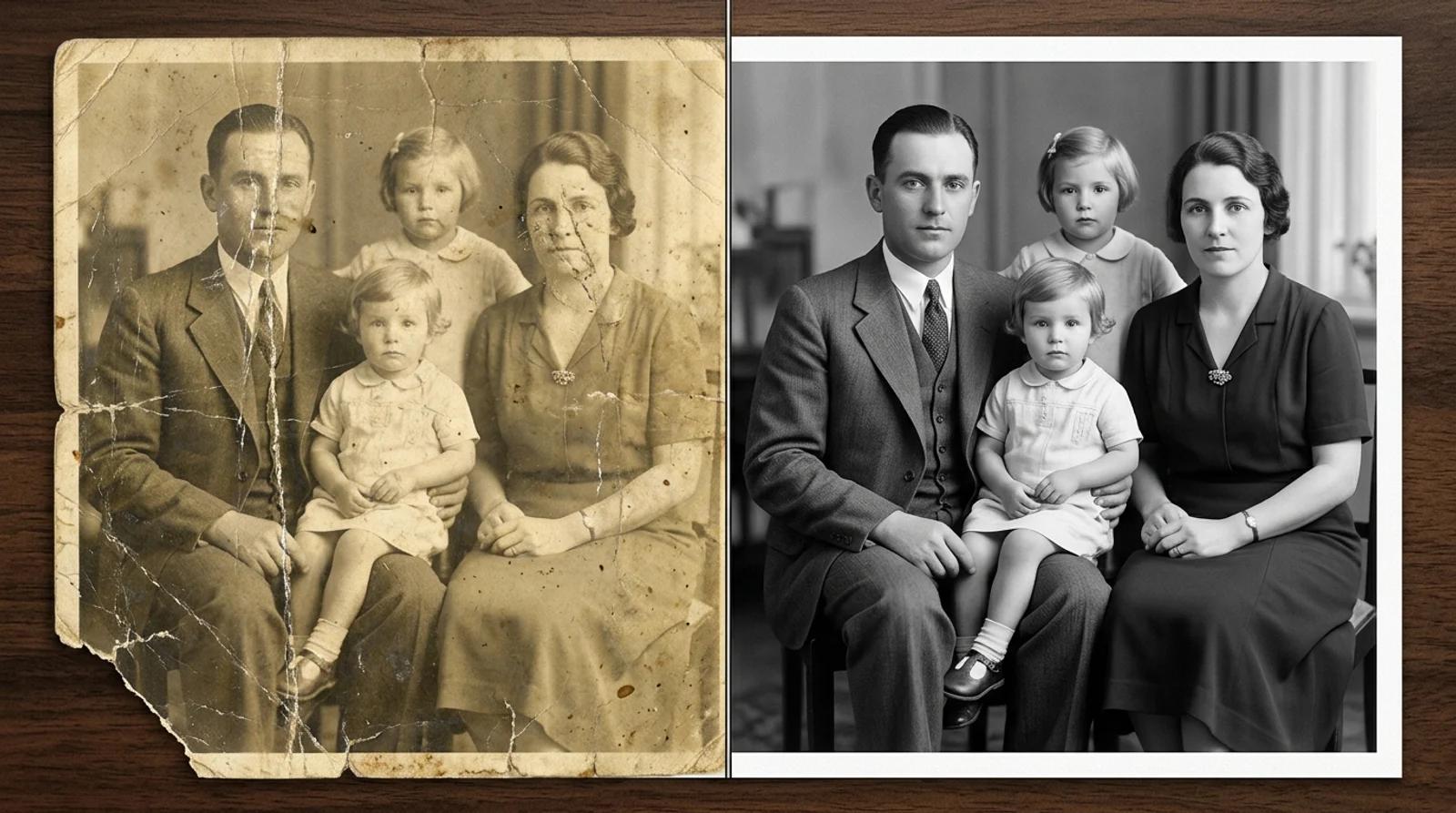
That's the gap AI photo restoration is built to close. You upload the damaged scan, and the AI clears the scratches and fading, recovers detail that's gone soft, and adds natural color in one pass, all while keeping the same faces, poses, and composition. This guide walks through how to do it well. The difference between a restore you're proud to print and one that quietly redraws someone's face comes down to a few choices you control.
Set your expectations before you upload. That's what keeps you from being let down by an irreplaceable photo.
What it handles reliably:
What it can't do is invent detail that was never captured. If a chunk of a face or a whole figure has been torn away, the AI fills the gap with a plausible guess, not the lost content. Treat large missing areas as approximate, and review faces closely. Color is also an estimate of what was likely (skin tones, foliage, common clothing), not a record of the original hues. If you know a dress was blue, say so as an interpretation when you share, or regenerate.
The honest rule: the more real information your scan still holds, the more faithful the restore. The AI recovers detail. It doesn't resurrect what's gone.
The source sets the ceiling, and here the source is your scan of the original print. Flat, even lighting and sharp focus beat raw resolution every time.
To get a clean source:
A clean 1500px scan restores better than a dark, angled 4000px snapshot, because the AI recovers real detail instead of amplifying noise. Upload JPG, PNG, or WebP up to 10MB. If your scan is larger, export a quality-90 JPG to stay under the limit while keeping the detail the model needs.
Open the AI photo restoration tool and upload your scan. There's no prompt to write. The restore preset is pre-built, so you can think about the photo instead of wording instructions.
Click Restore photo. The AI reads your upload, maps where the damage is and which areas still hold real detail, removes the scratches, creases, stains, and torn edges, rebuilds missing texture from context, corrects the exposure, and layers natural color on top. It keeps the same people, expressions, poses, and clothing rather than redrawing them. This takes a few seconds.
When it finishes, don't just save the first result. Pull it up next to your original scan at full size and check the parts the AI sometimes drifts on:
If a face looks off, regenerate. Each run varies a little, and the second or third pass is often the one that nails the likeness. Once you're happy, download the restored image. For an irreplaceable photo, keep the original scan alongside the restored version. The restore is a new interpretation, not a replacement for the record.
You don't need a separate step to colorize. The restore pass recovers detail and adds color in the same run, so a black-and-white or sepia portrait comes back in lifelike tone in one click.

Two things to keep in mind. The colors are the AI's estimate of what was plausible for the era (period clothing, common skin tones, foliage, sky), not a record of the original shades. And that estimate is usually convincing because it stays restrained. If a result looks oversaturated, or a color seems wrong for something you remember, regenerate and pick the more natural pass. When you share a colorized family photo, it's worth saying out loud that the color is an interpretation, especially for genealogy or memorial use where people may take it as fact.
Different damage repairs to different degrees. Here's a realistic read on each.
| Damage type | What to expect |
|---|---|
| Scratches, creases, and tears | Cleared reliably. Surface lines, fold marks, and torn edges disappear cleanly in most photos. |
| Fading and color cast | Strong results. Washed-out, yellowed prints get contrast and tone rebuilt to look natural. |
| Low resolution or blur | Improved, not magic. Mild softness sharpens well. A very blurry face has little real detail to recover and may be smoothed. |
| Black and white | Naturally colorized in the same pass. Tones are a plausible AI estimate, not the exact originals. |
| Large missing sections | Approximate. Small edge gaps rebuild convincingly. Big holes over faces or text are reconstructed from context, so review closely or crop to the intact area. |
A few habits separate a good restore from a great one:
You can upload a scan and restore it for free. Your upload is used only to generate your result, and because family photos are personal, uploads are never shown publicly. Sign in if you want to keep your restores in a private history to come back to. Otherwise, download the result and it's yours.
You can't reshoot the moment, but you can give the print a second life. Start from a clean, flat scan, let the AI clear the damage and add color, then check the faces against the people you remember before you reprint or share.
A practical workflow for turning one real product photo into a full Etsy listing set with AI, while keeping shape, color, materials, and handmade variation accurate.
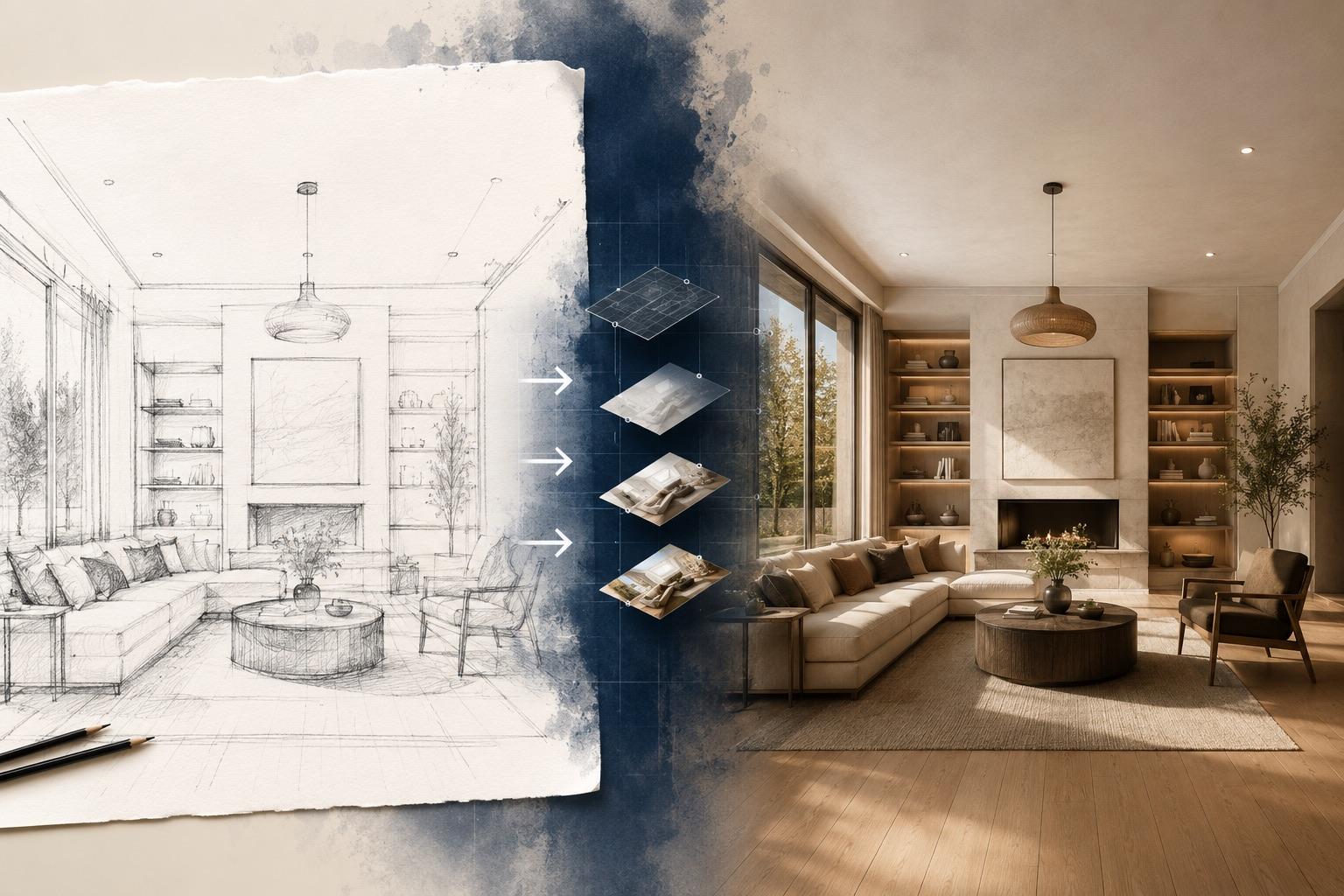
A practical guide to AI sketch to image: prepare pencil drawings, line art, or screenshots, write prompts that respect your lines, and fix the common failures.
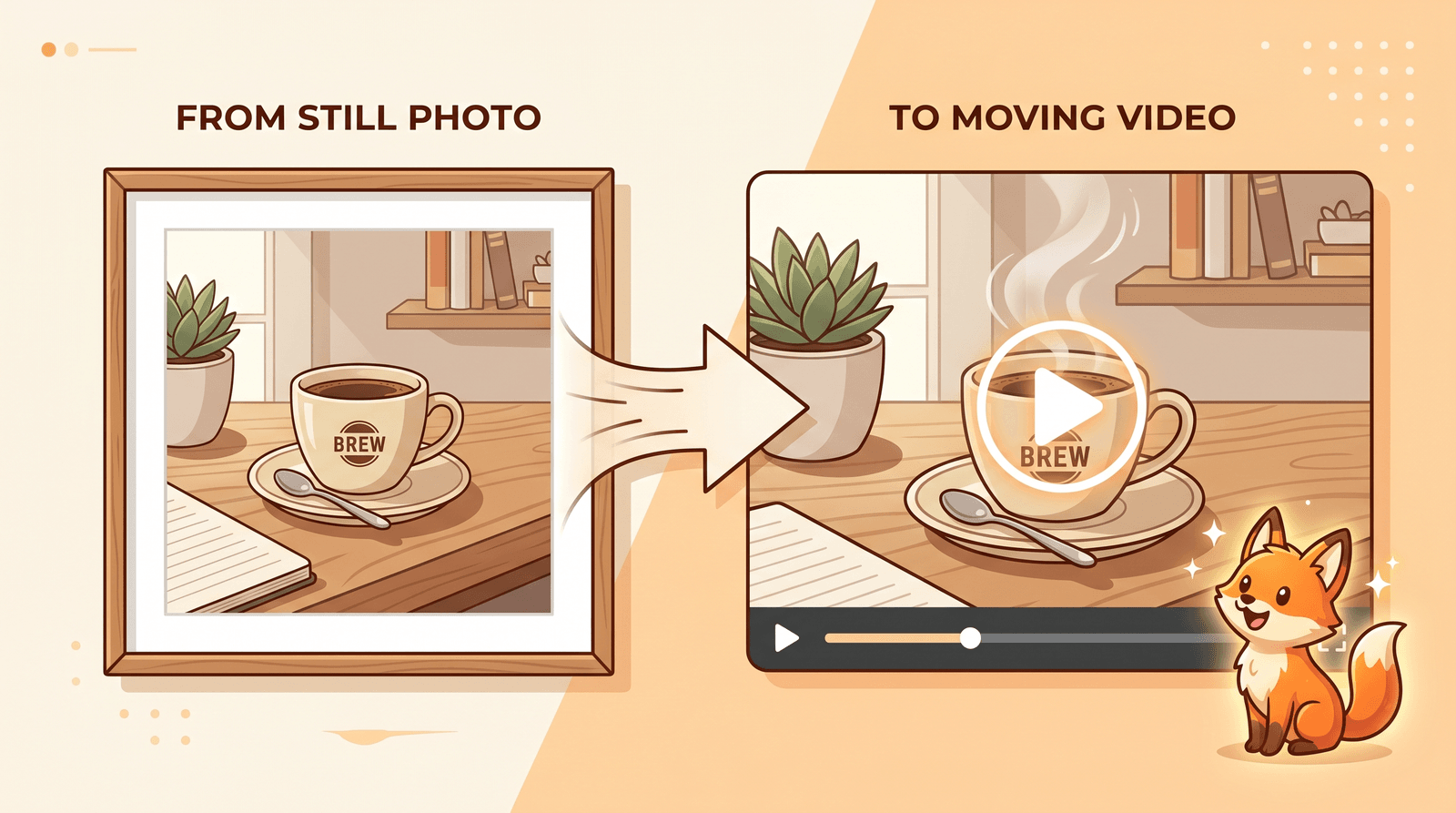
A step-by-step guide to turning any photo into a short video with AI using Inkfox AI image to video. Learn how to animate a picture, write motion prompts, pick the right model, and export a clean clip for free.
Newsletter
Subscribe to our newsletter for the latest news and updates