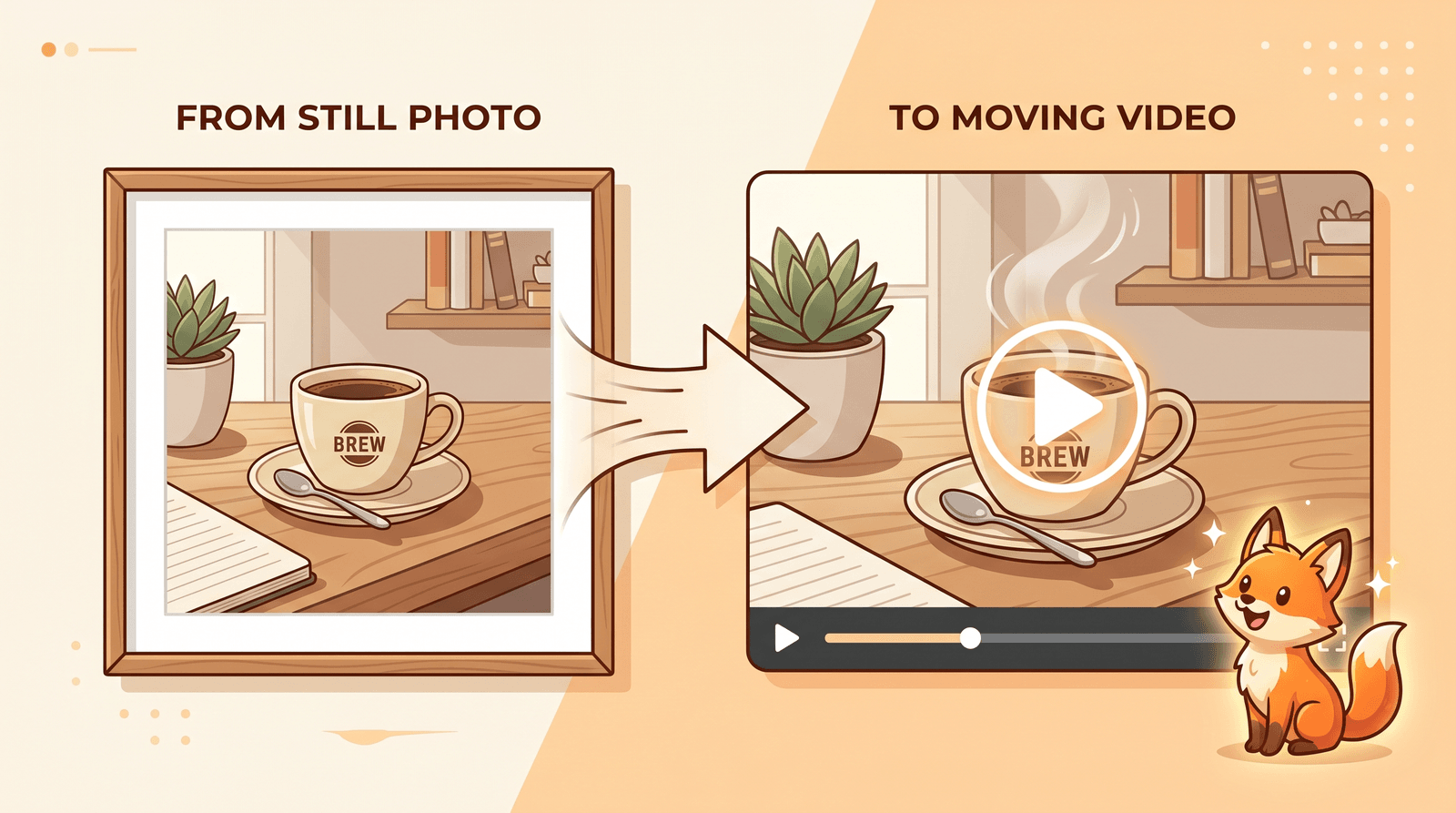
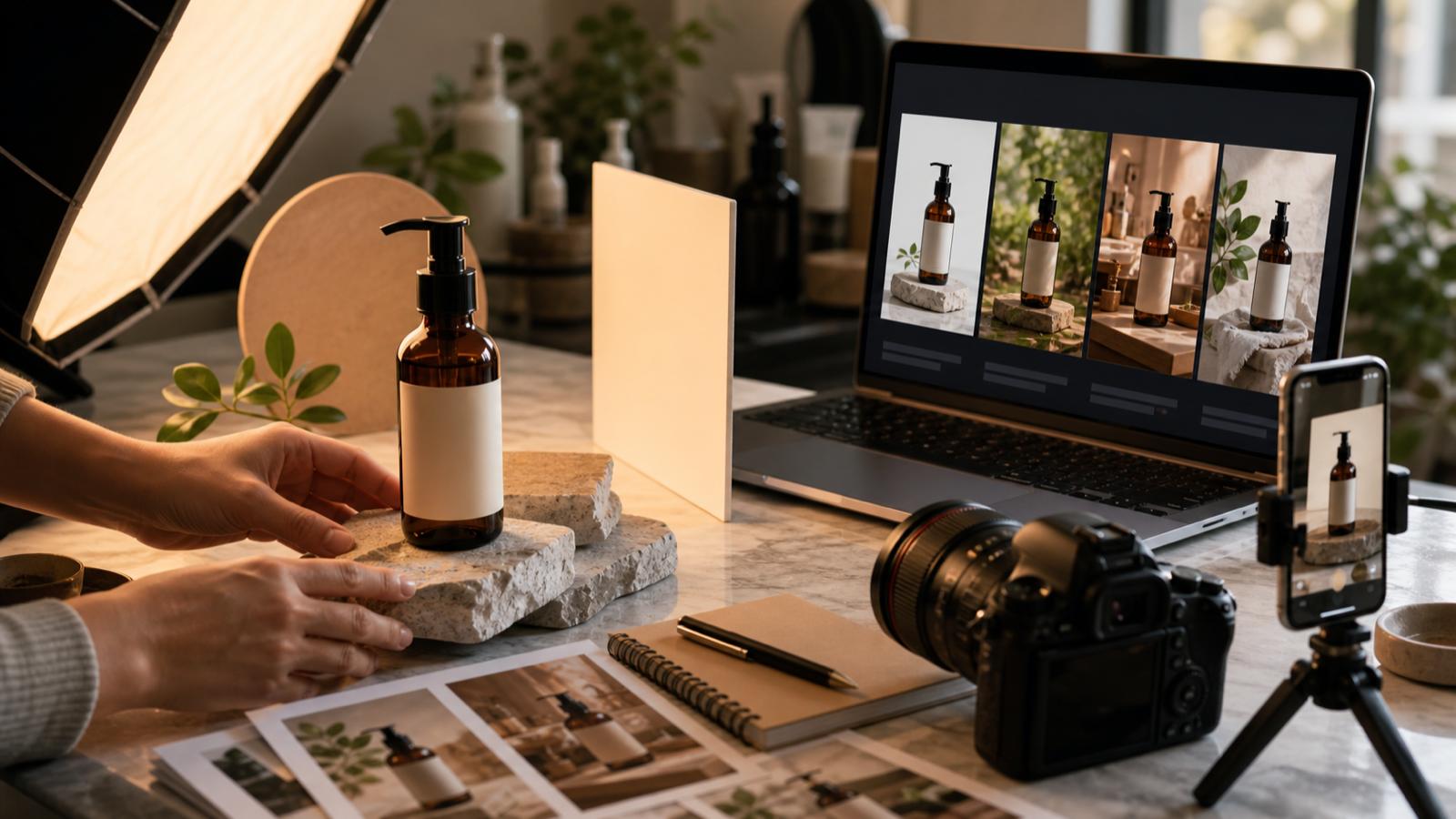
A single photo can do a lot more than sit still. With AI, the coffee in a product shot can steam, a portrait can blink and smile, and a flat landing-page image can drift with subtle motion that makes people stop scrolling. You do not need After Effects or a video team to do it. You need one good photo and a few minutes.
This guide walks through how to turn a photo into a video with AI using Inkfox AI image to video. The steps are the same whether you are animating a product, a portrait, a pet, or an old family photo.
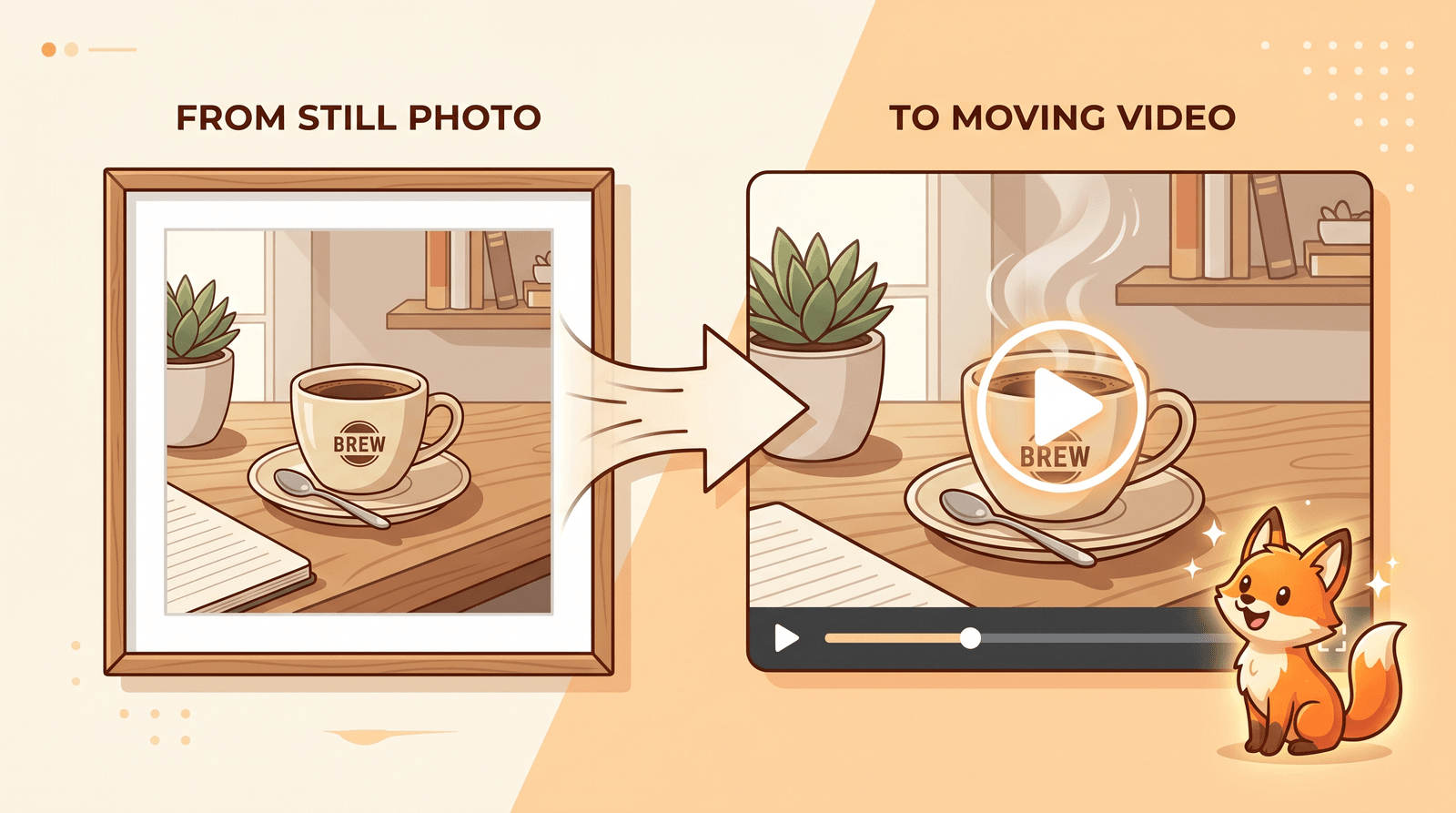
You can also make a video from a text prompt alone, but starting from a photo gives you something text cannot: the subject is already correct. The product looks like the real product. The face looks like the real person. The room is the actual room.
That matters most for anything with a brand or a real subject attached. If you generate a "wireless speaker" from text, you get a speaker that does not exist. If you animate a photo of your speaker, you keep the exact product and only add movement. For marketing, ecommerce, and personal photos, image to video is usually the safer starting point.
- One clear photo, ideally with the subject in focus and not cut off at the edges.
- A rough idea of the motion you want, like "slow zoom in" or "hair moves in the wind."
- A free Inkfox AI account. The base model lets you generate watermarked clips at no cost, which is enough to test the idea before spending credits on a clean export.
A quick note on source quality: AI can add motion, but it cannot invent detail that was never in the photo. A sharp, well-lit image becomes a clean clip. A blurry, dark one becomes a blurry, dark clip that also moves.
Go to image to video and upload the photo you want to animate. Drag the file in or click to browse. This first frame is what the whole clip is built from, so pick the version of the photo you would be happy to freeze on screen.

Once the image is in, write a short motion prompt. The trick is to describe movement, not the scene, because the scene is already in the photo. Keep it specific and physical.
Good motion prompts sound like direction notes:
- "Slow cinematic push in, gentle steam rising from the cup."
- "Soft breeze moving the hair, subtle smile, eyes blink naturally."
- "Camera slowly orbits the product, soft studio reflections."
Avoid asking for too much at once. One or two clear movements look far more believable than five competing ones.

Inkfox AI keeps several video models in one workspace, so you can match the model to the subject:
| Your photo is... | Try this model | Why |
|---|
| A product or object | Kling 3.0 or Wan 2.7 | Keeps shape and edges stable |
| A person or portrait | Hailuo 2.3 | Natural faces and expressions |
| A scene that needs a camera move | Veo 3.1 | Strong control over motion and pacing |
| A quick test draft | Inkfox AI Pro | Fast and low cost per clip |
Open the model menu to switch between them. You can see the credit cost next to each model before you commit.

Then set the aspect ratio to match where the clip will live: 9:16 for Reels, TikTok, and Stories, 1:1 for feed posts, and 16:9 for YouTube or a website hero. Keep the duration short for a first pass. A clean three to five seconds beats a long clip that drifts in the middle.
Click generate. There is a quick one-time human check before the first clip starts, then it goes into the queue and processes in the background, so you can keep working or start a second version with a different prompt while you wait. Generation time depends on the model and length.
When the clip is ready, play it back before you do anything else. Watch for the things AI video tends to get wrong:
- Does the subject stay the same the whole way through?
- Is the motion believable, or does it warp and stretch?
- Are the first and last frames clean enough to use as a thumbnail?
- Does it loop or end well, or stop awkwardly?
If it holds up, export it. The free base model exports with a watermark, which is fine for drafts and internal review. When you need a clean version for an ad, a client, or a published post, switch to a premium model or check pricing for credit options, then re-run the winning prompt.
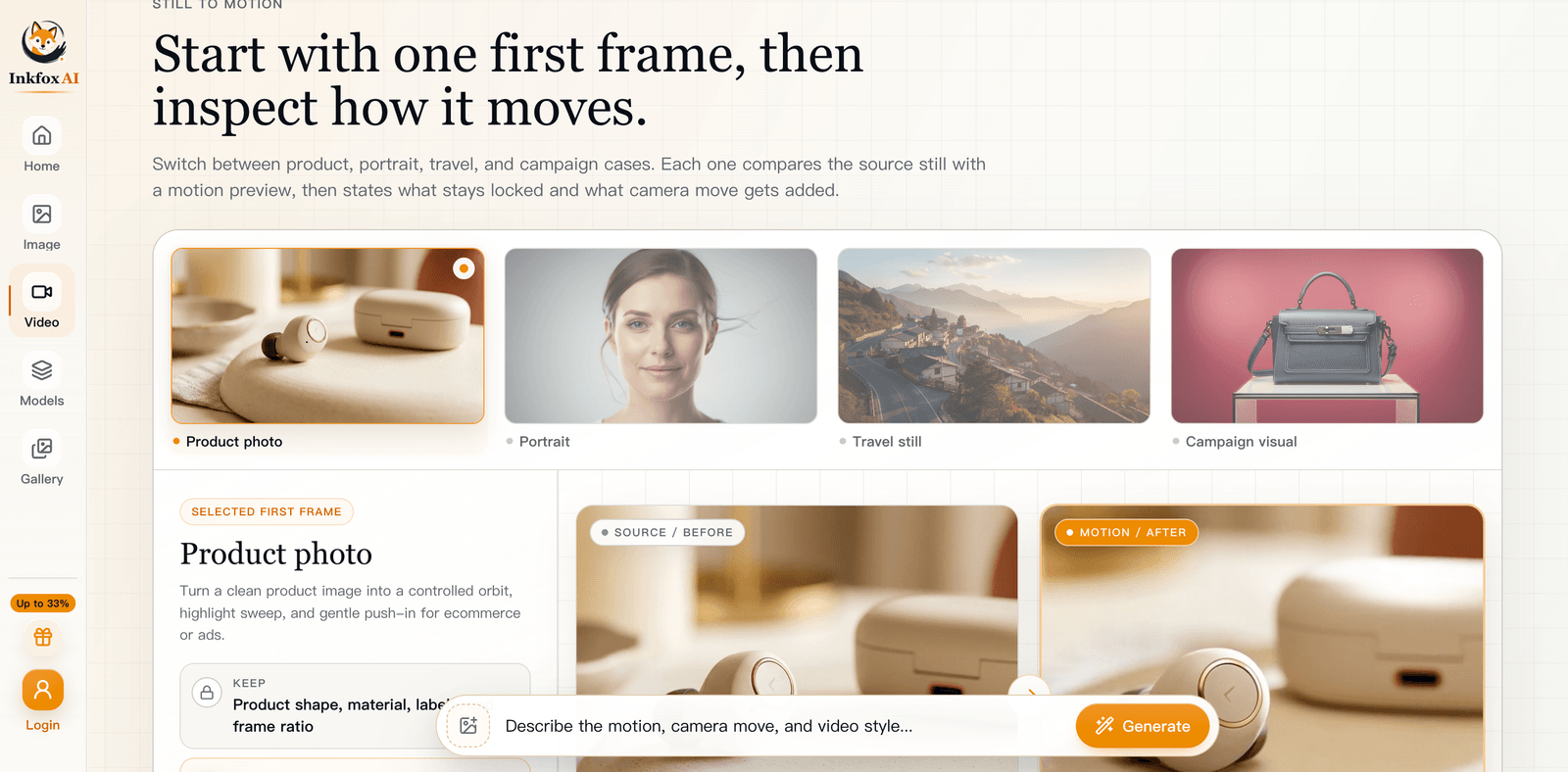
The tool page shows the idea clearly: pick a first frame, then compare the source still against the motion it produces before you commit.
After your first few clips, this routine saves the most time:
- Draft the motion with a fast, low-cost model first.
- Generate two or three versions with slightly different prompts.
- Pick the one with the best timing, not the prettiest single frame.
- Re-run that exact prompt on a premium model for the clean export.
- Crop or trim to the final aspect ratio for each channel.
Drafting cheap and finishing on a stronger model keeps the cost down and the quality up.
- Starting from a weak photo. Motion amplifies flaws. Fix the source first.
- Over-describing the motion. One clear movement reads better than several.
- Skipping aspect ratio. A 16:9 clip cropped to 9:16 loses the subject.
- Polishing every draft. Find the winner first, then upscale or re-run it.
Open image to video with a photo you already have. If you want to build the still first, use text to image to create a clean frame, then animate it. Browse the full AI tools suite for background removal and upscaling before you export, and see AI models to compare what each video model does best.
Upload your photo to Inkfox AI image to video, write a short motion prompt, and generate with the free base model. Free clips export with a watermark, which is fine for drafts. Use credits or a premium model for a clean final version.
A sharp, well-lit photo with the subject fully in frame. AI adds motion but cannot create detail that was not captured, so source quality sets the ceiling for the clip.
Keep early clips short, around three to five seconds. Short clips hold motion better and cost less to iterate on. Generate the length you actually need once the prompt is dialed in.
Yes. For faces, start with a model tuned for portraits like Hailuo 2.3 so expressions and blinks look natural. Use a gentle motion prompt to avoid an uncanny result.