How to Animate Old Photos With AI Without Making Them Look Uncanny
A careful, step-by-step guide to animating scanned vintage portraits: restore first, pick one subject, keep motion small, and review frame by frame before you share.
There is a specific kind of disappointment that comes from animating a family photo badly. You feed in a portrait of your grandmother, wait a minute, and get back a three-second clip where a stranger with her hairstyle blinks at you. The motion is technically smooth. The person is gone.
That failure is avoidable, and it usually comes down to restraint rather than better models. This guide covers how to animate old photos with AI in a way that reads as gentle life rather than reanimation: what to fix before you animate, how much movement is actually safe, and how to check your output before it goes into a memorial slideshow or a family group chat.
Image-to-video models predict what the next frames should look like. They do not know your relative. When the source photo is soft, scratched, low-resolution, or heavily compressed, the model has less identity information to hold onto, so it fills gaps with generic human features. The result drifts.
Three things reliably push a clip toward the uncanny:
Not enough facial detail to anchor the identity. Grain, blur, and dust get interpreted as structure.
Too much requested motion. Big smiles, speech, head turns, and camera pushes all force the model to invent geometry that was never in the photo.
Multiple faces competing for attention. Group photos give the model several subjects to animate at once, and the ones it handles worst are the small, out-of-focus ones.
Every step below is aimed at one of those three problems.
Start with the best capture you can get. A flatbed scan at 600 DPI beats a phone photo of a photo, mostly because it avoids glare, keystoning, and the reflective sheen on old prints. If you only have a phone, shoot in even indirect light, hold the camera parallel to the print, and turn the flash off.
Then crop with intent. You are not framing a poster, you are giving the model a subject. Crop so the face or faces occupy a meaningful share of the frame. A tight bust crop of one person will almost always animate better than a full-length group shot at the same file size, because the pixels are spent on the part that matters.
Keep the original scan untouched in a separate folder. Everything downstream is a derivative, and you will want to go back.
Animation amplifies whatever is in the source. A scratch across a cheek can become a scratch that crawls. Film grain can become shimmer. Compression blocks around the eyes can become flickering artifacts.
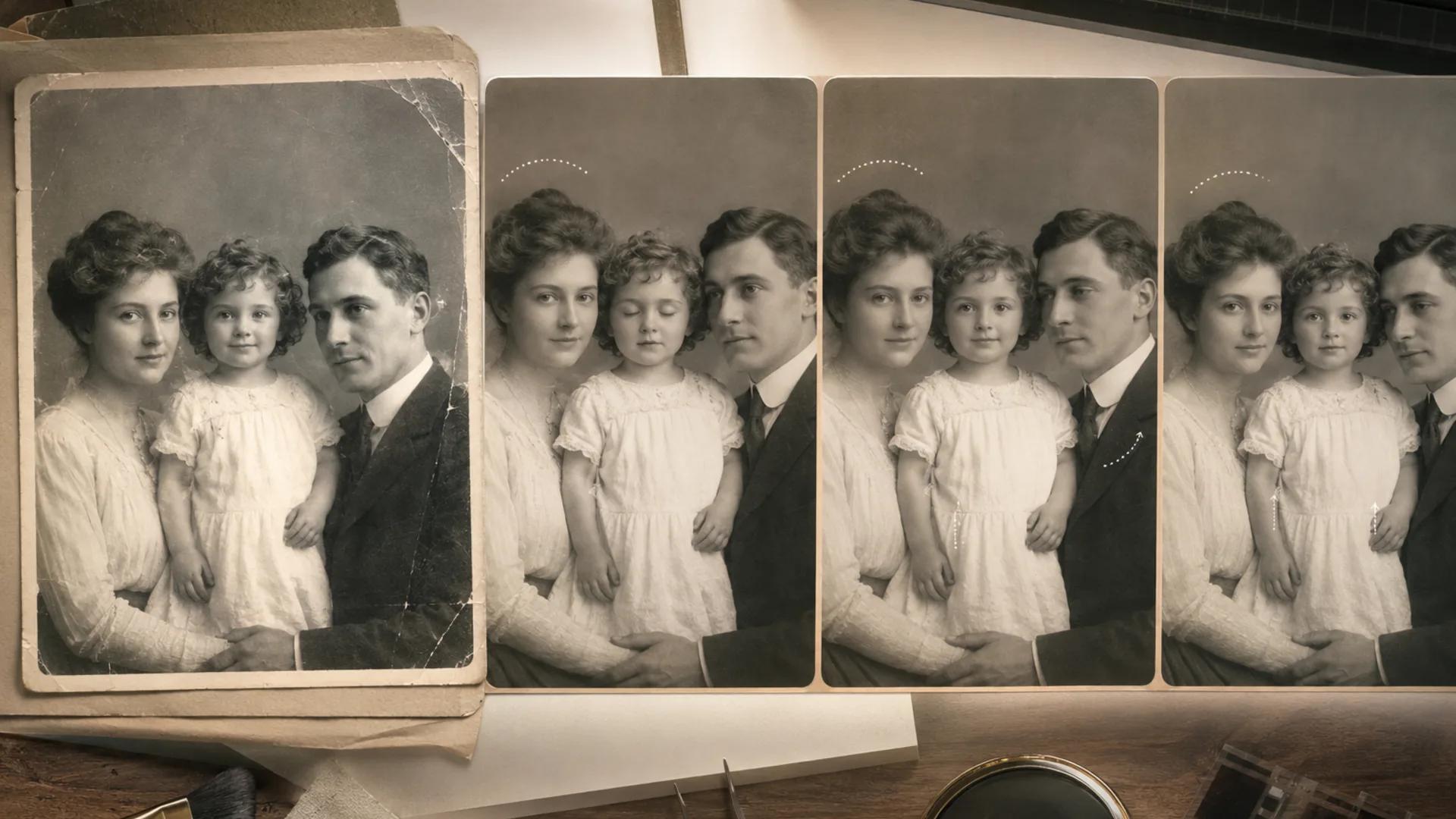
Run the still through restoration first. InkFox has a dedicated pass for this at /ai-old-photo-restoration, which targets the usual damage on scanned prints: scratches, creases, dust, fading, and general softness. Results depend heavily on how much detail survived in the original, so treat it as an improvement pass rather than a guarantee. Some prints come back looking remarkably clear. Some are too far gone in the eye region to be worth animating at all, and it is better to learn that at the still stage.
If your scan is sharp but small, output size is the bottleneck rather than damage. Send it through /ai-image-upscaler instead, then judge the face at 100% zoom. AI upscaling can add plausible texture; it cannot recover detail that was never recorded. If the new texture changes who the person looks like, scale back or accept the smaller size.
Only move on when you would be happy printing the still.
Pick the single face you care about most and build the shot around it. If you want three relatives animated, make three separate clips from three separate crops and edit them in sequence. This is more work and it is worth it, because a model handling one clearly resolved face produces far better identity retention than one juggling five.
For group photos you genuinely want as a group, accept a different goal: ambient motion, not portraiture. Slight fabric movement, a hint of breathing, background life. No facial expression changes.
Upload your restored still to /ai-old-photo-video-generator for portrait-oriented animation, or use the general /image-to-video workspace when you want more control over camera and scene motion.
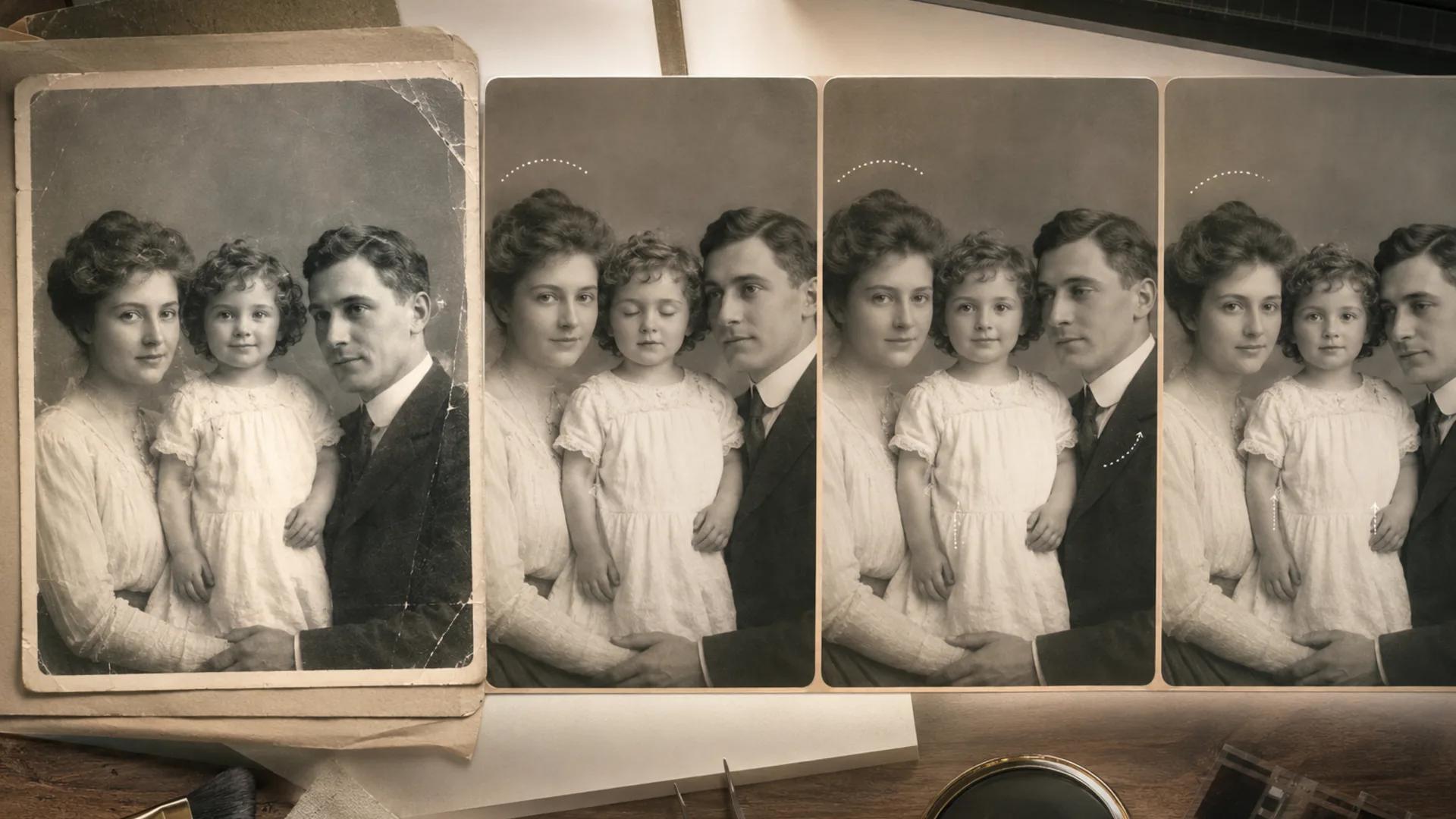
The core principle: request the smallest motion that still reads as alive. Blinks, a breath, a very slight head settle. That is usually enough for a viewer to feel presence. Anything more and you are asking the model to guess.
Also keep clips short. Two to four seconds gives the model fewer frames in which to drift and gives you a smaller sequence to inspect. In an edit, short clips can also be looped or cross-dissolved deliberately.
Subtle, respectful animation of a vintage portrait photograph.Keep the subject's face, features, and proportions exactly as in the source image.Motion: slow natural blink, very slight breathing in the chest and shoulders,a barely perceptible head settle. Eyes remain looking toward the camera.No smiling, no talking, no mouth movement, no teeth.Camera: completely static. No zoom, no pan, no parallax.Preserve original lighting, film grain character, and background exactly.Duration: short and calm.
Gentle ambient animation of a vintage group photograph.Preserve every person's face, identity, pose, and position without alteration.Motion: minimal shared breathing, faint clothing and hair movement,occasional slow blink on the largest, sharpest faces only.No expression changes, no head turns, no talking, no gesturing, no hand movement.Camera: locked off. No zoom, no drift.Keep the background, grain, and tonality unchanged.
Cinematic but restrained animation of a vintage outdoor scene.Motion belongs to the environment: leaves and grass shifting in light wind,slow cloud drift, subtle water ripple, faint dust in the air.Any people in the frame stay still apart from natural micro-movement.Do not add new figures, vehicles, animals, or objects.Camera: an extremely slow push in, no more than a few percent, or fully static.Preserve the original color cast, exposure, and film texture.
Adapt the wording, but keep the negative instructions. Telling the model what not to do is often more effective than describing what you want.
Play the clip once at full speed for the emotional read, then scrub it slowly. Watch for:
Identity drift. Pause at the first and last frames and compare both to the source. If the jawline, eye spacing, or nose shape has shifted, discard it. This is not fixable with a better prompt on the same clip; regenerate with less motion or a tighter crop.
Lip and teeth invention. A model may open a closed mouth. Teeth that were never visible in the source are unverified additions, and viewers notice them quickly. If a mouth opens, regenerate with explicit mouth-closed instructions.
Hands. Hands are the least reliable region in generated video. If a hand is visible and moves, expect finger errors. Either crop the hands out or forbid hand motion entirely.
Background warping. Watch the straight lines: doorframes, wall edges, picture frames, chair backs. Rippling or breathing backgrounds are a strong tell.
Camera movement. Fake parallax on a flat photograph creates stretched edges and false depth. Static camera is nearly always the better choice for archival material.
Eye behavior. Blinks that are too fast, too frequent, or asymmetric feel wrong. One calm blink in three seconds is plenty.
If two or three regenerations all drift, the source is the limit. Go back to Step 2 or accept the still.
Export at the resolution you will actually use. Upscaling a generated video after the fact tends to sharpen artifacts rather than hide them, so choose your output size before generating when possible.
Name files so future-you can tell them apart: grandmother-1952-portrait-ORIGINAL-scan.tif, ...-restored.png, ...-animated-v3.mp4. In six months you will not remember which version was the good one.
Generated motion is an interpretation, not footage. Nothing in the clip is a record of something that happened. The blink is a guess. It can be a beautiful, moving guess, and it is still a guess. Do not present it as recovered film.
Preserve the original. Archive the untouched scan alongside every derivative. Restoration and animation are additive layers, not replacements, and a future tool will do better than today's.
Get consent when the subject can give it. For living people, ask. For recently deceased relatives, check with the family, especially before posting publicly. Different people feel very differently about seeing a parent blink.
Label what you share. A short note in the caption or a title card in the video is enough: "Animated from a 1952 photograph using AI. The motion is generated." This protects both the viewer's understanding and your own credibility. It matters more as these clips circulate; provenance is the only thing separating a family keepsake from misinformation.
Be careful with memorial use. Animated portraits in funeral or memorial videos land hard. Show it to one trusted family member privately before it plays in a room full of grieving people.
Do I have to restore the photo first?
Not always, but usually. If the scan is already sharp and clean, animate directly. If there is visible damage, softness, or heavy grain, restore first at /ai-old-photo-restoration, because animation will amplify every flaw.
Can AI make my relative talk?
Some tools attempt speech animation. For archival portraits it is the highest-risk option available, since the model must invent the entire mouth interior and jaw motion. It also moves the clip from "gentle motion" to "putting words in a dead person's mouth." For family and memorial work, a blink and a breath is a better choice.
Why does the face change into someone else?
Usually too little facial detail in the source, or too much requested motion. Crop tighter, restore or upscale first, and reduce the motion described in your prompt.
What about colorizing before animating?
It is a matter of taste, and it is another interpretive layer. Colors in a colorized photo are inferred, not recorded. If you colorize, label that too, and keep the black-and-white original.
How long should the clip be?
Two to four seconds for portraits. Short clips hold identity far better, and in an edit you can loop or dissolve them.
Can I animate a group photo as one shot?
You can, but expect ambient motion rather than expressive faces. For a specific person, crop them out and animate separately, then assemble the clips.
What should I do if every attempt looks wrong?
Stop and keep the still. A well-restored photograph is a complete artifact. Not every image needs to move, and there is no loss in deciding that this one does not.
Start with the still you have, improve it honestly, ask for less motion than you think you need, and label what you make. That is most of the craft.