
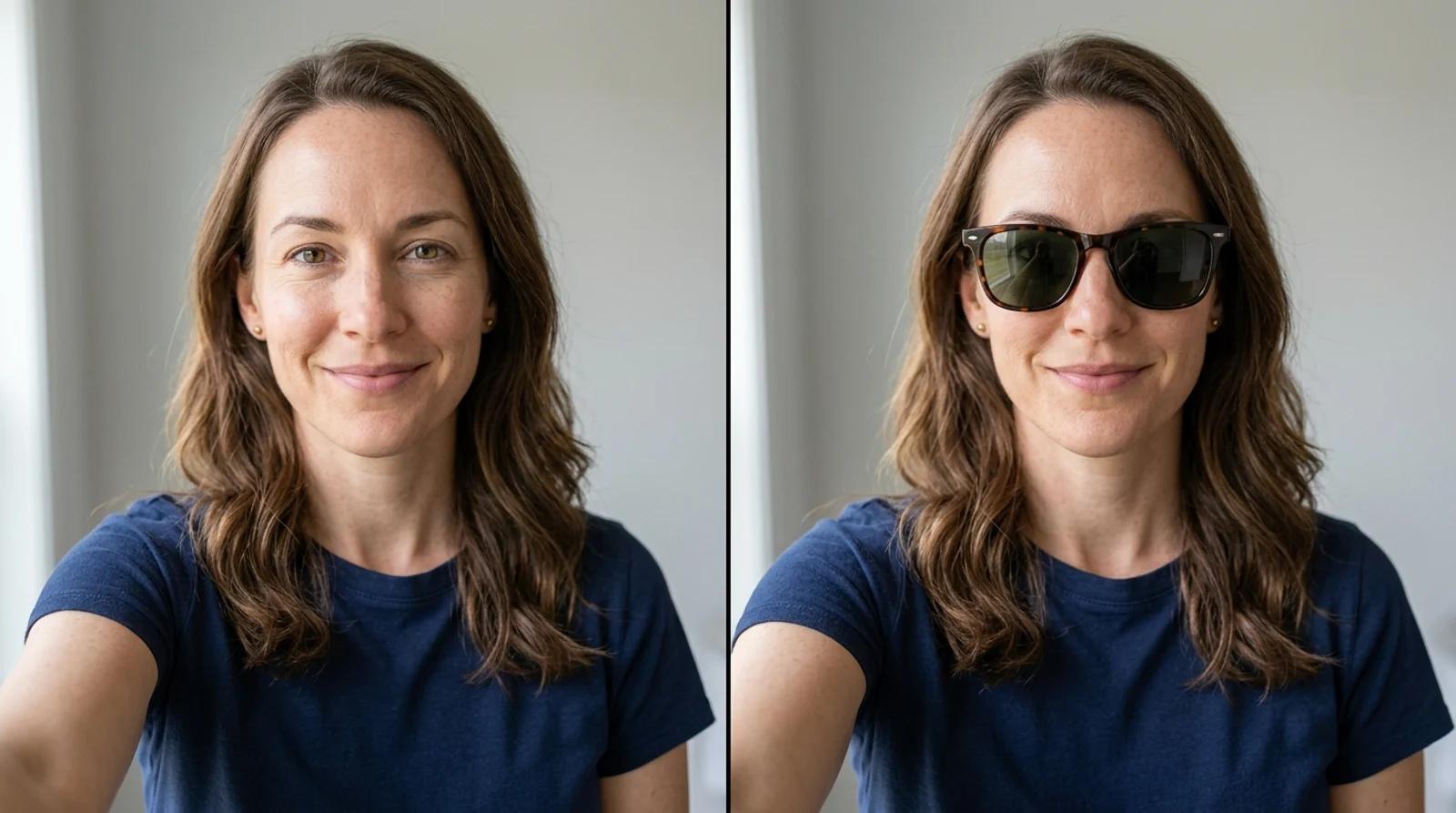
How to Try On Sunglasses Virtually From a Selfie (Free AI Try-On)
Try on sunglasses virtually from one selfie with free AI. Learn the upload-to-result flow, which frame suits your face shape, and how to read the result honestly.

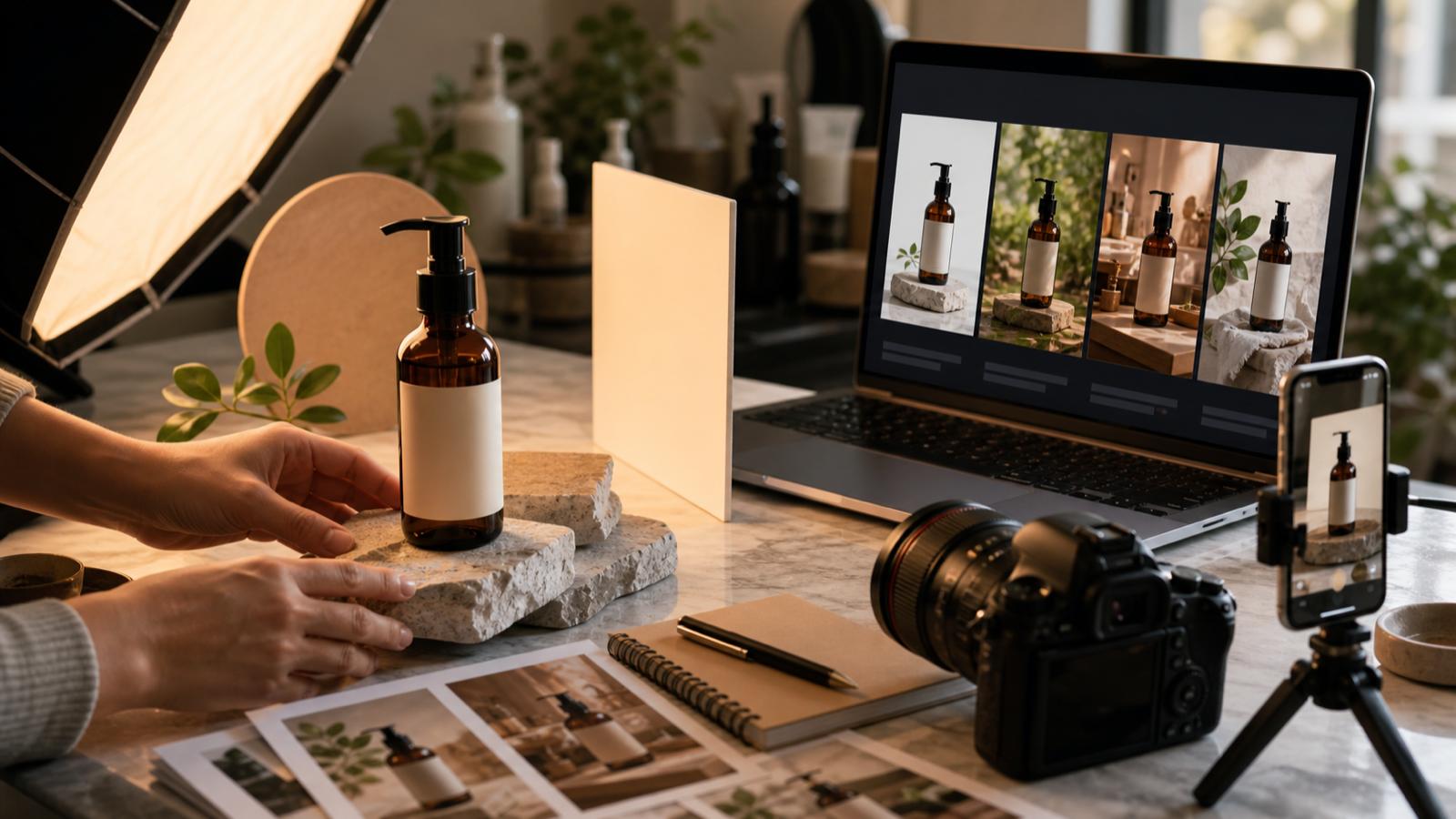
A hands-on guide to using Inkfox AI image-to-image, background removal, upscaling, and AI generation to turn simple product photos into ad-ready creative.
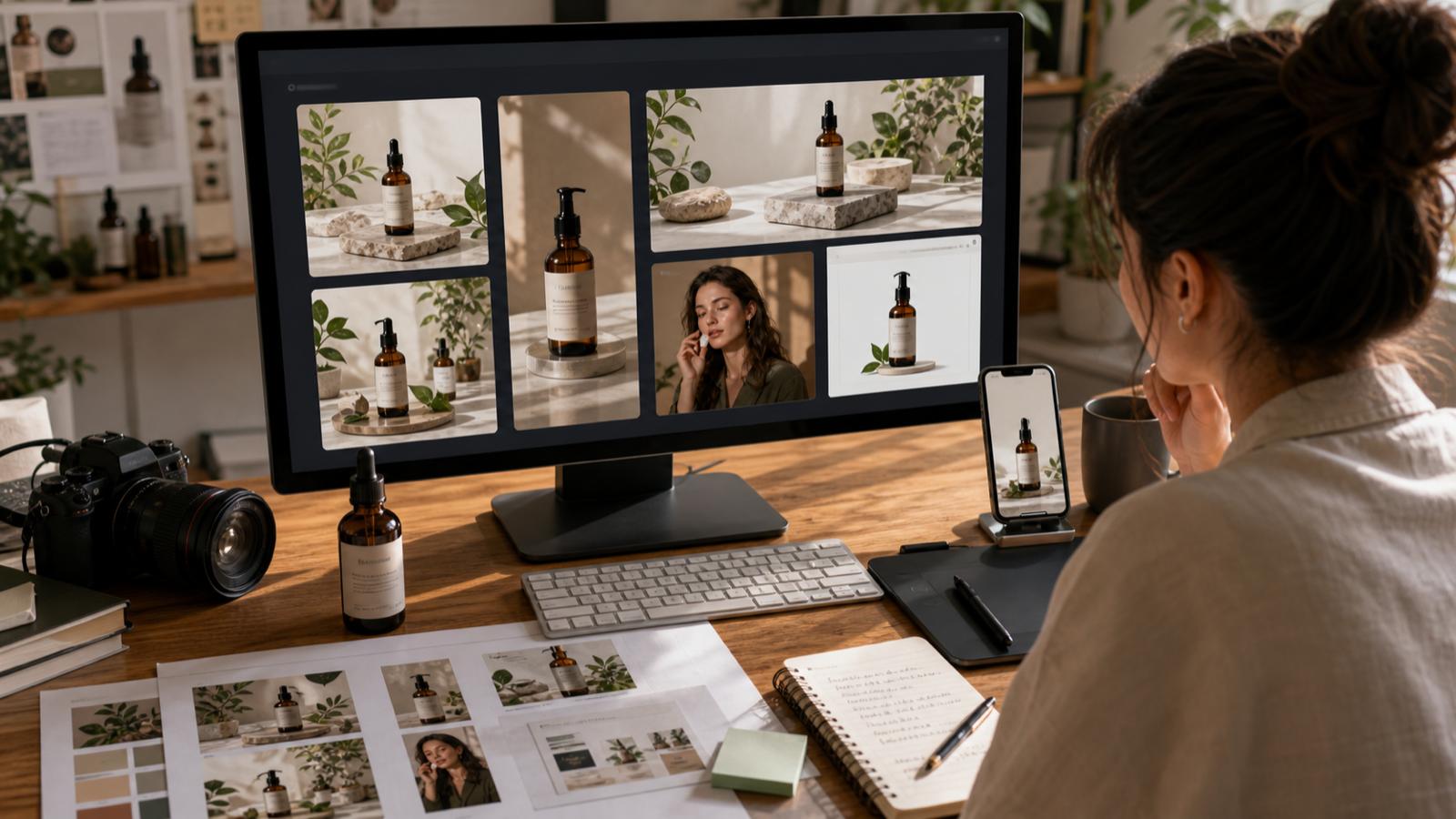
Most product teams have more product photos than finished ad creative. A supplier image, a phone shot, or a plain white-background photo can be enough to start, but it usually needs a stronger setting, cleaner lighting, and formats for multiple channels.
Inkfox AI helps turn those source photos into campaign assets. Use image-to-image to preserve the product, text-to-image to build new scenes, background removal to clean exports, and upscaling when a winning concept needs a sharper final version.
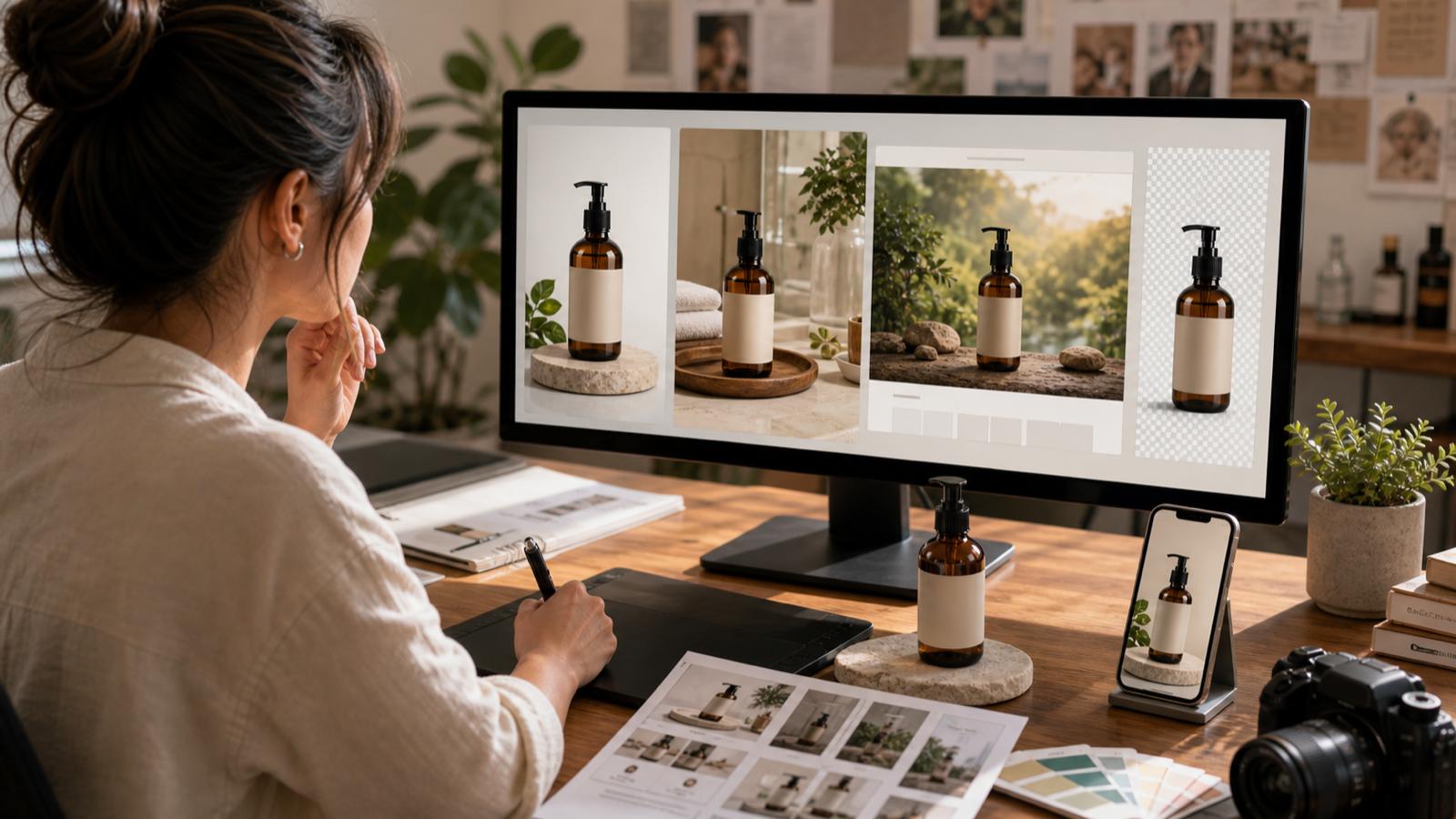
AI can improve a weak product image, but it cannot reliably save a source that hides the thing you need to sell. Before generating, choose a source photo with:
If the product has labels, logos, small buttons, fabric texture, or exact packaging, treat the source photo as the anchor. Your prompt should change the environment and lighting, not invent a different product.
Text-to-image is best when you are inventing a scene. Image-to-image is better when the product already exists and must remain recognizable.
A strong product prompt usually includes three layers:
Example:
Preserve the exact shape and color of the black wireless headphones. Create a premium ecommerce ad image on a clean warm-gray studio surface, soft side light, subtle shadow, high-end consumer electronics style, 4:5 vertical crop, no text, no logo changes.
Notice that the prompt protects the product before it asks for style.
One ad visual is rarely enough. Build a set around the same source:
| Asset | Best format | Prompt direction |
|---|---|---|
| Product hero | 1:1 or 4:5 | Clean studio surface, strong subject scale |
| Lifestyle ad | 9:16 | Product in use, human context, simple background |
| Landing page visual | 16:9 | Wider scene, negative space for headline |
| Retargeting creative | 1:1 | Clear benefit angle, high contrast |
| Marketplace image | 1:1 | Product clarity, minimal distraction |
This gives the campaign enough variety while keeping the product recognizable.
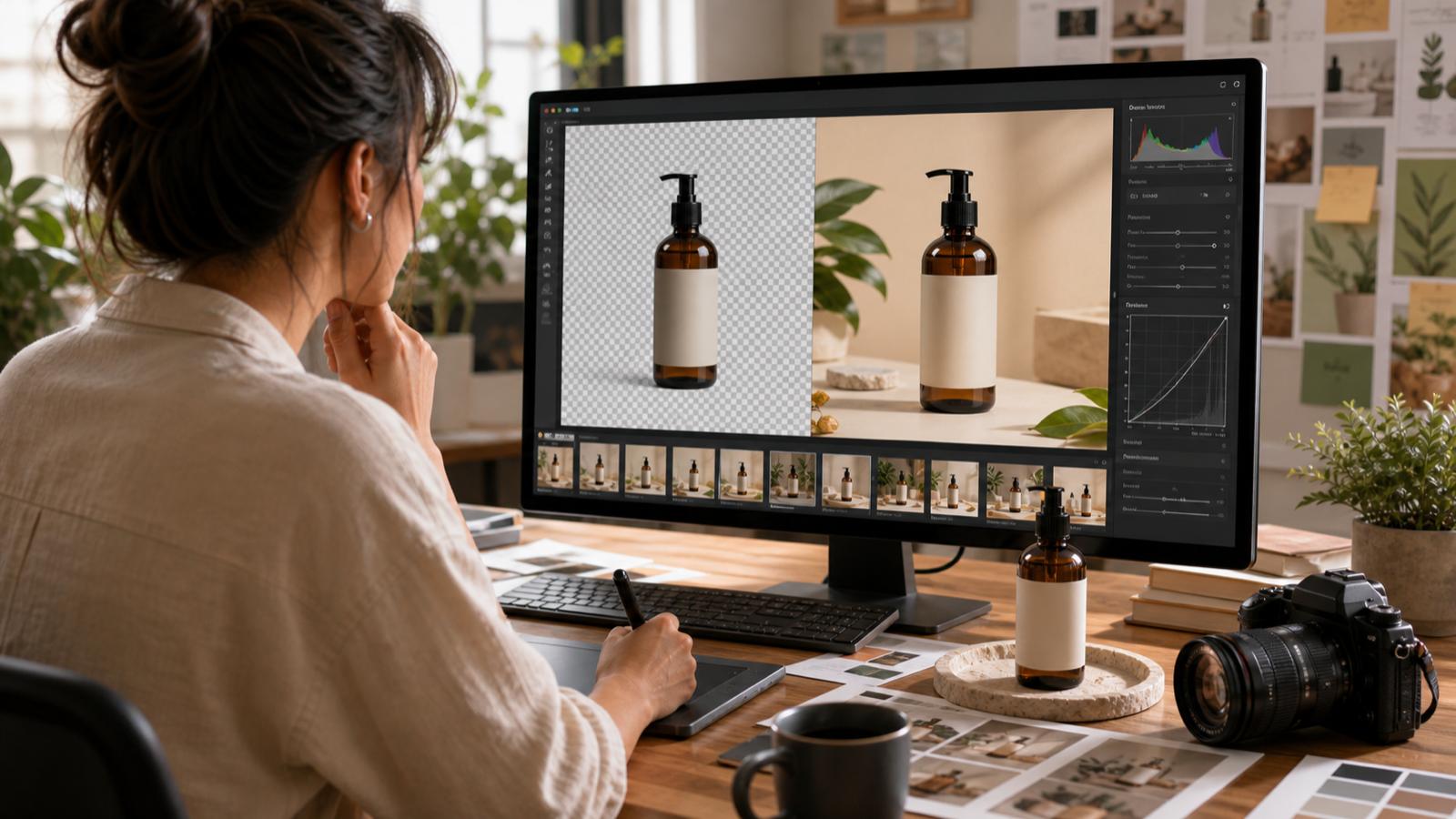
Background removal is useful, but use it at the right time. Removing the background too early can flatten the creative process. First decide which image direction is worth keeping. Then use background remover when you need:
If the whole point of the ad is the scene, keep the background. If the point is to reuse the product across layouts, remove it.
Upscaling every draft wastes time. Use image upscaler after you have selected the strongest image and confirmed the details are clean enough.
Upscale when:
Do not upscale images with broken details. Bigger mistakes are still mistakes.
Preserve the exact product shape and color from the reference image. Create a clean studio ecommerce photo on a warm neutral surface, soft shadow, realistic material detail, premium direct-to-consumer brand, square crop, no text, no extra objects.
Preserve the product from the reference image. Show it in a believable lifestyle setting for a paid social ad, natural light, simple background, strong subject clarity, vertical 9:16 crop, no text, no logo changes.
Preserve the product from the reference image. Create a wide 16:9 landing page hero image with negative space on the left for copy, premium lighting, clean modern environment, realistic detail, no text.
Before downloading or sending the image to a campaign, check:
If the answer is weak, revise the prompt instead of trying to fix the file after export.
Start with image to image if you have a product photo. Use text to image for new concept scenes, background remover for transparent product assets, and image upscaler for final candidates.
Image-to-image can preserve product shape and visual identity better than text-only generation, but you should still inspect labels, edges, colors, and details before using the result commercially.
White-background photos are a good starting point because the product is easy to isolate. Lifestyle photos can also work if the product is clear and not heavily occluded.
Use image-to-video after you have a strong still image. A clean product hero can become a first frame for a short product reveal, social clip, or landing page motion test.
Try on sunglasses virtually from one selfie with free AI. Learn the upload-to-result flow, which frame suits your face shape, and how to read the result honestly.

Try on earrings virtually from one selfie with free AI. See how the upload-to-result flow works, which earring style suits your face, and how to read the placement honestly before you buy.
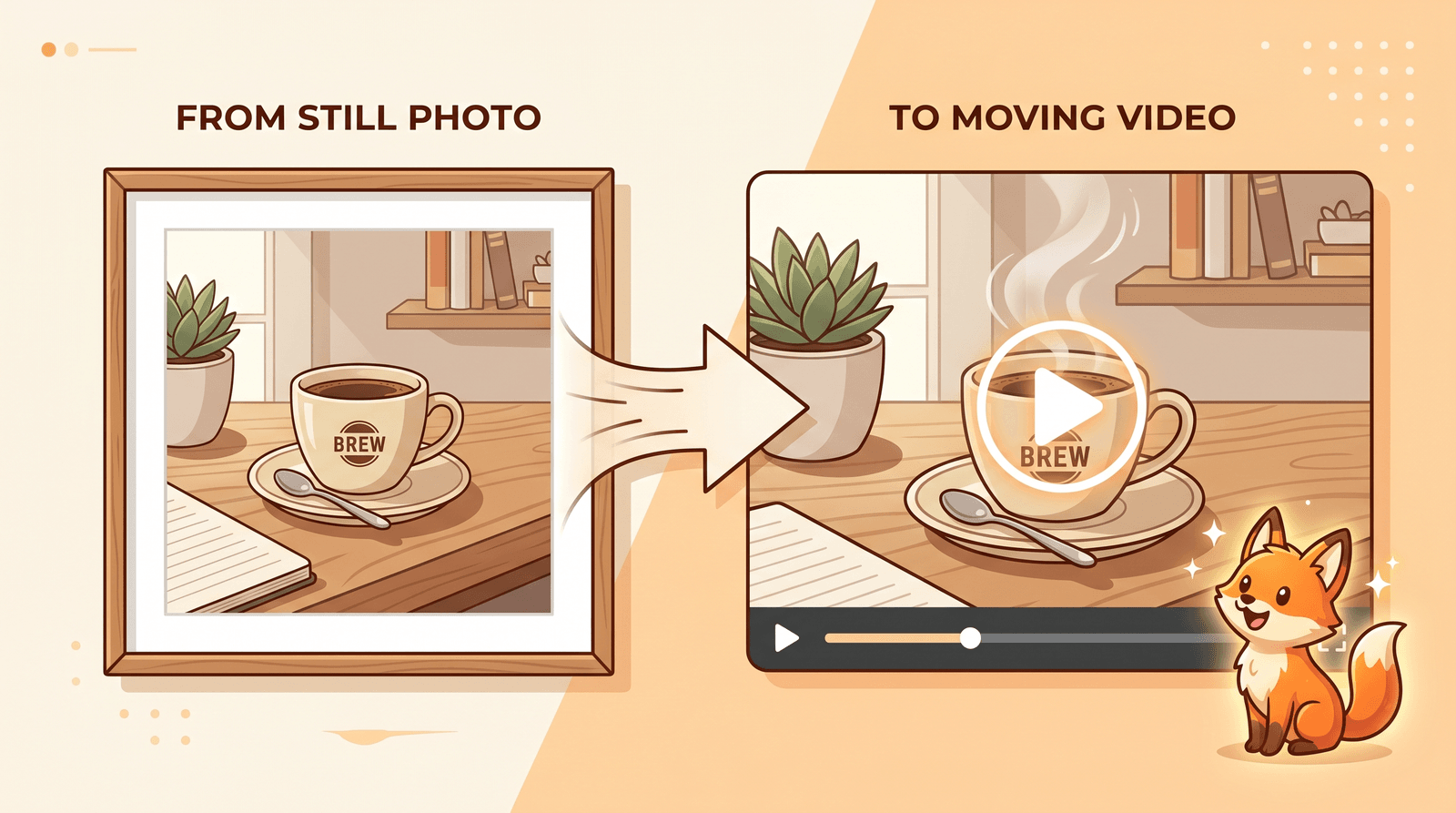
A step-by-step guide to turning any photo into a short video with AI using Inkfox AI image to video. Learn how to animate a picture, write motion prompts, pick the right model, and export a clean clip for free.
Newsletter
Subscribe to our newsletter for the latest news and updates