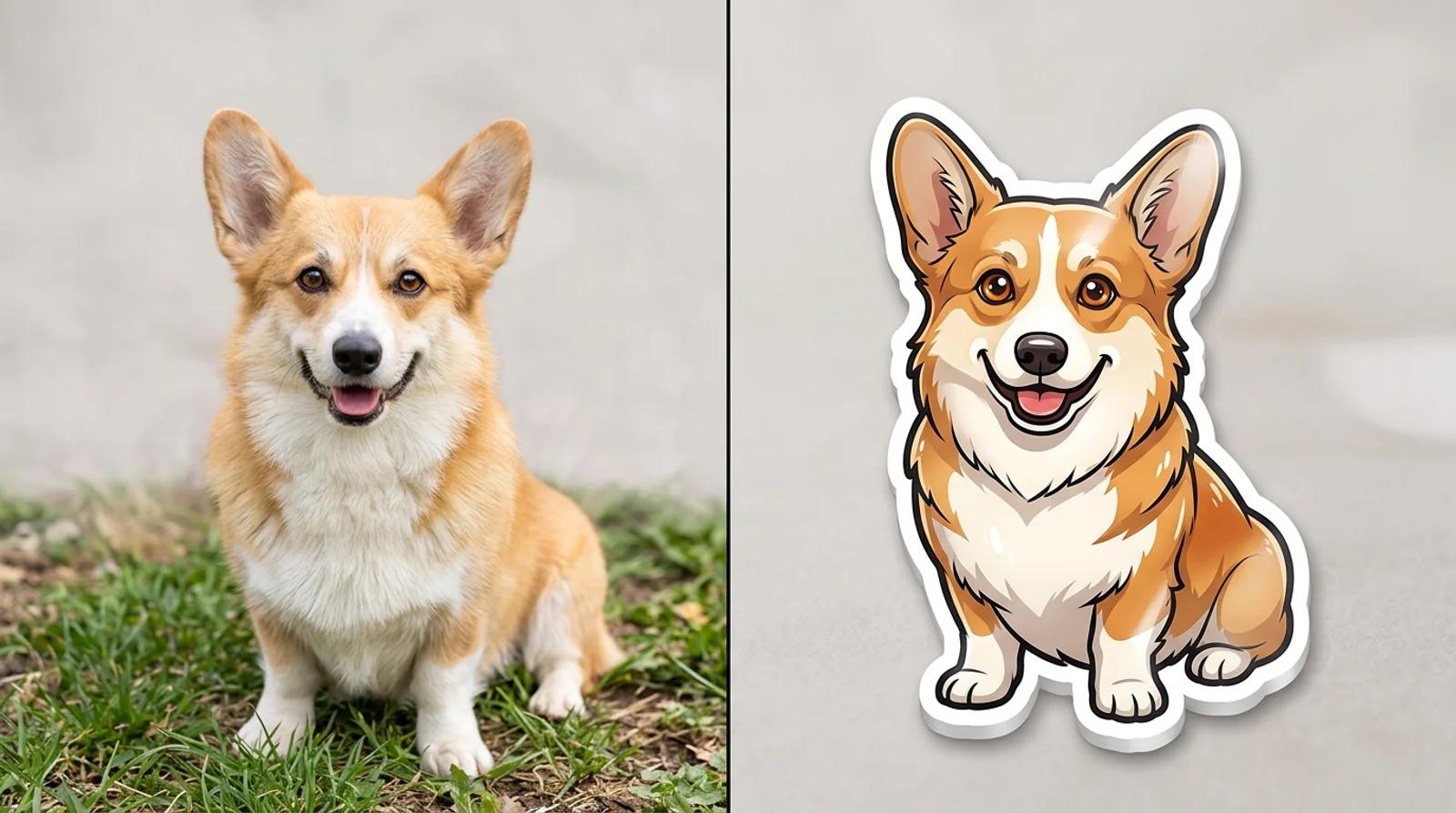
Stickers used to mean a designer, a vector file, and a wait. Now you can turn a photo into a sticker with free AI in a few seconds: a corgi photo on your phone becomes a glossy die-cut sticker, and you can build a whole pack before your coffee gets cold. People put them on WhatsApp and Telegram, laptop lids, water bottles, small-shop merch, and the group chats that run on pet and face stickers.
This guide uses the AI sticker generator. Upload a photo of your pet or face, or describe a sticker from scratch, pick a style, and generate a die-cut design with a bold white border. No vector software, no tracing, no waiting on a designer.
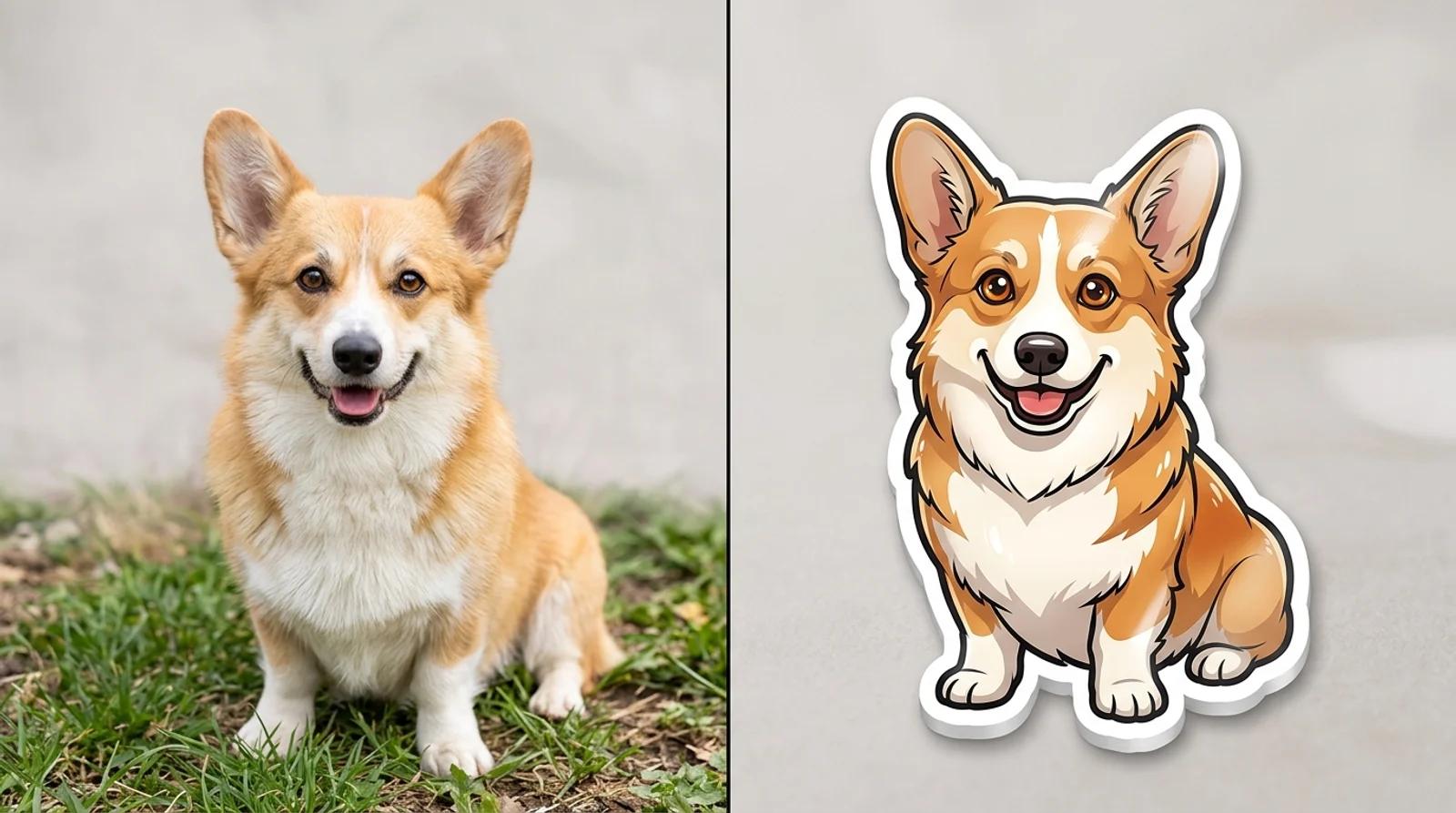
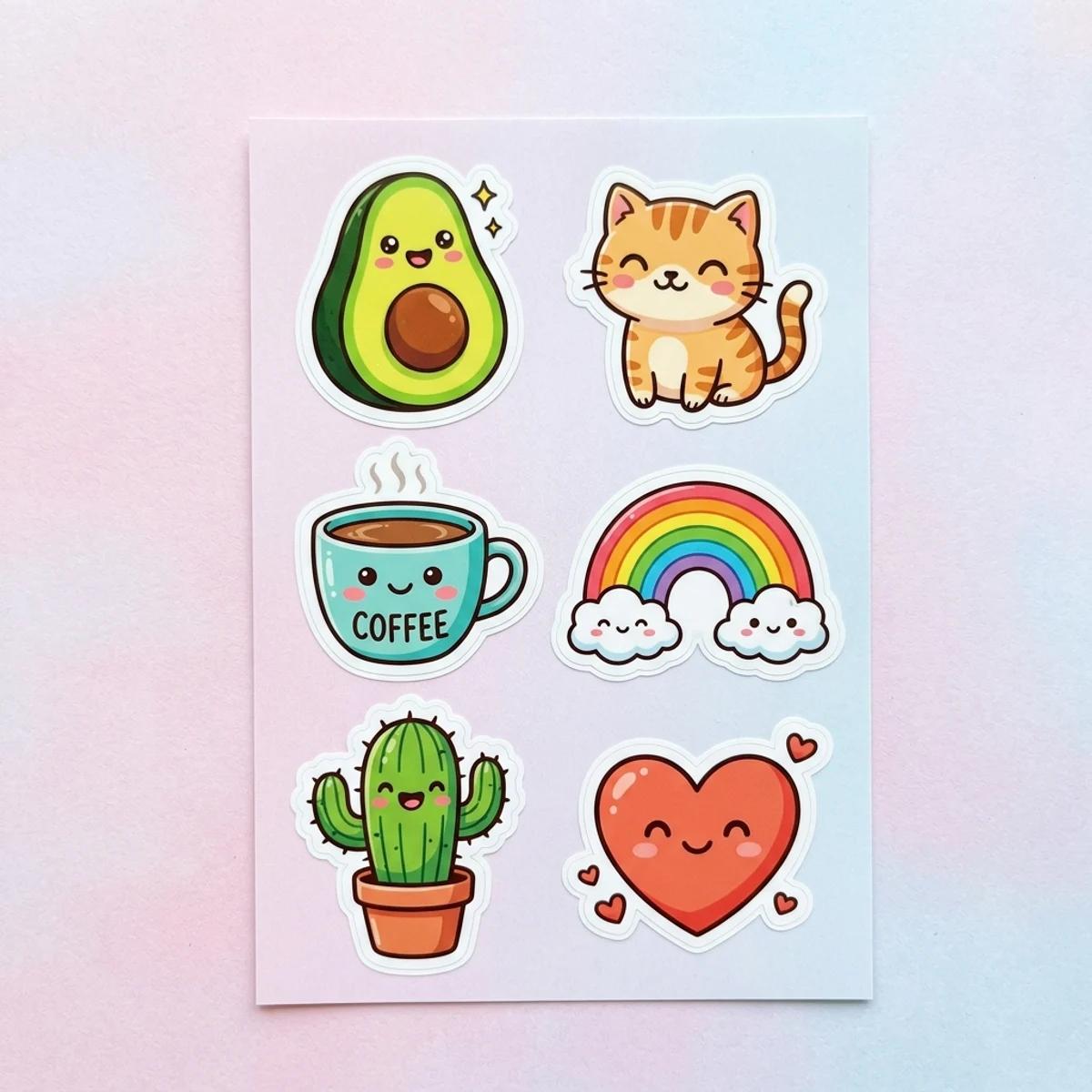
A sticker is not a tiny illustration. It has to read at the size of a chat bubble or a laptop hinge, so the rules differ from a normal image. The ones that work share three traits.
- One bold subject. A single character or object, front and center. Three things competing in a busy scene turn to mush at thumbnail size.
- A clean die-cut border. That thick white outline is what makes a sticker look like a sticker. It separates the subject from whatever it sits on and gives the eye a crisp edge.
- Simple shapes. Strong colors, an obvious silhouette, one clear emotion. If you have to squint to read it at 64 pixels, it is too detailed.
Get those right and the rest is picking a style and a subject.
Open the AI sticker generator. There are two ways in, and both land in the same place.
- Upload a photo. Drop in your pet, your face, or an object. This is the route for "make my dog into a sticker" or a face sticker for a friend group.
- Describe it instead. Skip the upload and type the subject, like a happy avocado giving a thumbs up or a sleepy cat curled up. This is the route when you have an idea but no photo.
You do not need both. Pick whichever fits.
Choose one of four built-in styles. Each sets the whole look and adds the thick white border and a simple background for you, so you never write a prompt for any of that.
- Kawaii. Soft, cute characters with big friendly expressions. The default for pet and reaction stickers.
- Cartoon. Bold flat colors and clean comic-style outlines. Good for mascots and characters with attitude.
- 3D. A shiny rendered look with soft studio reflections. Best for objects like hearts, rockets, and food.
- Pixel. Crisp retro 8-bit sprites with a bold palette. The one for game-night packs.
Match the style to the subject and to where the sticker will live. A pixel sword fits a gaming Discord; a glossy 3D heart fits a couple's chat. Pick the look first, since it shapes everything after it.
If you uploaded a photo, the style does the work and you can generate now. If you are describing one, the cleanest stickers come from the shortest briefs. Two rules.
- One clear subject. A single character or object, not a scene. A friendly little robot waving beats a robot in a workshop surrounded by tools.
- One emotion. Give it a single, obvious feeling, like happy, winking, or sleepy. That expression is what makes a sticker land in a chat.
For reaction stickers, add a short speech bubble, like a winking cat with a HELLO speech bubble. Keep it to a word or two so it stays readable when the sticker shrinks.
Hit Make sticker. The model renders your subject in the chosen style with the die-cut white border and a plain background. It takes a few seconds.
When it lands, check it the way you would a logo. Does the subject read instantly at small size? Is the border clean all the way around? Is the emotion obvious? If something is off, regenerate. Each run varies a little, and the second or third pass often has a cleaner border or a stronger pose. Clicking again, changing nothing, is a real fix here.
A single sticker is fine, but a pack is what people actually want. To make a set look like it belongs together, keep the same style across every prompt and hold a consistent character or theme. Run the same fox through kawaii once, then keep kawaii for the next five. The shared style is what ties them into a pack.
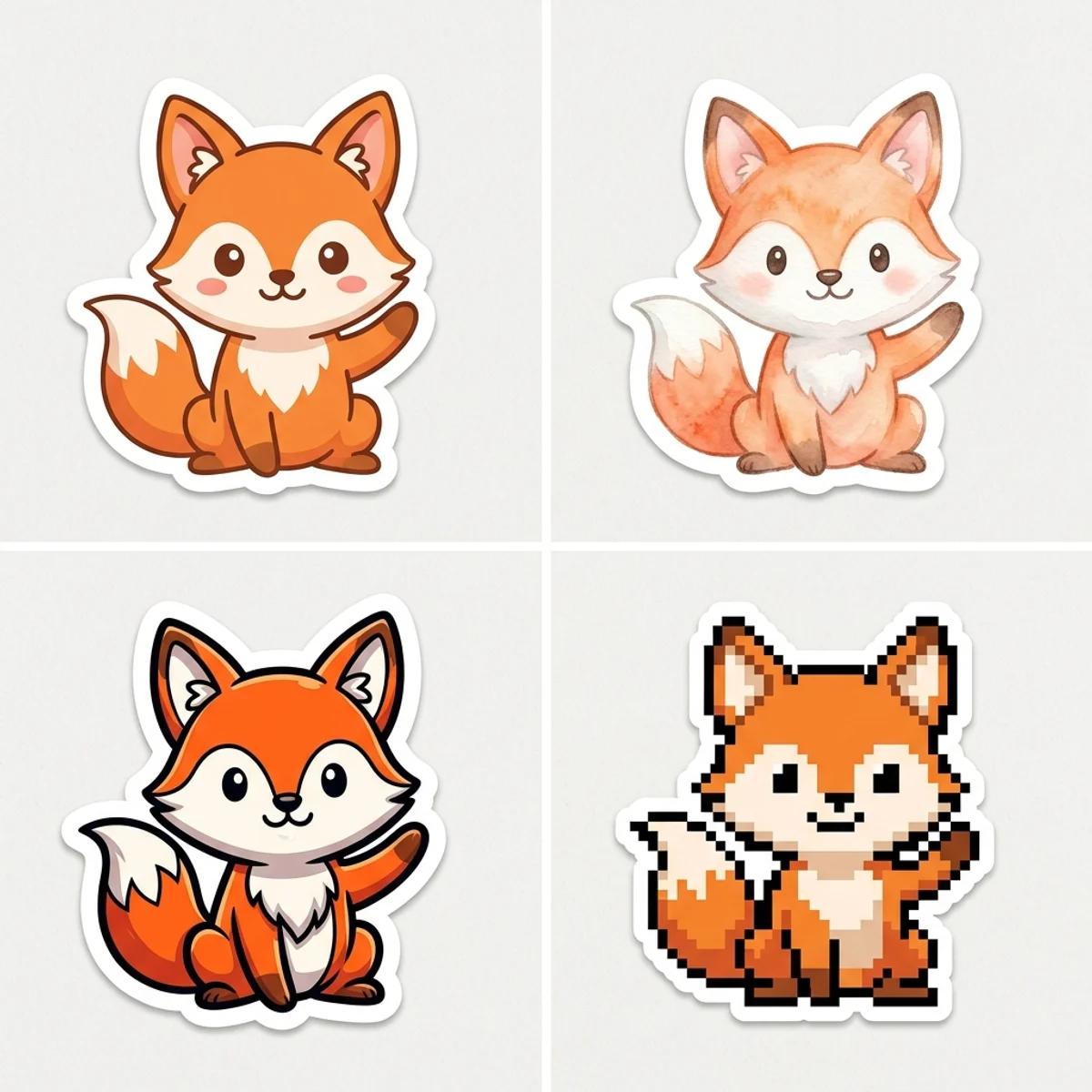
Seeing one character across styles is worth doing once. It shows how much the style alone changes the read, and it helps you commit to one before you build the rest.
Different destinations want different settings. Here is a quick map from use case to the style and format that fit.
| Use case | Best style | Format tip |
|---|
| Chat sticker pack (WhatsApp, Telegram) | Kawaii or Cartoon | Transparent PNG, square, around 512×512 |
| Laptop or merch print | 3D or Cartoon | Keep the white die-cut border, print at 300 DPI, 2 to 3 inches |
| Brand mascot | Cartoon | One consistent character, transparent PNG so it sits on any color |
Chat apps want square transparent PNGs that drop into a bubble. Print wants the white border and real resolution. Decide the destination before you finalize and the format choices follow.
The generated sticker comes on a plain background with a white border. For most chat and print uses you will want a true cutout, which is one extra step.
- Make a transparent PNG. The generated background is plain but not transparent. To get a clean cutout that sits on any color, remove the background in an editor (or with a background remover) and export as PNG. PNG keeps the transparency; save as JPG and the transparent areas fill with white.
- Size for chat vs print. Chat apps like WhatsApp and Telegram want small square PNGs, with 512×512 the common target. Print wants the opposite: a high-resolution file at roughly 300 DPI so the edges stay crisp at physical size. Upscale the winner before printing instead of stretching a small file.
- Order printed stickers. Treat the AI result as a draft. Before sending it to a print-on-demand service, check the resolution, keep the white die-cut border, and add cut lines in your print workflow. Most printers want a PNG with a clear margin around the subject.
If the border looks messy or the subject blends into the edge, the fix is almost always in the source, not the settings.
- Start with a clear subject. When you upload, use a photo where your pet or face stands out from the background. A corgi against a plain wall cuts cleaner than a corgi in tall grass.
- Prefer a simple background. A busy or same-colored background gives the model less to separate the subject from, and the die-cut edge suffers.
- Lean on bold styles. Kawaii, cartoon, and 3D produce stronger silhouettes than fine, detailed looks, so the border holds up at small size.
- Regenerate. If one pass has a ragged outline, run it again. A second or third result often has the tidy edge you want.
You can pick a style, upload or describe a subject, and generate a sticker on the free base model without an account. Signing in keeps your results in history so you can come back and build out a pack over time, and it removes the export watermark from the download.
You do not need a designer or vector software for this. Pick a style, upload your pet or face (or describe it), generate, and regenerate until the border is crisp. Keep the style consistent and you have a pack.
Try the free sticker generator →