
How to Animate a Logo With AI: 4 Practical Motion Recipes
Animate a static logo with AI using four practical motion recipes, source-file preparation, identity-lock prompts, frame-by-frame checks, and export tips.

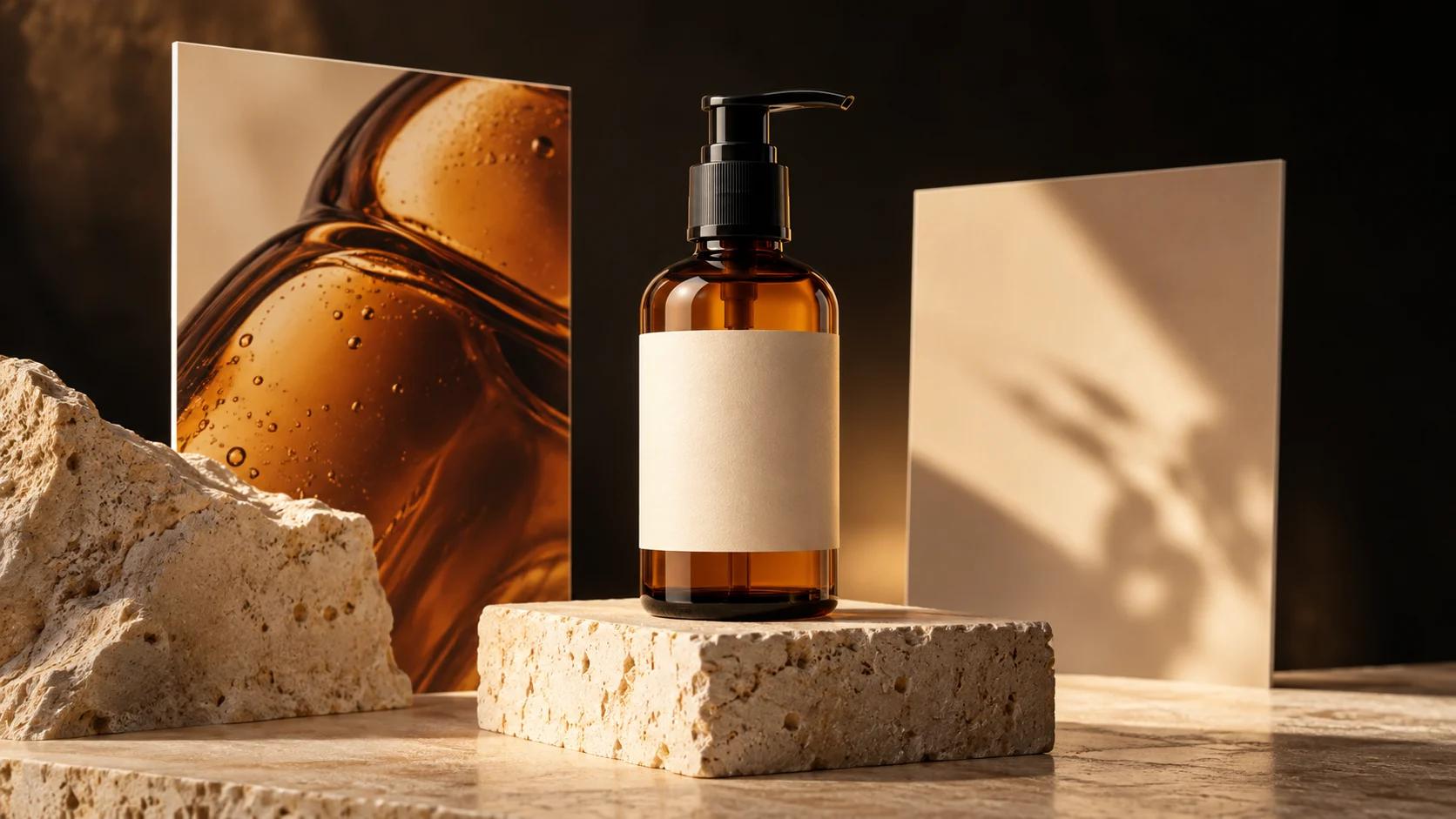
Learn how to edit product photos with Nano Banana 2.1 in Inkfox using clear reference-image roles, reusable prompts, resolution planning, and a practical quality checklist.
Product photo editing is easier when every input has one clear job: the product photo defines the object, a scene reference defines the setting, and a visual reference guides color and light. The prompt explains how those pieces should work together.
Nano Banana 2.1 is now available in Inkfox for image-to-image editing and text-to-image creation. Multiple references, 14 fixed aspect ratios plus Auto, and selectable 1K, 2K, or 4K output let you plan assets for marketplaces, social posts, and landing pages in one workspace.
The cover and diagrams in this guide explain the workflow. They are tutorial illustrations, not claimed Nano Banana 2.1 test outputs.
As of October 23, 2026, Inkfox offers three output levels for this model. These prices are for one output image; choosing multiple outputs increases the total. Check the live quote before generating.
| Resolution | Inkfox credits | Use it for |
|---|---|---|
| 1K | 4 | Prompt checks, composition tests, and early review |
| 2K | 6 | Selected ecommerce images, social assets, and most web layouts |
| 4K | 9 | A final candidate that needs a larger crop or high-detail delivery |
The model accepts up to 10 reference images and returns PNG output in Inkfox. Ten is a capacity limit, not a target. Every reference still needs a clear role.
For a typical product photo, start with three references:
Add a second product angle or detail close-up only when it contributes new evidence. Five similar mood images rarely clarify the brief.
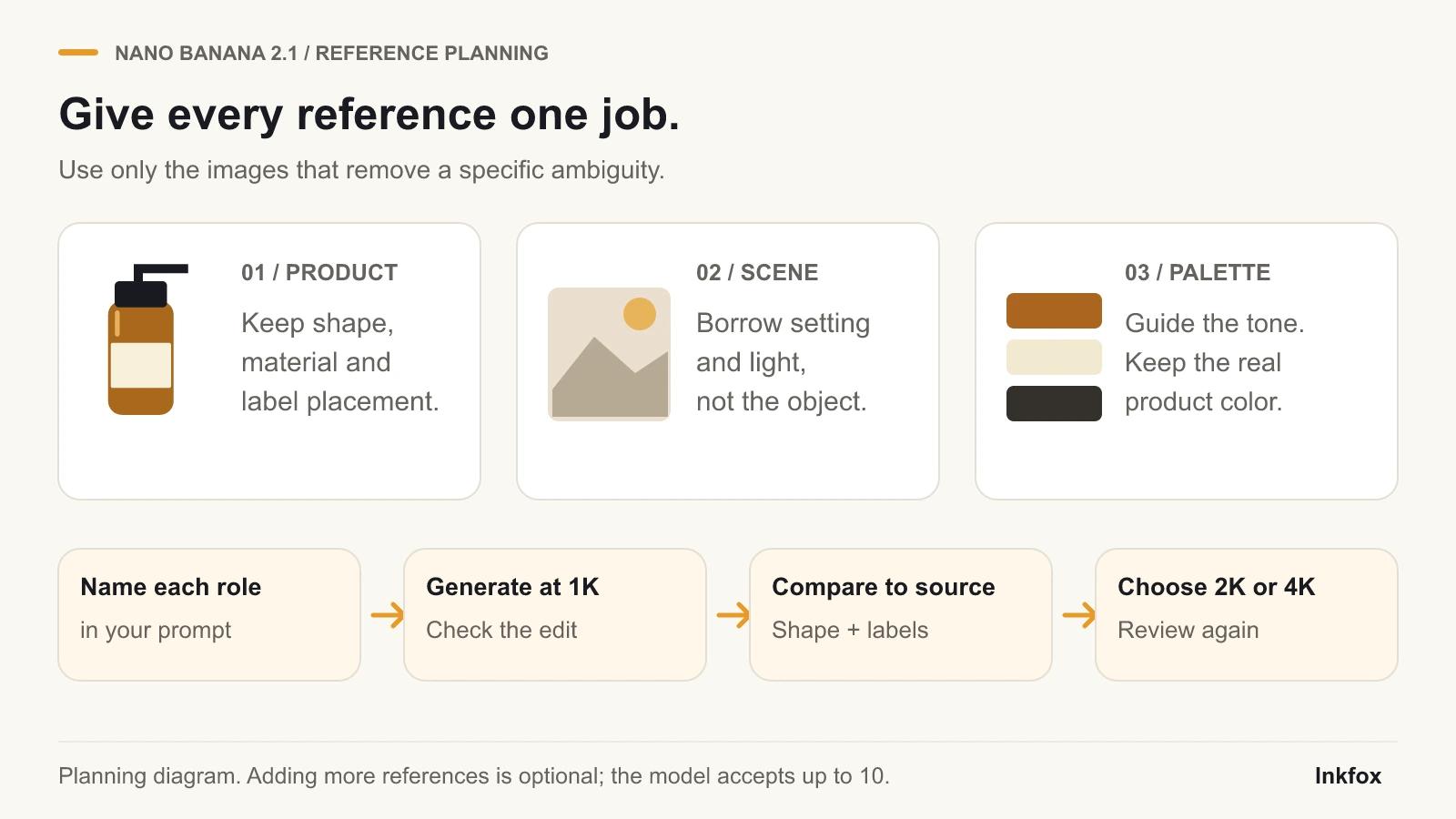
Give each reference one role: product, scene, or tone. Check the composition at 1K before choosing a larger final output.
Choose a product image with the full silhouette, sharp edges, and accurate color. If a label or logo must remain exact, keep the approved artwork for the final check or composite. Generated details should not replace required packaging copy.
Choose a scene with compatible perspective: pair an eye-level product with an eye-level surface, not a top-down flat lay. Let the tone reference guide light and palette rather than introduce another composition.
Write a one-line identity lock: “Keep the bottle's short cylindrical proportions, amber glass, black pump, cream label position, and front three-quarter angle unchanged.” Reuse it across the set.
Use image to image to change the setting or presentation of a real product photo. Upload the product first, followed by scene and tone references. Select Nano Banana 2.1, choose the destination ratio, set one output, and begin at 1K.
Use text to image when the product is still a concept. A text-only concept can guide art direction, but it is not an exact photo of an item customers will receive.
Number references in upload order. Protect the product first, define what to borrow second, and name the final placement last.
Use image 1 as the product identity reference. Preserve the product's silhouette,
proportions, amber glass color, black pump shape, cream label position, and front
three-quarter camera angle. Use image 2 only for the warm limestone tabletop and
simple bathroom setting. Use image 3 only for its soft morning side light and
neutral beige palette.

Create a realistic 4:5 ecommerce lifestyle photo. Keep the product fully visible
and dominant, with a natural grounding shadow. Add only a folded off-white towel
and one restrained green branch. Leave clear space around the product. Do not add
another bottle, change the package, invent label copy, or place text in the image.Use image 1 as the exact product reference. Keep the same shape, proportions,
materials, color, closure, label boundary, and viewing angle. Use image 2 for the
stone pedestal environment, but remove its existing objects. Use image 3 for the
directional light, soft shadow falloff, and muted sand-and-cream color palette.
Create a realistic 16:9 landing-page hero. Place the product in the right third
of the frame and leave clean negative space on the left for live website copy.
Use restrained premium lighting and believable contact shadows. The scene must
contain one product only. Do not render headlines, badges, logos, or extra props.If the first draft changes the product, strengthen the identity lock and remove optional styling before adding references.
Treat 1K as a proof. Check product placement, channel crop, and geometry against the source. A larger output will not rescue a wrong composition.
Once a direction passes review, generate again at 2K with the same original references and prompt for a product page, social ad, email, or web hero. Choose 4K when a larger crop or delivery size needs it. This creates a new image, not a larger copy of the approved draft, so inspect composition and identity again. Correct shifted caps, altered labels, and impossible reflections before increasing resolution.
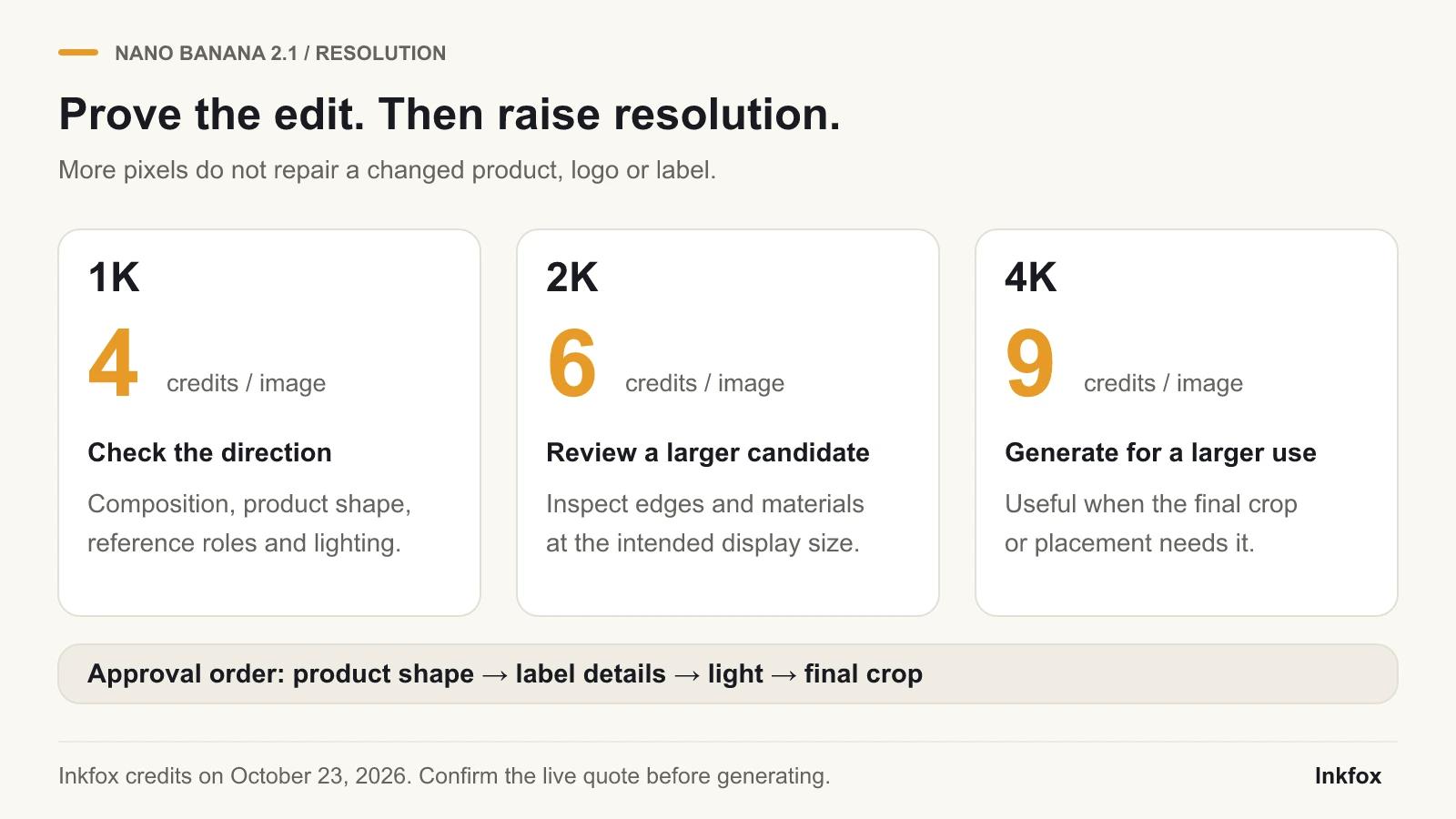
Inkfox pricing is 4 credits at 1K, 6 at 2K, and 9 at 4K. Approve shape and composition before paying for more pixels.
Review the output beside the original at 100% zoom:
Reject a polished scene if it depicts a different product. Use the original design file for approved artwork rather than treating a generated image as the packaging master.
References provide context; they do not guarantee exact reconstruction. Small text, logos, reflections, repeated patterns, transparent edges, and hidden sides need close review. Use only references with distinct roles.
These steps describe the current Inkfox controls and a practical review process; the illustrations are not a performance comparison with earlier models.
For current model fields, see the KIE Nano Banana 2.1 documentation. Google's official Gemini image-generation guide documents multi-image workflows, 1K/2K/4K output, and explicit reference instructions.
No. Ten is the maximum, not the recommended starting point. Product, scene, and tone references are enough for many jobs. Add an image only when it supplies new information.
Start at 1K for 4 credits and check identity, composition, and crop. Generate a new candidate using the selected direction at 2K for 6 credits or 4K for 9 credits when delivery requires it. Each price is for one output image.
It can create scene variations from a real source, but it cannot prove hidden construction, exact size, package contents, or unseen angles. Photograph those facts and compare every edit with the item you sell.
Ready to build a scene around an approved product photo? Open image to image and select Nano Banana 2.1 →
Animate a static logo with AI using four practical motion recipes, source-file preparation, identity-lock prompts, frame-by-frame checks, and export tips.
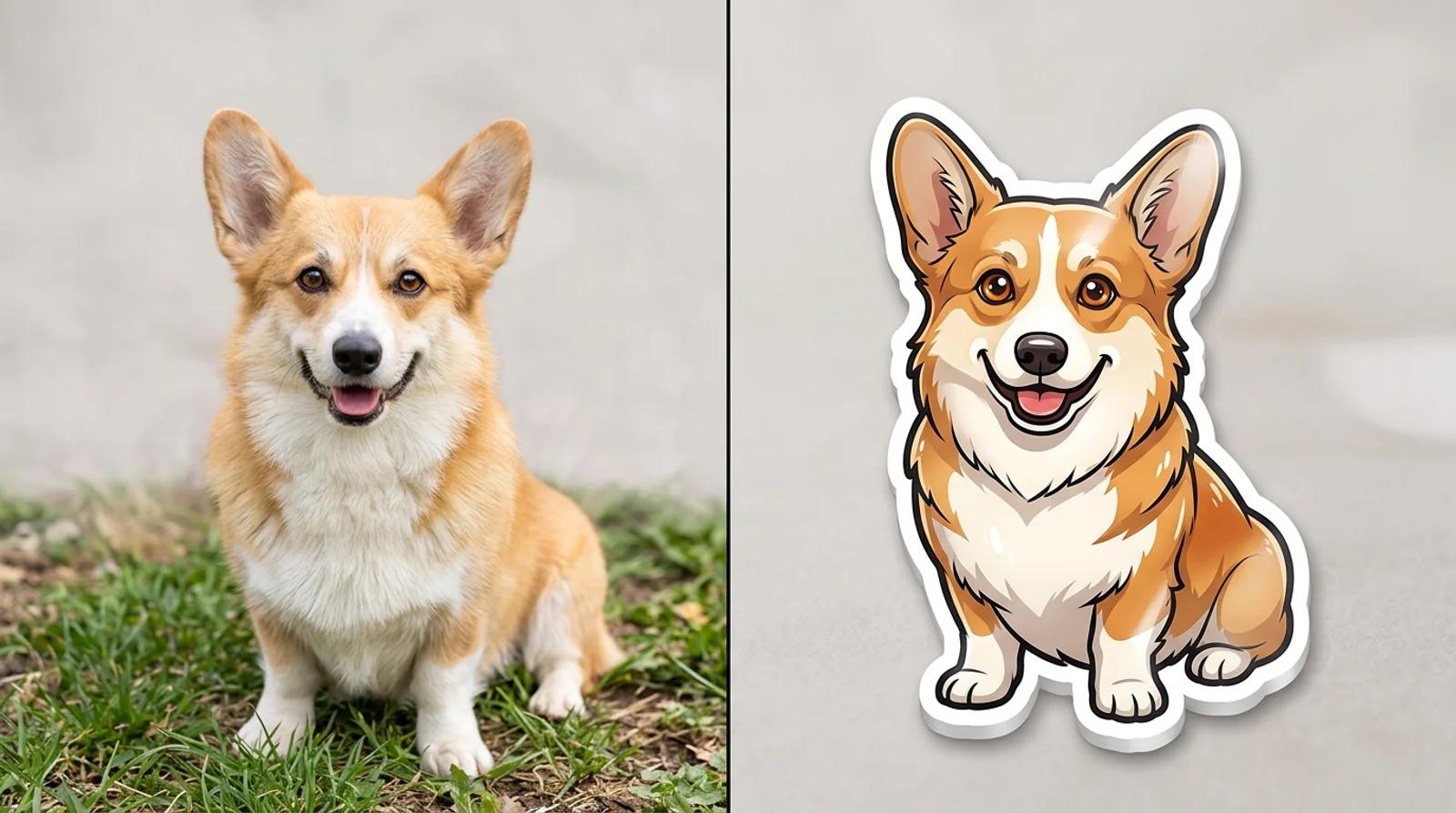
Learn how to turn a photo into a sticker with free AI. Pick a style, upload a pet or face, and get a die-cut sticker with a bold white border for chat packs and print.
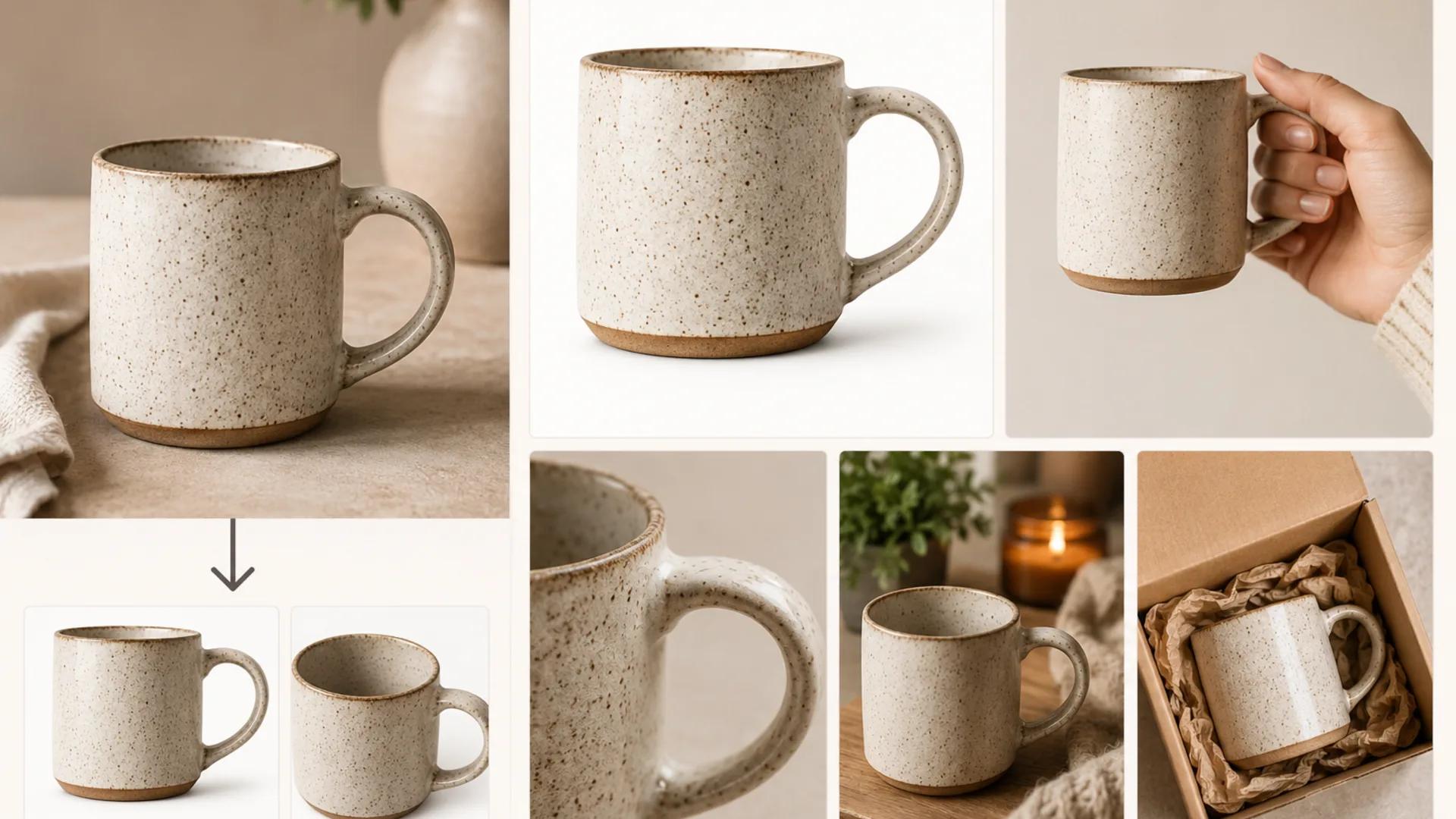
A practical workflow for turning one real product photo into a full Etsy listing set with AI, while keeping shape, color, materials, and handmade variation accurate.
Newsletter
Subscribe to our newsletter for the latest news and updates